In short
Have twenty videos ready? Plan a batch makes each video its own post and spreads them over the days and times you choose — counting what is already planned, so no day gets too many.
Before you start
- The videos — in your Library or on your computer. Up to 100 in one batch.
- Your accounts connected in
Channels: Instagram, a Facebook Page or TikTok. - The times of day you like to post.
1. Start the batch
Press Plan a batch
In
Social Studio, press Plan a batch at the top. Instant Post opens with Spread over days chosen.Or switch an Instant Post
In any Instant Post with two or more videos, choose Spread over days instead of All at the same time.
Pick the videos
On Photos or video, press Library or From your computer. A batch takes videos only: photos are greyed out, and any photo already picked leaves the list.
Pick the accounts
On Accounts, tick each account, or press All or a channel to pick all of its accounts.
2. What each video becomes
On What goes out, each video goes out on its own, at its own time — Story and Post are off in a batch:
- Instagram: a Reel.
- Facebook Page: a Reel — or a Video post when the video does not fit Facebook’s Reels.
- TikTok: a TikTok video.
Then Music and Text and place as in any Instant Post. The caption you write there starts every video’s caption; you can change each one on the last step.
3. Spread them out
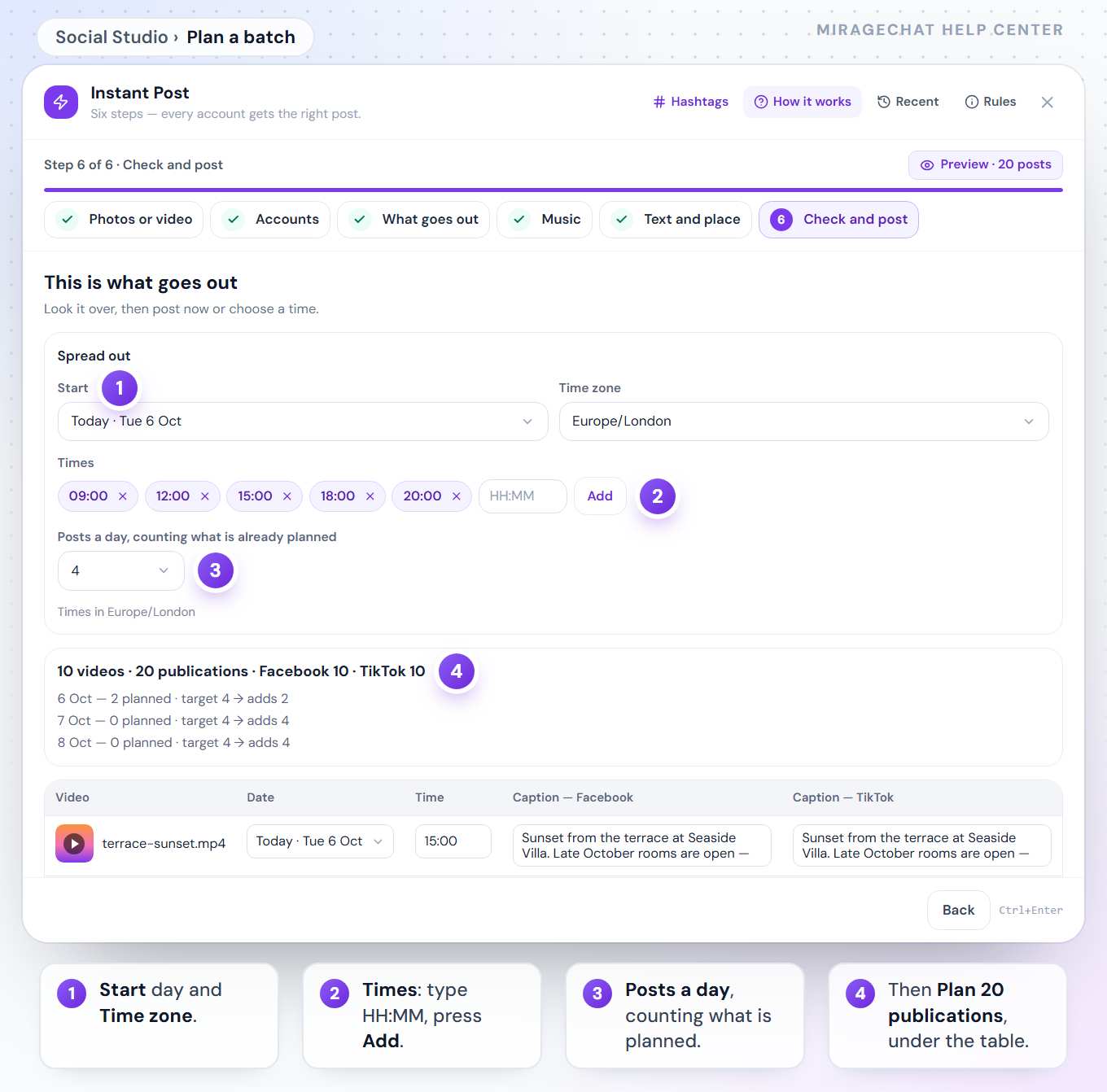
On Check and post, the box Spread out holds four choices:
Start
The first day: Today or any day within the next year — pick it in the calendar.
Time zone
Your device’s zone comes first. The times below are in the zone you choose.
Times
The hours a post may go out — 09:00, 12:00, 15:00, 18:00 and 20:00 to start. Type a time as HH:MM, for example 18:30, and press Add; press × beside a time to remove it. Up to 12 times.
Posts a day
Posts a day, counting what is already planned: from 1 to 24, 4 to start. If an account already has 3 posts that day, the batch adds only 1.
4. Check the plan and schedule it
Read the summary
The first line counts everything, for example 10 videos · 20 publications · Facebook 10 · TikTok 10. Then one line per day, such as 6 Oct — 2 planned · target 4 → adds 2.
Change one video
In the table each video has its Date, its Time and a caption for each platform. Change any cell; a red line under a row says what to fix.
Schedule it
Press Plan 20 publications — the button counts them. Each goes out by itself at its time, with no approval step.
Follow it
When it is done you see, for example, Scheduled · 10 posts from 6 Oct to 8 Oct. Open in Your posts shows them under Scheduled, where each can get a new time or be cancelled.
How the days are filled
- Days fill in order from the start day, and the videos go out in the order you picked them.
- What is already planned counts. Posts already scheduled or published that day, on the busiest of the accounts you chose, take their place first.
- No two posts at the same minute on any account you chose.
- Instagram: at most 6 posts an hour on each account.
- TikTok: at most 15 posts a day on each account. When a day is full, its line says TikTok’s daily limit reached.
- The first post goes out at least 5 minutes from now, and the whole plan stays within the next year.
Good to know
- On Free, every video in the plan uses your 30 posts a month. If the plan needs more than you have left, it says so before you press — plan fewer videos, or change your package under Billing.
- Already posted? If a video already went to one of these accounts, a box lists it with its date. Choose Post it again or Remove them.
- Back to one post: choosing All at the same time again keeps the first 80 videos you picked.
- Every scheduled video can be moved, sent now or cancelled one by one in
Social Studio › Your posts.
If something looks wrong
“1 video does not fit in the next 365 days”
There are not enough free times. Add times, raise Posts a day, or plan fewer videos.
“Some times have passed since the plan was made — it was made again.”
The window stayed open and some times came too close. Look the plan over and press the button again.
“Write a time as HH:MM, for example 18:30.”
A time you typed is not a time. Use the 24-hour clock: 09:00, 18:30.
“Pick a time at least 5 minutes from now.”
A time you changed in the table is too soon. Choose a later one.
A row says “Instagram allows 2200 characters and this caption has …”
That video’s caption is too long for that platform. Shorten it in its cell. Instagram also allows 30 hashtags and 20 @mentions; TikTok allows 2,200 characters and counts an emoji as two.
“Some posts did not start”
The videos named after it were not scheduled, with the reason. The others are — check them in Your posts, then plan the missing ones again.
On your phone
In the MirageCHAT app, Menu › Social Studio has the same Plan a batch button, and any Instant Post with two or more videos offers All at the same time or Spread over days, with the same start, time zone, times and posts a day.
Ready?
Opens MirageCHAT in this tab. Sign in first if you’re not already.
Did this guide help?
Related guides
Still stuck? Write to info@miragechat.io with your workspace name. Never send passwords or codes.