In short
TikTok connects on TikTok’s own screen: you log in there and approve MirageCHAT. Then one more step on the TikTok card, Turn on, brings your comments and insights. TikTok messages are coming soon.
Before you start
- The TikTok login for the account you want to connect.
Steps
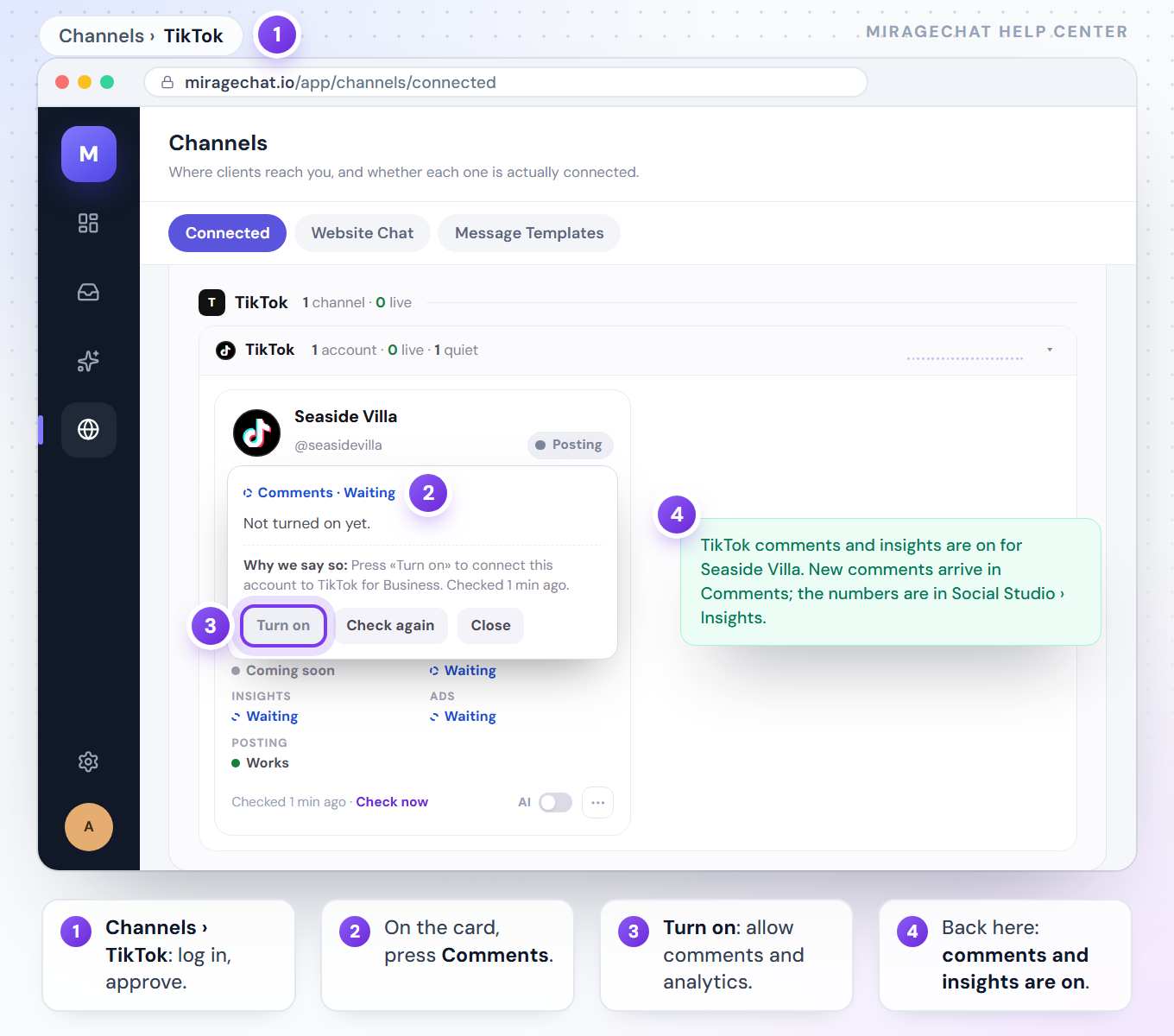
Open Channels and press TikTok
In MirageCHAT, go to
Channelsand press TikTok. TikTok’s own screen opens.Log in and approve
Log in with the account you want to connect and approve what MirageCHAT asks for. You come straight back; the account appears as a card under Channels.
Turn on comments and insights
On the TikTok card, press Turn on. A second TikTok screen opens for the same account — allow comments and analytics there.
Check
Back in MirageCHAT: “TikTok comments and insights are on.” New comments arrive in
Comments; the numbers are inSocial Studio › Insights.
What you can do
- Publish videos with
Instant Post— you choose who can see each one; photos become one video, or go to your TikTok inbox to finish in the app. - Answer comments in
Comments: reply, hide or like them, and delete your own. - Follow your numbers in
Insights: followers and likes, the countries your viewers are in, and each video’s results. - Link your TikTok ads account from the card — read-only.
- TikTok messages in the shared inbox are coming soon.
Good to know
- The card under Channels shows Posting, Comments and Insights separately — what this account can do today.
- TikTok’s second screen must be the same account as the card; a different one is refused, with both names.
- If a cell later says Stopped, press it and connect again; nothing is lost.
Ready?
Opens MirageCHAT in this tab. Sign in first if you’re not already.
Did this guide help?
Related guides
Still stuck? Write to info@miragechat.io with your workspace name. Never send passwords or codes.