In short
Coming soon. Google opens in MirageCHAT soon. Then you press Google in Channels, sign in on Google’s own screen and choose the profiles MirageCHAT manages. Each profile becomes a card; its reviews, posts and numbers follow.
Coming soon. Google opens in MirageCHAT soon. Today the row under Channels reads Google · SOON and doesn’t open yet; this guide shows how it will work.
Before you start
- The Google account that manages your Business Profile, as its owner or manager.
- A profile Google has verified. One that isn’t verified can’t be connected until it is.
- About 3 minutes.
Steps
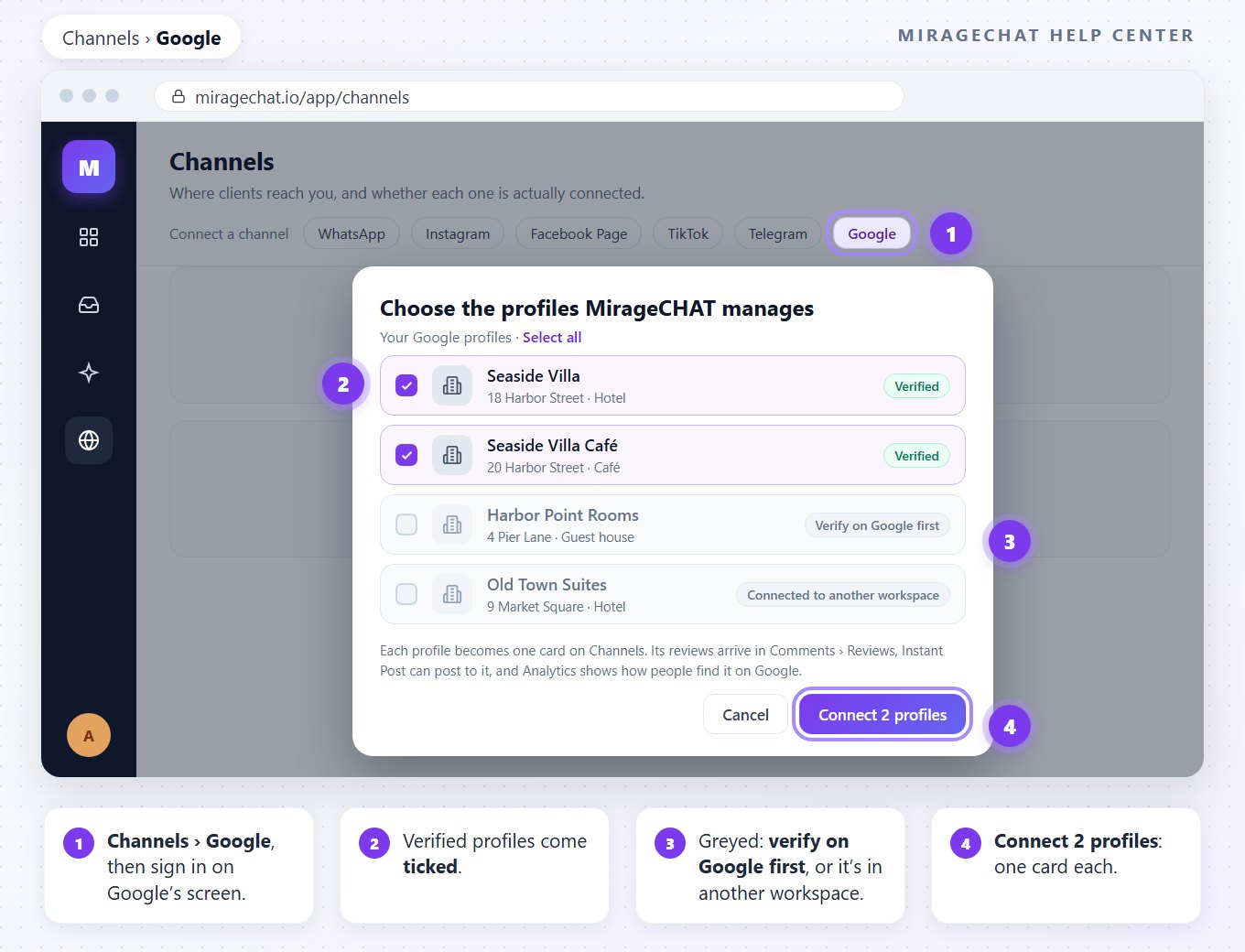
Open Channels and press Google
In MirageCHAT, go to
Channelsand press Google. Google’s own sign-in screen opens; MirageCHAT never sees your password.Sign in and allow
Sign in with the Google account that manages your profile and allow what MirageCHAT asks for. You come straight back.
Choose the profiles
The window Choose the profiles MirageCHAT manages lists your profiles, the verified ones ticked. One Google hasn’t verified reads Verify on Google first; one already in another workspace reads Connected to another workspace.
Connect them
Press Connect N profiles — the button counts the ones you ticked. Each profile becomes one card under Channels.
What each profile brings
- Reviews arrive in
Comments › Reviews, next to your Facebook Page reviews — Reply to Google reviews. - Posts: Instant Post can send an update, an event or an offer to the profile — Post to Google from Instant Post.
- Numbers: views, calls, website clicks, directions and bookings — Google in Analytics.
- No messages. Google ended Business Profile messaging in 2024, so a profile brings no chats to the Inbox.
Disconnect a profile
Open the menu on the profile’s card under Channels and press Disconnect. MirageCHAT stops reading it; the profile itself stays on Google as it is.
If something looks wrong
When can I connect Google?
Google opens in MirageCHAT soon. Until then the row under Channels reads Google · SOON.
A profile says “Verify on Google first”
Google hasn’t verified that profile yet. Verify it on Google, then connect it.
A profile says “Connected to another workspace”
It is already connected to another MirageCHAT workspace. A profile is managed from one workspace at a time.
My profile isn’t in the list
Google shared no profile for that sign-in. Sign in with the Google account that manages your profile, or add yourself as its owner or manager on Google.
Does a profile count as a connected account?
Yes, each profile is one connected account in your package. With no free place left, the window says so and that profile isn’t connected.
Can customers message me through Google?
No. Google ended Business Profile messaging in 2024. Your customers’ chats keep arriving from your other channels.
Did this guide help?
Related guides
Still stuck? Write to info@miragechat.io with your workspace name. Never send passwords or codes.