In short
Coming soon. Google opens in MirageCHAT soon. Then your Google reviews arrive in Comments › Reviews. Open one, write your answer and press Post reply on Google — it appears publicly under the review.
Coming soon. Google opens in MirageCHAT soon. Facebook Page reviews already work in the same place: Answer comments, mentions and reviews.
Before you start
- A Google Business Profile connected — Connect Google.
- Access to answer in
Comments. An account that can only read sees the reviews without the reply box.
Steps
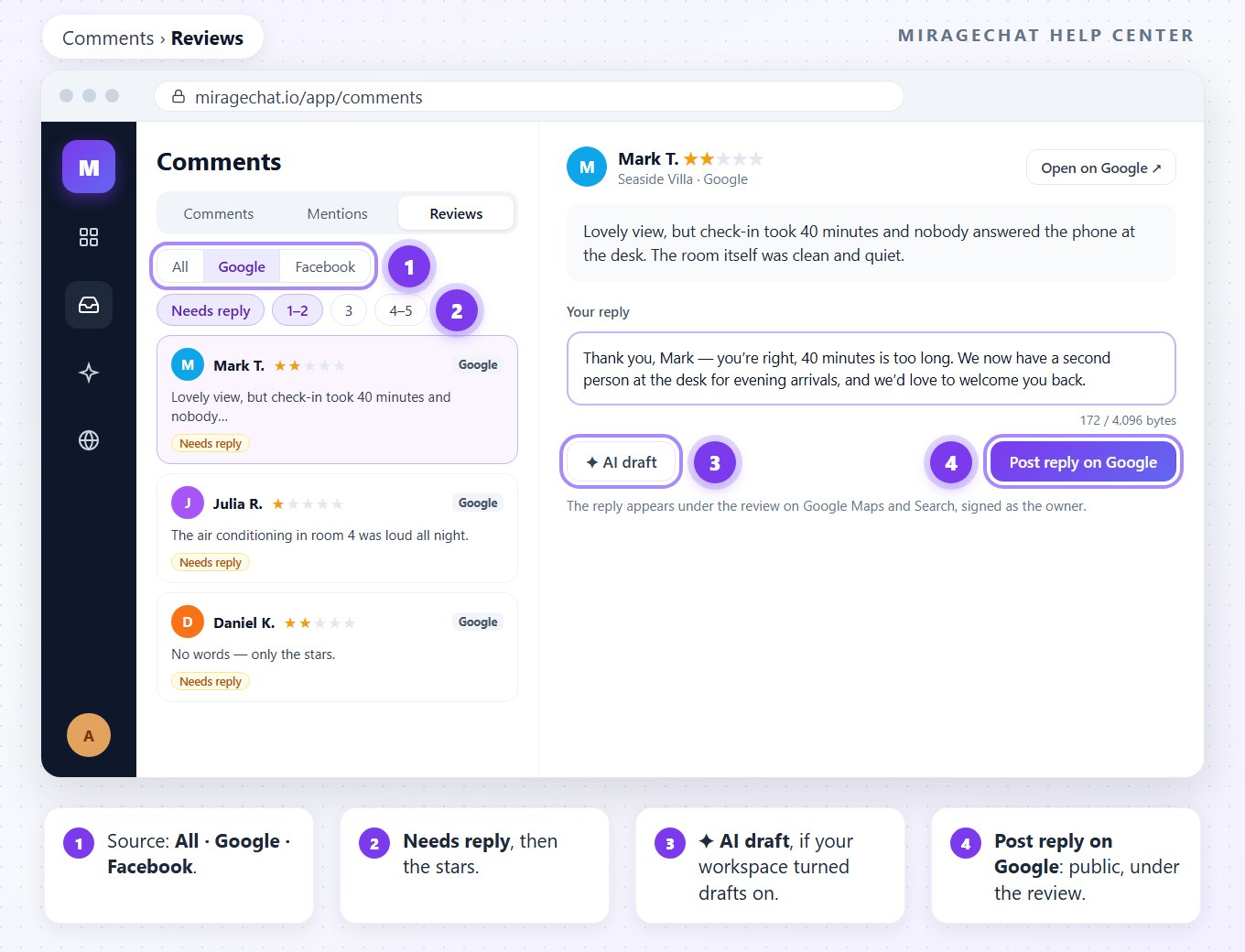
Open Reviews
Go to
Commentsand press Reviews. Choose the source: All, Google or Facebook.Find the ones waiting
Needs reply keeps the reviews nobody has answered. For Google, filter by stars: 1–2, 3 or 4–5.
Write your reply
Open a review and write your answer, up to 4,096 bytes — about 4,000 letters of plain text. With AI drafts on, ✦ AI draft writes one for you to read and change.
Post it
Press Post reply on Google. The reply appears publicly under the review on Google Maps and Search, signed as the owner.
Edit or delete a reply
Press Edit reply to change your answer; the new text replaces the old one under the review. Delete takes it away from under the review, and you can write a new one.
Let the AI help
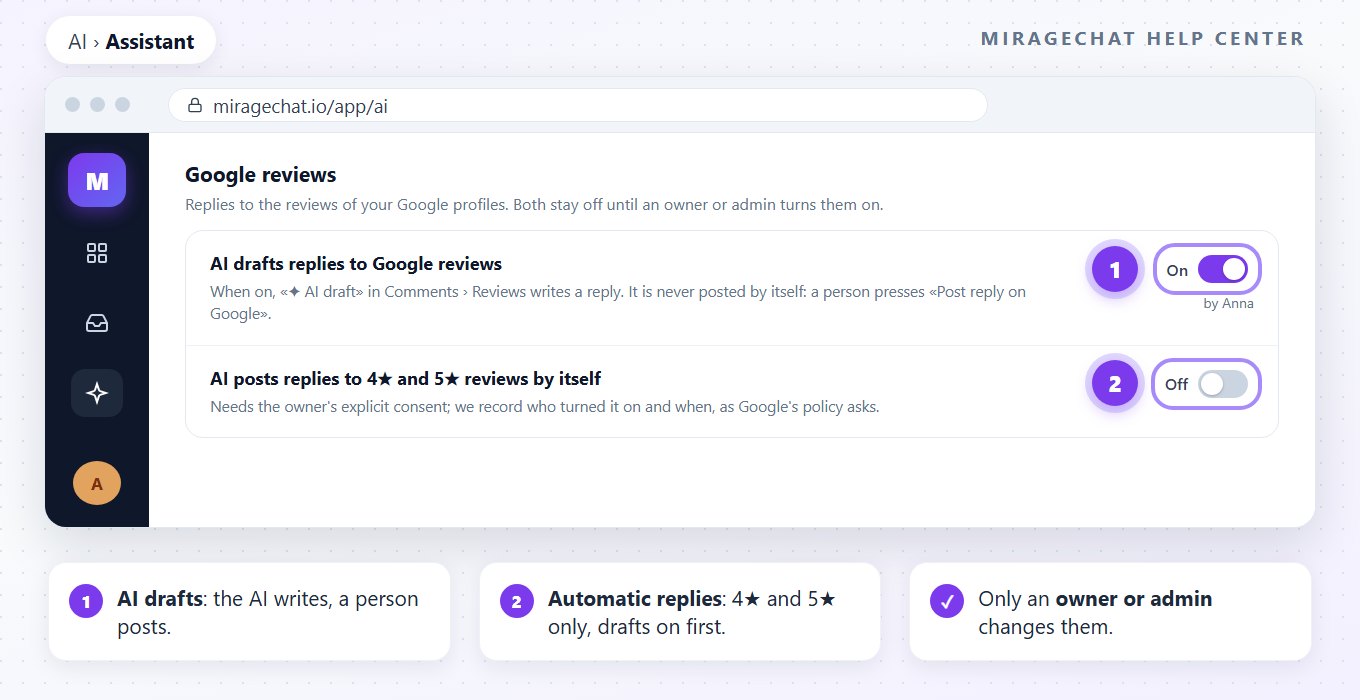
In AI › Assistant, the Google reviews section has two switches. Both stay off until an owner or admin turns them on.
- AI drafts — ✦ AI draft appears in
Comments › Reviewsand writes a reply. It never posts by itself: a person presses Post reply on Google. - Automatic replies — the AI posts replies to 4★ and 5★ reviews by itself. It needs AI drafts on; reviews with fewer stars wait for a person.
- Who changes them: only an owner or admin. Under each switch, MirageCHAT shows who turned it on and when.
The automatic replies switch reads: “Needs the owner's explicit consent; we record who turned it on and when, as Google's policy asks.”
If something looks wrong
When can I answer Google reviews here?
Google opens in MirageCHAT soon. Facebook Page reviews work today, in the same place.
I don’t see ✦ AI draft
AI drafts are off for Google reviews. An owner or admin can turn them on in AI › Assistant.
Can the AI answer a 1-star review by itself?
No. Automatic replies are for 4★ and 5★ reviews only. Every other review waits for a person.
The star filter hides my Facebook reviews
Stars are Google’s. Facebook reviews recommend or not, so they are left out while a star filter is on.
I can read reviews but can’t answer
Your account can read reviews but not answer them — ask an owner or admin.
Did this guide help?
Related guides
Still stuck? Write to info@miragechat.io with your workspace name. Never send passwords or codes.