In short
The AI answers your customers only from what you teach it. For each channel you choose Off, Suggests — it writes a reply and your team sends it — or Replies — it answers by itself and hands over when it isn’t sure. Every AI setting is on one page, AI › Assistant, in tabs.
Before you start
- A paid package — Starter, Growth or Pro — or the free trial. Free has no AI: the page shows which packages include it, with See packages.
- The owner or an admin of the workspace. Colleagues use the AI’s drafts in the Inbox; changing the AI stays with you.
- At least one connected channel.
- Your website address — or the facts you want it to know, written or in a file.
The page at a glance
| Tab | What it is for |
|---|---|
| Overview | What the AI does right now, this month’s AI replies, and what waits for you in To do. |
| Channels | Off, Suggests or Replies for each channel, the library each one reads, and how it sounds. |
| Knowledge | Your libraries — what it knows. Open one to see and change it. |
| Models & keys | Which AI model answers, on your plan or your own key, and the backup. |
| Runs on its own | AI work nobody asks for: sorting, tone, summaries, learning every night, reading your website again. |
| Limits | The safety rules that are always on, and the limits you choose. |
| Test | Ask as a customer. Nothing is sent to anyone. |
First time: teach it, try it, turn it on
With no library yet and the AI off everywhere, Overview shows three steps instead of the usual cards.
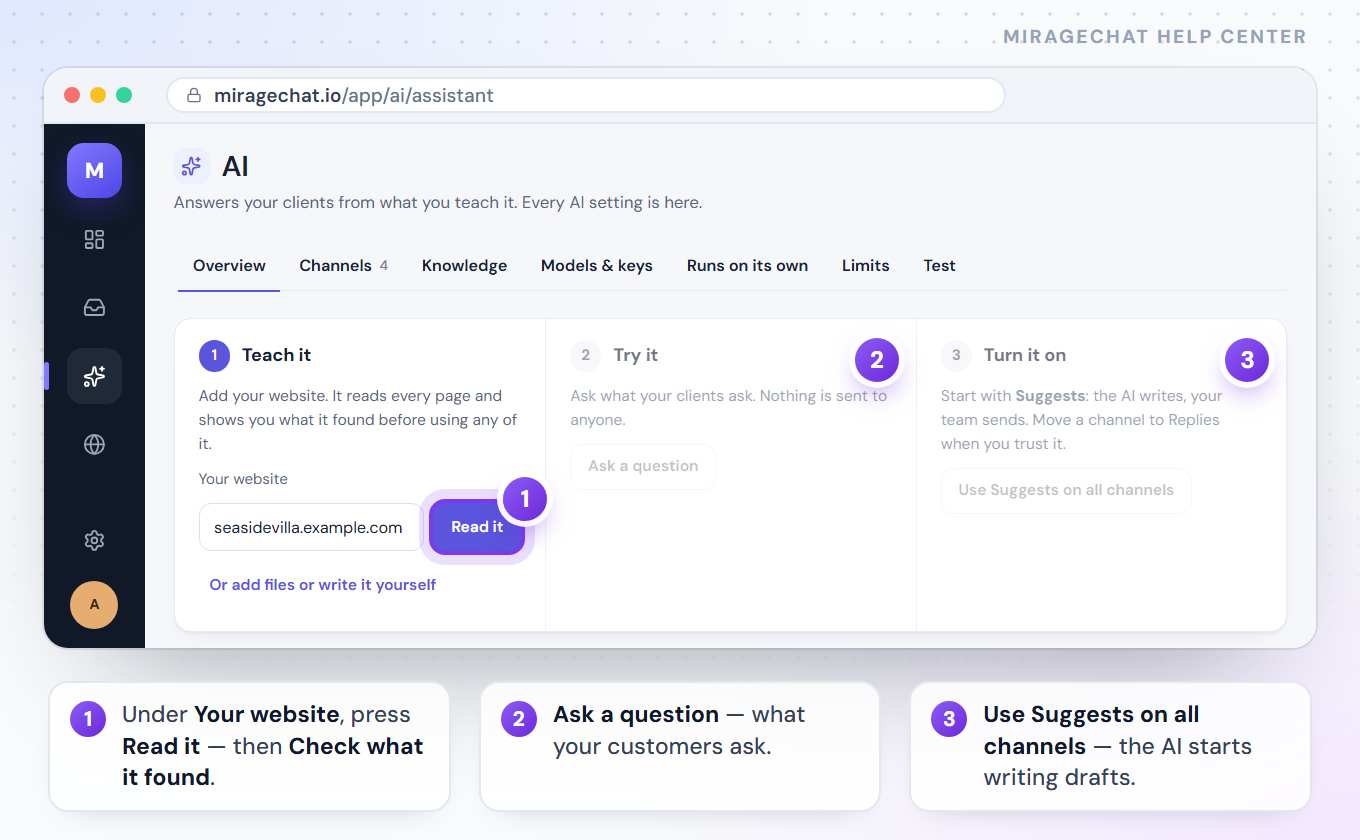
Teach it
Under Your website, paste your address and press Read it. It reads every page and shows its progress. No website? Press Or add files or write it yourself.
Check what it found
When the read ends, press Check what it found. The library opens on Highlights: approve what is right, edit or remove the rest. The AI uses nothing until you approve it — more on libraries.
Try it
Back on
AI › Assistant, press Ask a question and ask what your customers ask — prices, hours, how to book.Turn it on
On Overview, press Use Suggests on all channels. Every channel reads the new library, and the AI starts writing drafts for your team to send.
Choose where it replies, and how it sounds
Open Channels
Open the Channels tab. Under Where it replies there is one row per channel; channels with the same name — Seaside Villa on Instagram and on Messenger — share a row.
Pick its library
In the row’s list, choose the library that channel answers from. No library means it knows nothing, so every question goes to your team.
Pick what it does
Off: your team answers and the AI stays quiet. Suggests: the AI writes a reply in the Inbox and your team sends it. Replies: the AI answers by itself, and hands over when it isn’t sure.
Undo a library change
A green line confirms each library change, with Undo to give every channel back what it read before.
Pick how it sounds
Lower on the same tab, under How it sounds, choose Friendly, Professional, Short or Warm. The bubble beside it shows an example.
Give one channel its own voice
Under A different voice for one channel, change a channel from Same as everywhere to another voice.
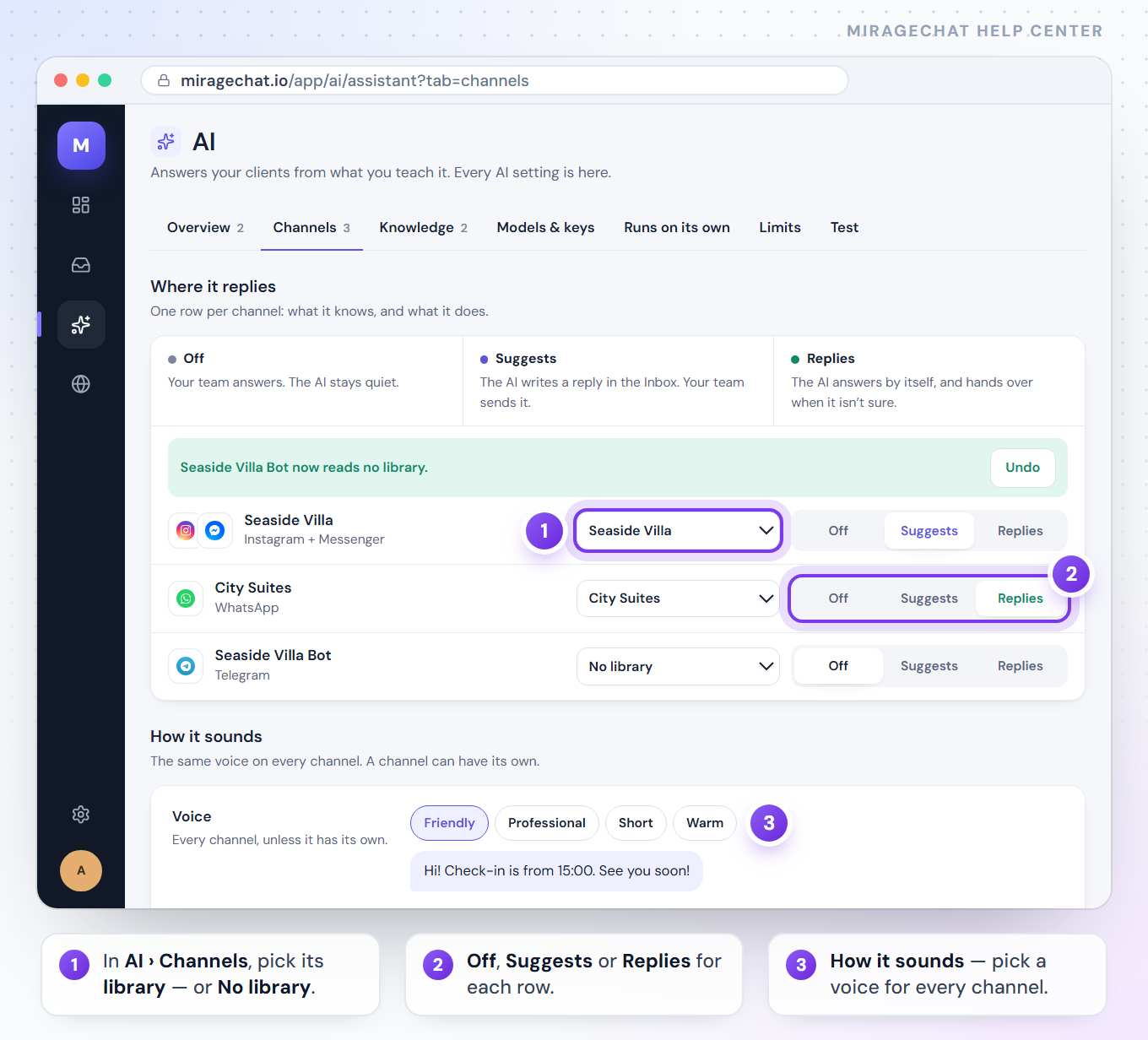
Start with Suggests. Read the drafts for a few days, then move a channel to Replies when you trust it.
Use the AI’s drafts in the Inbox
On a channel set to Suggests, an AI draft card appears above the box where you type, in the conversation it was written for.
Send it
Send sends the draft as it is.
Or edit it
Edit puts it in the typing box, after anything you already typed. Change it and send it as usual.
Or ask for another
Write another replaces it with a new draft.
Or drop it
Discard removes it.
A colleague sees the drafts when their AI assistant access in Team › Agents is Use drafts.
Answer what it couldn’t
When the AI doesn’t find an answer, it passes the chat to your team and the question waits in To do on Overview.
Open the questions
Next to questions it couldn’t answer, press Answer.
Write the answer
Under each question, write the answer the way you would to a customer and press Save answer. It goes into the library, and the AI uses it from the next message on.
Or set it aside
Not for the AI removes the question without teaching anything. Your team still has the chat.
Check what it learned
A row like new things learned for Seaside Villa means a read found something new. Press Check to approve it in that library’s Highlights.
Google reviews are coming soon: a Google reviews section here with two switches, AI drafts and Automatic replies for 4★ and 5★ reviews, both off until an owner or admin turns them on — Reply to Google reviews.
Choose the AI model
Open Models & keys
The line at the top says which model answers now, and what happens if it can’t. With nothing chosen, MirageCHAT’s default AI answers from your plan.
Pick a provider
Choose OpenAI, Anthropic, Google Gemini or Gemini Free. Each model shows its level — Free, Standard or Best — and what a reply costs, for example 1 reply = 3 from your plan.
Connect your own key, if you want
Paste your API key and press Connect. It is checked with the provider, stored encrypted and never shown again. A model on your own key is billed by that provider, not by your plan.
Press Use
Press Use on a model. New messages are answered by it, and its row says In use.
Choose the backup
Under If the model cannot answer, choose Hand over to your team, MirageCHAT’s backup from your plan, or another model.
Gemini Free needs your own free Google key and a tick in the box under it. On Google’s free tier, Google uses the conversations to improve its products, people at Google may read them, and its free limits can run out in the middle of a conversation.
Set its limits
On the Limits tab. When a limit is reached, the AI stops and every conversation goes to your team.
| Setting | Choices | What it does |
|---|---|---|
| Monthly limit | $10 · $30 · $50 · $100 | The most it spends each month past the AI replies in your plan. |
| Daily limit | $1 · $2 · $5 | Part of the monthly limit. |
| Stay quiet after your team replies | 6 · 12 · 24 hours | How long the AI waits before it can answer that chat again. |
| Questions off topic before it stops | 1 · 3 · 5 | Then it hands the chat to your team. |
| AI replies for one visitor, per day | 10 · 20 · 50 | Protects your plan from one person. |
| Longest message it reads | 300 · 500 · 1,000 characters | Longer messages go to your team. |
Safety is always on: it talks only about your business, never makes up a price or a date, and steps back as soon as someone from your team replies.
What it does on its own
- Sort new messages — marks how urgent each new customer message is.
- Read the tone — marks whether a customer sounds happy or upset, and the tone of new reviews.
- Summarize conversations — keeps a short summary of each conversation, updated every 30 minutes.
- Keeps learning from new conversations — every night it reads what the ticked channels received; the new things wait in To do for you to check.
- Reads your websites again — at night, 01:00–03:00 UTC, as often as you choose; what changed waits for you before the AI uses it.
All of them are on the Runs on its own tab and use the model you chose. Turn off what you don’t need.
Test it
Open Test
In the list at the top, pick the channel to ask on — it reads As a client on and the channel’s name.
Ask
Type a question and press send, or tap one of the suggestions under the chat — they come from what it knows.
See where it came from
Under each answer: the facts and pages it used, the model and how long it took. Not in the library · added to To do means it didn’t know — answer it in To do.
Nothing in Test is sent to anyone. You can run 20 tests an hour.
Pause it or turn it off
- Everywhere at once: on Overview, turn on Pause everywhere. Every conversation goes to your team, and each channel keeps its own choice for when you turn the pause off.
- On one channel: set its row to Off on the Channels tab.
- Be told when it stops: in
Notifications, under Something needs fixing, turn on The AI stops answering.
Good to know
- AI replies in your plan: 100 a month on Starter, 500 on Growth and 1,000 on Pro. This month on Overview shows how many you used and when they start again. Replies on your own key, or on Gemini Free, use none of them.
- Past your plan, replies are paid from your balance — never more than the Monthly limit.
- TikTok: a row with TikTok says «TikTok auto-replies coming soon». TikTok messages are coming soon, so there is nothing for the AI to answer there yet.
- Who can change it: only the owner or an admin of the workspace.
If something looks wrong
«It reads no library, so every question goes to your team.»
That channel’s row is set to No library. Choose a library in its list on the Channels tab.
The AI gave a wrong answer
Fix the source, not the answer. Test shows what it used; open that library from the Knowledge tab and correct or remove the highlight or the page.
The AI stopped answering
Check, in order: Pause everywhere on Overview, the channel’s row on Channels, the Monthly and Daily limits on Limits, and This month on Overview.
«The provider rejected this key. Replace it.»
On Models & keys, press Replace key and paste a new key. «This key is out of credit at the provider» means: top it up with that provider.
«The model you chose is no longer offered»
Press Use on another model. Until then, the backup answers.
«At most 20 tests an hour.»
Test again a little later — the limit counts the last hour.
«Only the workspace owner or an admin can change this.»
Ask the owner or an admin to make the change.
The page says AI is included in Starter, Growth and Pro
Your workspace is on Free. Press See packages and choose one under Billing; the new package opens at once.
On your phone
In the MirageCHAT app, open Menu › AI assistant: Right now with Pause everywhere, To do, Where it replies with Off, Suggests and Replies for each channel, Try it and How it sounds. In a conversation, the AI draft card has the same Send, Edit, Discard and Write another.
Ready?
Opens MirageCHAT in this tab. Sign in first if you’re not already.
Did this guide help?
Related guides
Still stuck? Write to info@miragechat.io with your workspace name. Never send passwords or codes.