In short
Analytics shows what came in, from where, and how fast a person or the AI answered — automatic messages never count as an answer. One filter bar drives every number on the page, and each channel has its own page with the numbers only it has.
Before you start
- At least one connected channel with conversations in the period you look at.
- Every package shows the board for Today, Yesterday, the last 7 or 30 days and This month. Longer periods, your own dates, the business, topic and status filters, CSV export, alerts and each channel’s own page are in the paid packages — on Free they carry a small package chip.
- Colleagues need Analytics access in
Team › Agents: My numbers for their own channels, or Whole workspace.
Set the period and filters
Pick the period
Press the date button at the left of the filter bar — it opens on Last 30 days. Choose a period, or click a first and a last day on the calendar, then press Apply.
Choose what to compare with
In the same window: Period before, Last year or Off. The switch on the bar turns the comparison on and off; each number then shows its change, green when better and red when worse.
Filter by business or topic
All businesses picks one business — one name across its channels, like Seaside Villa on WhatsApp and Instagram. Every topic picks what customers asked about.
Add more filters
More adds the status — open or closed — and who answered: The AI answered, A person answered or Nobody answered.
Start over
Clear filters puts everything back to the last 30 days.
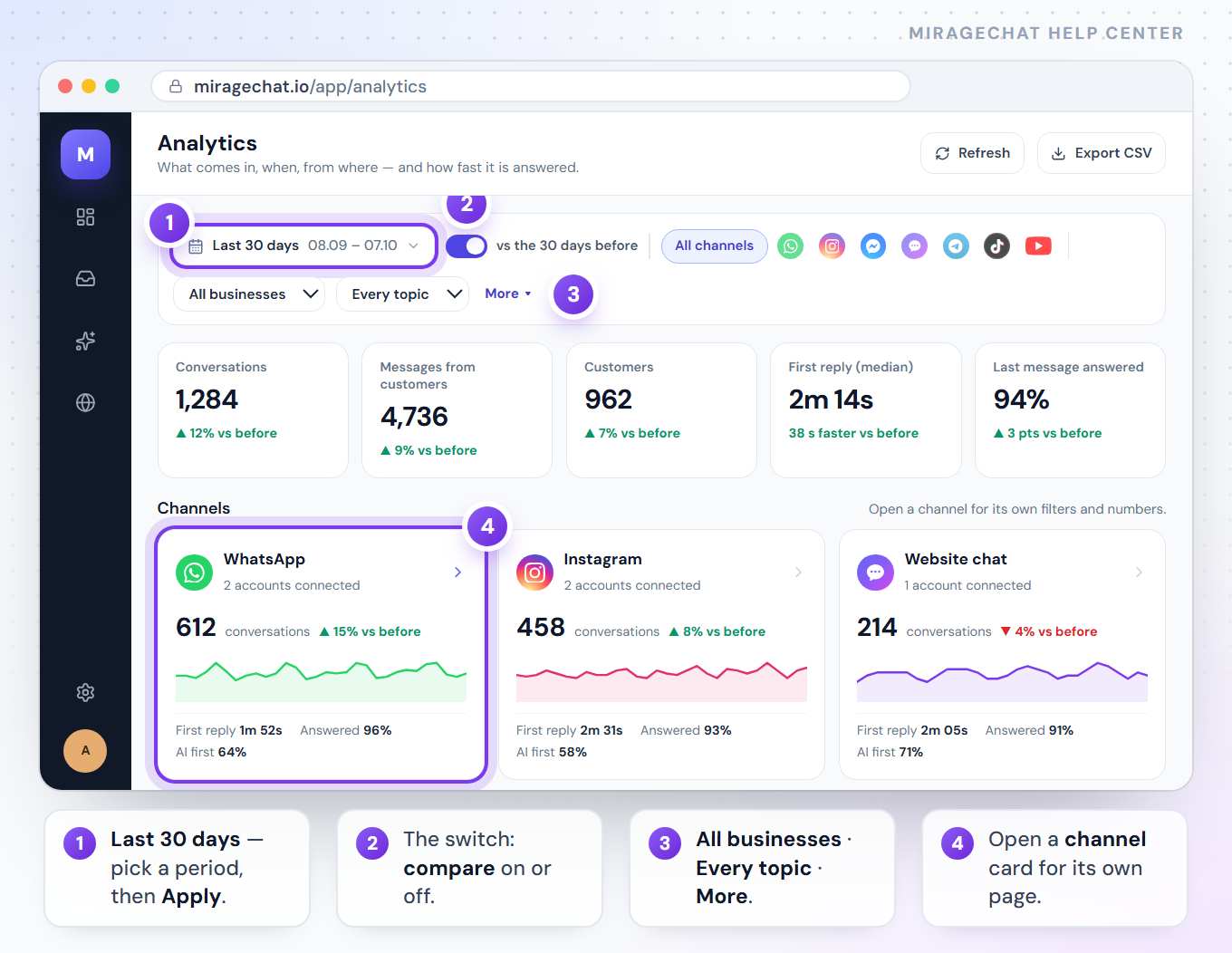
The numbers at the top
| Number | What it means |
|---|---|
| Conversations | Conversations where a customer wrote in the period. A customer who comes back counts in the week they came back. |
| Messages from customers | Every message customers sent in the period. |
| Customers | How many different people wrote. |
| First reply (median) | How long a customer waited for a person or the AI. Automatic messages don’t count; waits of more than two days are left out. |
| Last message answered | The share of conversations where the customer’s last message got a reply. |
Read the board
- Channels — a card per channel: conversations, a small line over the period, first reply, answered, and AI first — how often the AI replied first. Click a card to open that channel.
- Conversations — a chart by channel. Switch between Day and Hour; Hour works for periods of three days or less.
- By channel — each channel’s share, New · back (conversations that began in the period, or came back to an older one), first reply, answered and AI first.
- Busy hours — when customers write, by weekday and hour, with the busiest hour named. Use it to plan who is online.
- What customers ask about — topics found by keywords in what customers wrote, in several languages. Click a topic to filter the page by it.
- Who answered — replies by The AI and by Your team, conversations Handed from the AI to a person, and Automatic messages. How each person worked is in
Team › Performance. - Businesses, Customers, Waiting now — the tabs at the bottom. Businesses compares your businesses, with Only this to filter to one. Customers lists who wrote most. Waiting now shows who waits for an answer right now, for how long and who has it — press Open to answer.
Open one channel
Open it
Click a channel’s card, its row in By channel, or its logo in the filter bar. All channels brings you back.
Use its own filters
The bar under the channel’s name filters by its number, account, Page, website or bot, by message type, language, new or returning customers, who answered — the AI, a person or one colleague — and status. WhatsApp adds country, mood and where replies were sent from.
Read its blocks
Conversations per day, busy hours, days of the week, who wrote our replies, what customers send and languages. Then what only that channel has: on WhatsApp, whether messages arrived, templates, what Meta charged and countries; on Instagram and Messenger, stories and whether replies were seen; on your website, the visitors who opened the chat and the pages they were on.
See the profile numbers
Instagram, Messenger and TikTok have tabs: Messages, and Profile & posts, Page & posts or Profile & videos with the platform’s own numbers — followers, reach, views and the best posts.
Go and answer
Open Inbox or Open Comments takes you straight to the work.
Google is coming soon as a channel of its own here: views on Search and Maps, calls, website clicks, directions and bookings for your Google Business Profile — Google in Analytics.
Export, alerts and summaries
Export
Press Export CSV at the top. On the board, the file holds the channel and business tables and the customers of the period; on a channel’s page, that channel’s numbers.
Be told when a number crosses a line
In
Notifications, under Numbers to watch, set a line for slow replies or for too many unanswered conversations. When one is crossed, a red banner shows on Analytics with Change in Notifications.Get the numbers by email
Under Summaries in
Notifications, choose a summary every week or every evening.
Good to know
- Days are your workspace’s own. The time zone is named at the bottom of the page.
- Refresh at the top reads the numbers again without leaving the page.
- Colleagues: a chip beside the title says Your accounts or Whole workspace. A person on a channel that isn’t theirs shows as «A client on another channel».
- TikTok numbers come from TikTok, in TikTok’s own windows and 1–2 days late. TikTok messages are not counted yet — its card says Messages soon.
If something looks wrong
A channel card says nobody wrote in this period
Nobody wrote there in the dates you picked. Choose a longer period, or check that the channel is connected in Channels › Connected.
The first reply looks slow
It counts only answers from a person or the AI. A welcome or away message is not an answer — the customer still waited.
Some periods or filters are grey
They are in the paid packages; the chip beside them names the package. Change your package under Billing.
Hour is grey on the chart
Hours work for periods of three days or less. Pick a shorter period.
«Could not load Analytics.»
Press Refresh. If it stays, try again in a minute.
A profile tab shows a message instead of numbers
Instagram or Facebook didn’t give the numbers for that account. The message is the platform’s reason.
A topic misses a conversation
Topics are found by keywords, so a customer who said it in other words may not be counted. A conversation can have more than one topic.
On your phone
In the MirageCHAT app, open Menu › Analytics. Choose Today, 7 days or 30 days to see conversations, first reply, last message answered and clients against the period before, who answered, each channel and who waits right now. On a paid package, tap a channel for its own page.
Ready?
Opens MirageCHAT in this tab. Sign in first if you’re not already.
Did this guide help?
Related guides
Still stuck? Write to info@miragechat.io with your workspace name. Never send passwords or codes.