In short
Customers is your one address book: everyone who writes to you on a connected channel, plus everyone you add or import. Six ready-made groups and your own lists sit above the list. Each row shows their channels, their last message, their tags and lists, their Marketing consent, where they came from and what they spent. Tick people to put them in a list, tag them, add them to a follow-up or send a campaign; click a person for everything about them. Follow-ups and Growth pick their people from here.
Before you start
- At least one connected channel — a person appears here the first time they write to you. You can also add people who never wrote, one by one or from a file.
- Owners and admins can do everything here. A colleague’s access is set in
Team › Agents: with Clients at View they read the list and each person and export; Edit tags & VIP adds tags, VIP and lists. People who never wrote are seen by owners, admins and colleagues with Campaigns at Send — and only they add or import people. Send a campaign needs Campaigns at Send, and Add to a follow-up needs that and Automations at Edit.
The six ready-made groups
All customers opens on six cards above the list. Each shows how many people are in it, and a click shows only them. A colleague’s numbers count only the channels they can open.
| Group | Who is in it |
|---|---|
| Everyone | Everyone who wrote, and everyone you added. |
| New this week | Their first message came in the last 7 days. |
| Waiting for you | Their last message has no reply, in a chat that is not closed or snoozed — the Inbox counts the same way. The number turns amber. |
| VIP | The people you marked VIP. |
| Quiet for 30+ days | Nothing from them in the last 30 days. |
| Bought | Someone on your team pressed Won in a chat with them — how. The number turns green. |
Add people, or import them
Add one person
Press + Add person: their name, their WhatsApp number with the country code, an email if you have it, a list and tags. Tick They agreed to get offers on WhatsApp only when they did, and say where and when — it is kept as proof. Nothing is sent to them.
Import many
Press Import: drop a CSV file, paste rows from Excel or Google Sheets, or choose From WhatsApp chats. Pick which column is the WhatsApp number. Tick Everyone in this file agreed to get offers on WhatsApp and say where — or leave it off and they come in as Not asked. Choose a list (a new one is named after the file) and a tag.
Read the answer
For example 38 added · 4 merged with people you have · 2 rows unreadable, with each unreadable row’s number and why. The same number is never added twice: someone you already have is merged — a missing name or email filled, the tags added. People who said STOP stay STOP.
Your lists
Beside the six groups — made by MirageCHAT — sit your lists, which you name yourself: “Summer 2026 guests”, “Wedding enquiries”. Click one to see only its people. + New list makes one; tick people and press Add to a list to fill it; with a list open, Take out of «…» removes the people ticked. Growth sends a campaign to a list, and Follow-ups › Add people offers From a list.
Find a customer
Pick a group
Go to
Customersand click a card — or stay on Everyone. The line above the list says how many people match, for example 6 people · Waiting for you.Search
Type in Search a name, a phone number, a message…. It finds a name, a phone number — with or without + and spaces — an @handle, the ID a channel gives the person, and their last message. The list changes as you type.
Narrow the list
Use the lists beside the search: All channels for one channel, Any tag for one tag — or ⭐ VIP only and Not VIP — Any language for the language they write in, Any consent for Subscribed, Not asked or Said STOP, and Any source for Wrote to you, Imported or Added by you. They add to the group or list you picked.
Sort it
The last list orders the rows: Last contact ↓ (the newest first, as it opens), Last contact ↑, Name A→Z, Most messages, Newest first or Oldest first.
Go to the next page
The list shows 50 people at a time. The arrows under it move to the next or the previous page.
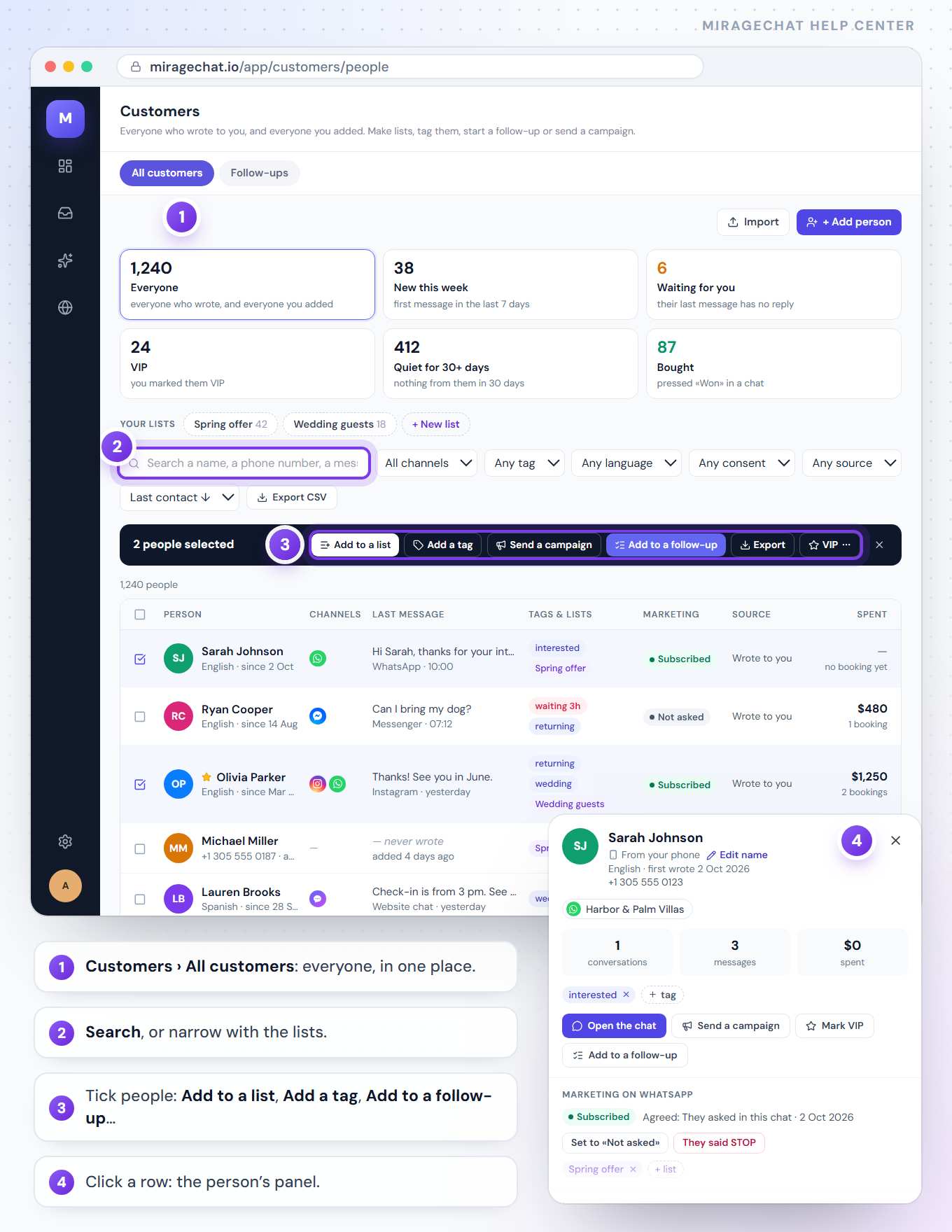
What a row tells you
- Person — their initials, their name with a star when they are VIP, and their language and since when they write, for example German · since 14 Aug.
- Channels — the mark of each channel they wrote on.
- Last message — the newest message of their newest chat, with its channel and time: 10:12 today, yesterday, 3 days ago. A conversation locked for you shows Locked conversation.
- Tags & lists — up to three tags, then +2 for the rest, and the lists they are in. When they wait for your answer, a red pill comes first: waiting 25m, waiting 3h, waiting 2d.
- Marketing — Subscribed (they agreed to get offers on WhatsApp; hover for where), Not asked, or Said STOP. A STOP — or WhatsApp’s own “stop marketing” — always wins. Growth reads the same column.
- Source — Wrote to you, Imported or Added by you. Someone who never wrote reads — never wrote where the last message would be.
- Spent — what your team recorded with Won in their chats, per currency and never added across currencies, with 1 booking, 3 bookings or no booking yet under it.
Open one person
Click their row
Their panel opens beside the list — on a smaller screen, over it. At the top: their name, a star when they are VIP, their language and the day they first wrote.
Their channels and facts
A chip for each chat — their number or @handle, or your account’s name — with closed or waiting 25m when it applies; click one to open that chat in the Inbox. Under them, three numbers: conversations, messages and spent.
Tags and the next step
+ tag adds a tag, the small x on a tag removes it. The buttons: Open the chat, Send a campaign, Mark VIP or Unmark VIP, and Add to a follow-up.
Marketing on WhatsApp
Their consent, with where and when they agreed. They agreed… records a yes (where and when, kept as proof); Set to «Not asked» takes it back; They said STOP stops every campaign to them. Only the person lifts a STOP, by writing START. Under it, their lists — + list adds one, the x takes them out. Someone who never wrote also has Remove from your client list.
Their follow-ups
Under Follow-ups, each one they are in now, for example Warm up interested people · message 2 of 3 goes Fri 9 Oct at 10:00 on WhatsApp. Take them out asks first; after that, the follow-up sends them nothing more.
History and notes
History, all channels shows their latest ten messages and wins, newest first — You: or AI: before yours. Notes shows your team’s latest internal notes. Press the X, or Escape, to close the panel.
Do something for many people at once
Tick the people
Tick the box at the start of each row, or the box above the list to pick everyone on this page. A dark bar appears — 2 people selected — with the next steps; the X at its end clears it. People stay ticked when you change the page or the group.
Add a tag
Press Add a tag, type it in Tag… — your tags are suggested — and press Add. Someone who already has it keeps it once. If a follow-up listens for that tag, it starts for everyone the tag is new to.
Add to a follow-up
Press Add to a follow-up, choose one and press Add 2 people. Each joins through their newest chat — or, for a follow-up on one channel, through their chat on it. The answer says what happened, for example “«Warm up interested people»: 2 people added · 1 already in it”, with said STOP on that channel or has no chat on that channel for anyone who was not added.
Add to a list
Add to a list puts the people ticked in one of your lists — or a new one.
Send a campaign
Send a campaign says how many of them get it (only those who said yes to offers), puts them in a list, and opens Growth’s new campaign on that list.
Export or mark VIP
Export downloads only the people ticked. VIP opens Mark VIP and Unmark VIP; confirm, and the star changes.
You can also tag one person while you answer: in the Inbox, press the information button above the chat (Contact Info). Under Tags, press + add, or the small x on a tag to remove it. The star at the top of that panel marks the person VIP.
Write an internal note
Open the conversation
Notes are written where you talk to the person. In the Inbox, open their conversation and press the information button above the chat.
Write the note
Under Internal notes, type in Add a private note (visible only to your team)… and press Add note.
Pin or delete it
The pin marks a note as important; the bin deletes it. The note also shows under Notes when you open the person in Customers.
See the contacts on your WhatsApp phone
When a WhatsApp number that stays in the WhatsApp Business app is connected, Customers gets a second view: Phone contacts — the contacts saved on that phone, synced by Meta.
Open Phone contacts
In
Customers, switch from All customers to Phone contacts. With more than one such number, pick it in the list beside the search.Find someone
Search by name or number. Each row shows the last chat and the Reply window.
Answer or reach out
Open, with the hours left, means they wrote in the last 24 hours: press Open chat and answer freely. Otherwise press Send template, choose an approved template, fill in its values and press Send.
Export them
Export CSV downloads the contacts of that number.
Export the list
Filter first
Pick the group, and set the search and the lists the way you want. The export follows them.
Press Export CSV
Press Export CSV beside the lists. The file is named with today’s date and holds up to 5,000 people; with more, it says how many it left out — narrow the filters. For only some people, tick them and press Export in the bar.
Open it in a spreadsheet
Each row has the ID, the name, the channels, the number of conversations and messages, the first and last contact, the language, VIP, the tags and the last message. Several channels or tags in one cell are separated by a | sign.
Good to know
- One row per ID. A record is the ID a channel gives a person — a WhatsApp number, an Instagram account. The same person writing on WhatsApp and on Instagram has two rows; there is no merge.
- One address book. Follow-ups and Growth pick their people from here — there is no second list anywhere. Someone you imported who later writes on WhatsApp is the same row, and the name you gave them stays.
- Colleagues see their own channels. A colleague limited to some channels sees only the people who wrote on them — in the groups’ numbers, the list, the person’s panel and the export.
- A locked conversation stays private. When a conversation is locked for you, the person keeps their row, without their last message.
- On a phone’s browser the groups are a row of chips you swipe, every row is a two-line card, the bar for the people ticked sits at the bottom of the screen, and a person opens full screen.
If something looks wrong
The list says «Nobody matches these filters.»
A filter or the search is still on. Set All channels, Any tag and Any language again and empty the search.
The list says «Nobody in this group yet.»
Nobody is in that group right now — for example, nobody is waiting for you. Click Everyone.
The six groups are not shown
Their numbers could not be read just now; the list still works. Refresh the page.
The bar shows only Export
Your access allows only that. Tags and VIP need Clients at Edit tags & VIP; Send a campaign needs Campaigns at Send; Add to a follow-up needs that and Automations at Edit. Ask the owner or an admin to set them in Team › Agents.
«Some of these clients are not on your channels, so nothing was changed.»
You picked someone who wrote on a channel you can’t open. Nothing was saved. Pick only people from your own channels, or ask an admin.
A follow-up in the list says «Paused — switch it on first» or «No messages yet»
It can’t take people now. In Customers › Follow-ups, press Turn on on its card, or Edit it and add a message.
The answer says «1 has no chat on …»
That follow-up sends on one channel only, and this person never wrote there. Nobody else is affected.
The answer says «1 said STOP on that channel»
They replied STOP there, so follow-ups send them nothing. If they write START, you can add them again.
«No follow-ups yet — create the first one in Follow-ups.»
Open Customers › Follow-ups and start from a recipe — how.
«The export did not start. Try again.»
Try again. If the line above the list says you have no access, ask the owner or an admin for Clients access.
A customer is missing
A person appears after their first message reaches MirageCHAT on a connected channel — or when you add or import them. Click Everyone, clear the search and the filters, and check the channel in Channels › Connected.
«This person said STOP. Only they can start again, by writing START to your WhatsApp number.»
They asked for no more offers. Nobody on your team can undo it; when they write START, they become Not asked and you can record a new yes.
I don’t see Import or + Add person
They show for owners, admins and colleagues with Clients at Edit and Campaigns at Send.
Phone contacts is empty
It says «No contacts synced yet — Meta sends them within a day of connecting.» Look again the next day.
«This number has no approved template yet»
Create one in Channels › Message Templates — how. Meta usually approves it within minutes.
On your phone
In the MirageCHAT app, open Menu › Clients. The same six groups sit at the top as chips, with Your lists (and + New list) and Subscribed, Not asked and Said STOP under them; the person icon at the top is Add a person. Search, then tap a person for their channels, numbers, their marketing (They agreed…, They said STOP), their lists, the follow-ups they are in (Take them out), their history, notes and Add to a follow-up. Someone who never wrote reads “Never wrote to you”, and Remove from your client list takes them out of the book.
Press Select, or hold a row, to pick several people: the bar at the bottom offers List, Tag, Campaign, Follow-up, Export and VIP, as your access allows. Campaign puts them into a list and opens a new WhatsApp campaign on it. Importing a file is on the web.
Ready?
Opens MirageCHAT in this tab. Sign in first if you’re not already.
Did this guide help?
Related guides
Still stuck? Write to info@miragechat.io with your workspace name. Never send passwords or codes.