In short
A follow-up is a few messages one after another, days apart: a thank-you today, a reminder in two days, an offer in a week. Customers › Follow-ups sends them to the people you choose, or to everyone who writes for the first time, gets a tag, has a chat closed or gives a low rating — each at their own pace, until they answer. An automation with several steps follows up inside one conversation.
Before you start
- A connected channel. Follow-ups send on WhatsApp, Instagram, Messenger, Telegram and the chat on your website; automations answer on WhatsApp, Instagram, Messenger and Telegram.
- For a WhatsApp message more than a day after the customer last wrote: an approved template — Message templates.
- To create and change follow-ups and automations, Automations at Edit; to add people to a follow-up, also Campaigns at Send — both set in
Team › Agents. Owners and admins have both.
Which one? A follow-up sends the same messages to many people, each at their own pace, and stops when the customer answers. An automation follows up inside one conversation, with up to 7 days between its steps, and stops when someone on your team takes over.
1. Follow up many people: Follow-ups
The page opens with one sentence — “Send a few messages one after another, days apart: a thank-you today, a reminder in two days, an offer in a week. They stop by themselves when the customer answers.” — and three steps: Choose who gets it, Write the messages, We send them for you.
Open Follow-ups
Go to
Customers › Follow-ups, the tab next to All customers.Start from a recipe
Under Start from a recipe, press one of the five. It opens the editor filled in — the messages, their waits and who gets it — and nothing is saved until you press Save. To start empty, press New follow-up.
Read your follow-ups
Under Your follow-ups, each card shows On or Paused, who gets it, its length — for example 3 messages · over 5 days — the channels it sends on, and four numbers.
Add people, see who is in it
On a card, Add people adds people by hand and See people lists everyone in it. Edit opens the editor; Turn off pauses it and Turn on starts it again.
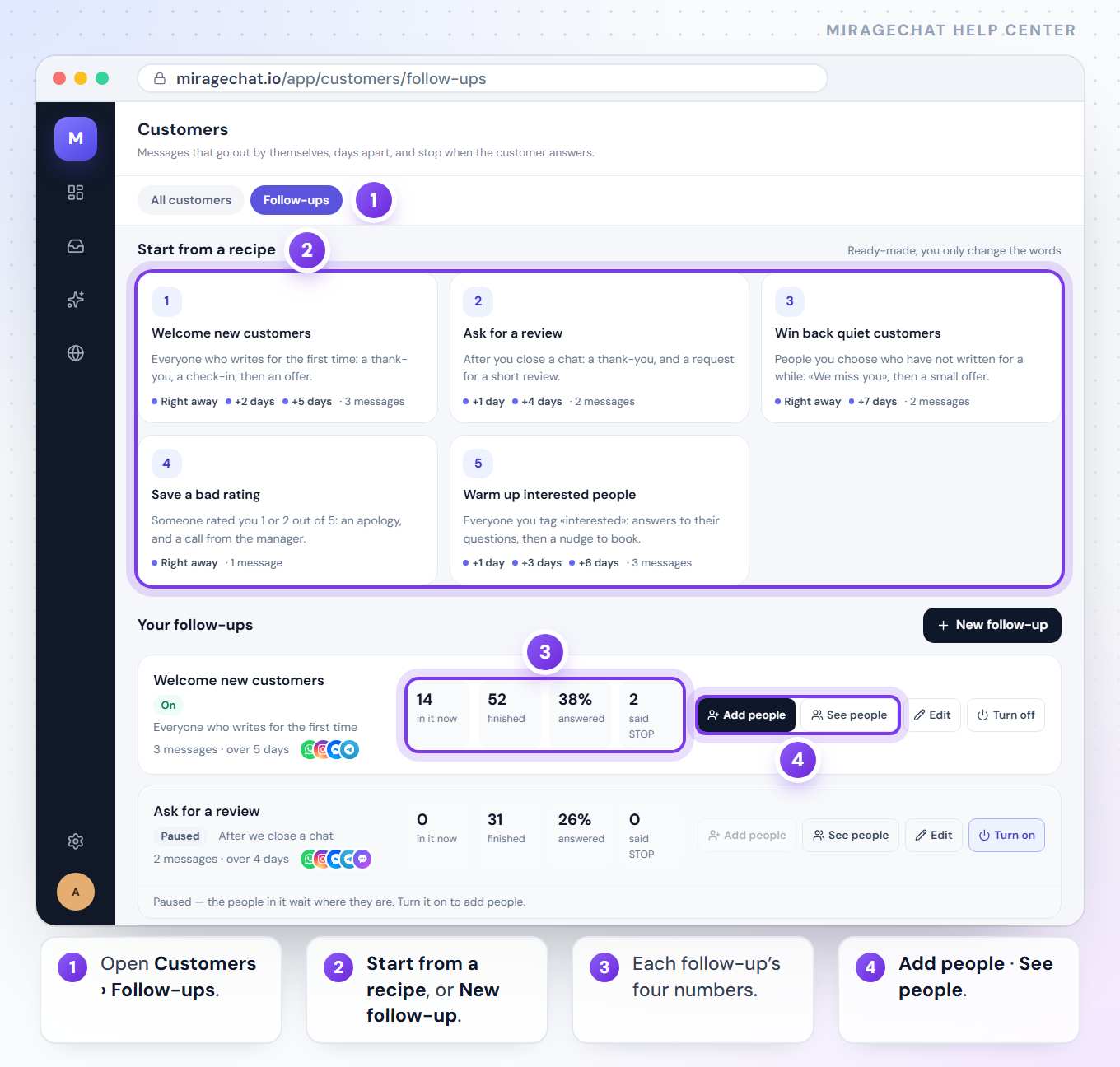
The five recipes:
| Recipe | Who gets it | The messages |
|---|---|---|
| Welcome new customers | Everyone who writes for the first time | Right away · +2 days · +5 days |
| Ask for a review | After we close a chat | +1 day · +4 days |
| Win back quiet customers | People I choose | Right away · +7 days |
| Save a bad rating | After a rating of 1 or 2 | Right away |
| Warm up interested people | Everyone I tag «interested» | +1 day · +3 days · +6 days |
What the numbers on a card say
- in it now — people waiting for their next message.
- finished — everyone whose follow-up is over: every message went, they answered, they said STOP, they were removed, or a message failed.
- answered — of those finished, the share who ended it by answering. It shows a dash (—) when nobody has finished yet, or when Stop when the customer answers is off.
- said STOP — people who replied STOP on that channel. They get nothing more from it.
- Under a card that cannot take people, one line says why: “It has no message yet — add one before adding people.” or “Paused — the people in it wait where they are. Turn it on to add people.”
Write a follow-up
Who gets it
Type a Name. Under Who gets it?, choose one of five: People I choose — you add them with Add people; Everyone who writes for the first time — on WhatsApp, Instagram, Messenger and Telegram; Everyone I tag as… — type the tag, for example interested; it starts only when the tag is new to them, and with no tag written any new tag starts it; After we close a chat; After a rating of 1 or 2. Then Send on: All channels, or one channel — its number, @handle or name; a follow-up on one channel takes only people who wrote there.
Write the messages
Under The messages, each message has its wait in days, h and min — the first after they join, every next one after the message before. The label on its left, Right away or +2 days, counts from the start.
{{name}}becomes the customer’s name. + Add a message adds the next one, up to 20; the bin removes one. Stop when the customer answers is on at the start: a reply ends it, and a person or the AI takes over the chat.Choose a template for WhatsApp
A message that can go out more than 24 hours after the customer last wrote says so in an amber line: “More than 24 hours after their last message, WhatsApp only allows an approved template.” Under it, choose one in WhatsApp template:. The list holds your approved templates with at most one value —
{{1}}becomes the name. Left on None — WhatsApp skips this message then, the message is skipped on WhatsApp once the 24 hours have passed. For Everyone who writes for the first time, the messages in its first 24 hours need none.Check it, then save
On the right, What the customer sees shows Anna’s chat, day by day, at the time each message goes — and, under a message with a template, which template WhatsApp gets after 24 hours. Press Save and turn on, or Save, keep it off. A follow-up that is already on offers Save, keep it on and Save and turn off.
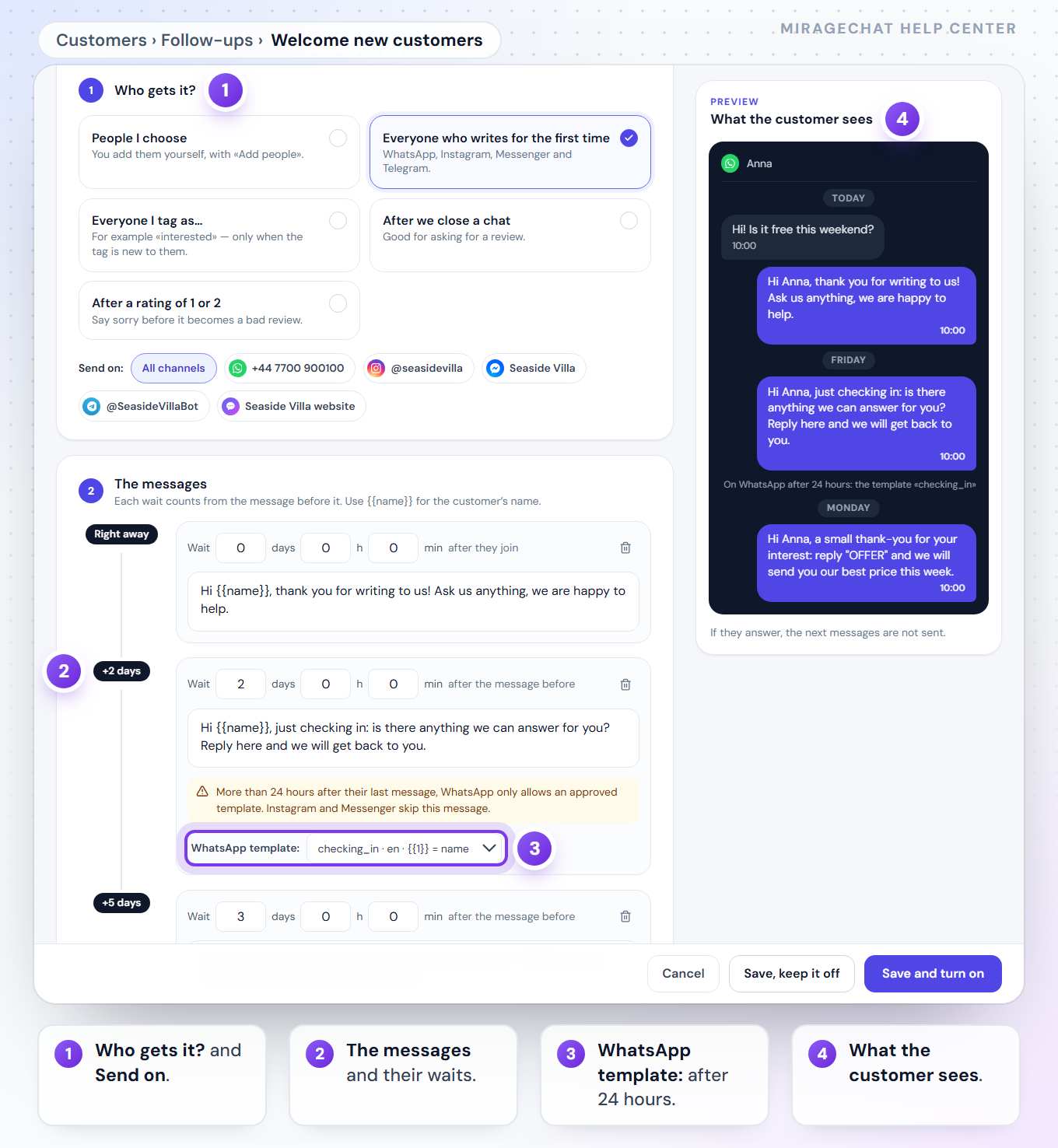
Cancel, or All follow-ups at the top, leaves without saving. On a follow-up you saved, Delete asks first — “Nobody in it gets another message.” A new People I choose follow-up that you turn on opens Add people by itself.
Add people and see who is in it
Add people
On the card, press Add people. Search in Search by name and tick the people. Each one shows the channel and when they last wrote, with a note in amber when that was more than 24 hours ago on WhatsApp, Instagram or Messenger. Press Add 3 people, up to 200 at a time. The answer says how many joined, for example “3 people added to «Welcome new customers» · 1 already in it · 1 opted out — not added”.
Or add them from Customers
In
Customers, tick people and press Add to a follow-up in the bar, or open one person and press the same button — how.See who is in it
Press See people. Each row shows the Message they are at — 2 of 3 — the Next message, the Status — Active, Done, Stopped, Removed or Failed — and What happened: Message 1 sent, or skipped with the reason. Hide people closes the list.
Take someone out
Press Remove on their row. They get no more messages from it. In Customers, the person’s panel has Take them out for the same.
What a follow-up always does
- One at a time. Someone who is in a follow-up is never started again — the answer says “already in it”. Someone whose follow-up ended can be added again by hand and starts from the first message. Someone who joins by themselves — through a first message, a tag, a closed chat or a rating — joins each follow-up only once.
- STOP. Someone who replied STOP on that channel is not added, and if they are in a follow-up, it sends them nothing more. If they write START, you can add them again.
- The 24 hours. Instagram and Messenger allow a message only within 24 hours of the customer’s last one, so a later message is skipped there. WhatsApp allows only an approved template after 24 hours; without one, that message is skipped. The rest of the follow-up goes on.
- Instagram counts bytes. A message is at most 1,000 bytes — accented letters count twice, an emoji four times. The editor says so under a message that is too long, and Save refuses it.
- Changing a follow-up with people in it. The editor says how many are in it now. You can change the words and add messages at the end; removing or moving a message someone has reached waits until they finish.
- Paused. Turn off pauses it: the people in it wait where they are, and nobody new joins. Turn on carries on.
2. Follow up over days with an automation
Start an automation
Go to
Automationand press New automation.Choose when it starts
Under When?, pick the moment — for example A new customer writes, A message contains… or Nobody replied.
Switch to Several steps
Under What does it do?, press Several steps.
Write the first message
Press + Reply and write it.
{customer_name}becomes the customer’s name.Add a wait
Press + Wait and choose minutes, hours or days — up to 7 days. Beside it you see how long after the start the next step happens.
Add the next message
Press + Reply again. Repeat wait and reply, up to 10 steps in all; the arrows move a step up or down.
Only if they have not answered
Before a follow-up, press + Only if… and choose the customer still hasn’t replied. Otherwise the automation stops there.
Choose where, then save
Under Where should it run?, pick the channels and press Save automation. It runs from that moment.
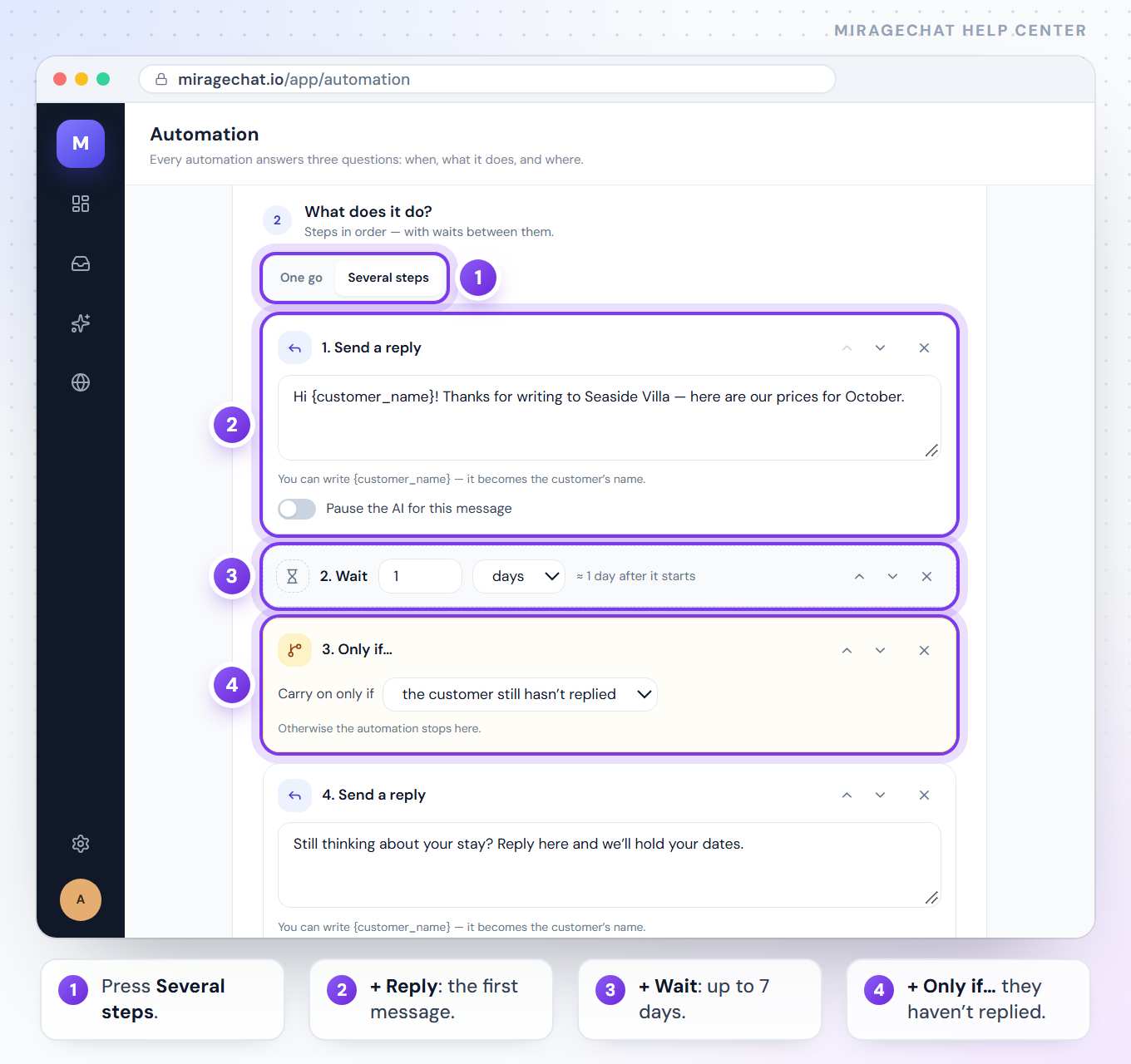
An example: nudge a new enquiry
Seaside Villa answers every new enquiry at once, nudges people who go quiet, and hands the rest to the team:
| Step | What it does |
|---|---|
| When | A new customer writes |
| 1. Send a reply | “Hi {customer_name}! Thanks for writing to Seaside Villa — here are our prices for October.” |
| 2. Wait | 1 day |
| 3. Only if… | the customer still hasn’t replied |
| 4. Send a reply | “Still thinking about your stay? Reply here and we’ll hold your dates.” On WhatsApp, an approved template. |
| 5. Wait | 2 days |
| 6. Hand to the team | The whole team, or one person |
When an automation stops by itself
- When the customer writes again — a switch under It stops by itself when…, on at the start.
- Always when someone on the team replies or takes the conversation, or it is closed.
- After 24 hours WhatsApp allows only an approved template: a reply step a day or more after the start lets you pick one. Instagram and Messenger allow no message after 24 hours, so there the automation stops before that step. Telegram has no such window.
- Hand to the team ends the automation, so it is always the last step.
Good to know
- Several steps is in every paid plan.
- The AI can be a step: + AI answers replies from your libraries, in the customer’s language, and counts in your AI replies.
- Prefer to draw it? Press Visual at the top of the editor — Build an automation.
- Offers to many people at once belong in Growth — Send an offer on WhatsApp.
- Follow-ups were called Sequences until October 2026. They are the same, with recipes and numbers added; the old address opens
Customers › Follow-ups.
If something looks wrong
“A wait must be between 1 minute and 7 days.”
Choose a wait from 1 minute to 7 days.
“A wait at the end does nothing — add the step that should happen after it.”
Add the message that should follow the wait, or remove the wait.
“«Hand to the team» ends the automation, so it must be the last step.”
Move it to the end with the arrows, or remove the steps after it.
“An automation can have at most 10 steps.”
Join two messages into one, or drop a step.
The WhatsApp step says “No template — on WhatsApp this step will not send”
The step is more than a day after the start. Choose an approved template; if the list is empty, create one in Channels › Message Templates.
A follow-up card says 0 in it now
Nobody has joined yet. Press Add people, or wait for who gets it to write, be tagged, have a chat closed or give a rating. A paused follow-up, or one with no message, takes nobody.
Add people is greyed out
The follow-up is paused, or has no message yet. The line under the card says which: press Turn on, or Edit and add a message.
“N people are in this sequence — remove them or wait until they finish before changing the order of its steps.”
Change only the words, or add messages at the end. To remove or move a message people have reached, remove them first, or wait until they finish.
“Step 2: Instagram takes at most 1,000 bytes in one message (accented letters count twice, an emoji four times).”
Shorten that message. The editor shows the same sentence under it until it fits.
“No approved template yet — create one in Channels › Message Templates.”
Create one in Channels › Message Templates — how. Meta usually approves it within minutes.
A message says skipped — more than 24 hours since the customer last wrote
Instagram and Messenger allow no message then; on WhatsApp, choose an approved template for that message.
Someone shows Stopped — the customer opted out
They replied STOP, so follow-ups send them nothing. If they write START, you can add them again.
“Add at most 200 people at a time.”
Add them in groups of 200 or fewer.
On your phone
In the MirageCHAT app, open Menu › Follow-ups: the same follow-ups, recipes and numbers as on the website. Tap a recipe or Edit to write one, and use Add people, See people and Turn on on its card. Automations are in Menu › Automations; adding a Wait step there turns one into several steps by itself.
Ready?
Opens MirageCHAT in this tab. Sign in first if you’re not already.
Did this guide help?
Related guides
Still stuck? Write to info@miragechat.io with your workspace name. Never send passwords or codes.