In short
Growth sends an approved WhatsApp template to the people who agreed to hear from you — picked from Customers, now or at a time you pick — and shows who read it, replied, tapped your link and bought.
Before you start
- A WhatsApp number connected in
Channels— Connect WhatsApp. - A template WhatsApp has approved — a Marketing one, for offers — Message templates.
- People who agreed to get WhatsApp messages from you — they are in
Customers, the one list of everyone you talk to. - About 10 minutes the first time.
1. Your clients are in Customers
Everyone who wrote to you is already in Customers. To bring more — a list from a booking system, a spreadsheet — use Import or + Add person there, or from the campaign itself (below). How Customers works.
Import
Choose a CSV file, paste rows from Excel or Google Sheets, or take the people who wrote to you on WhatsApp. Pick which column is the WhatsApp number; every number is checked against its country’s numbering plan, and the same number is never added twice.
Say whether they agreed
Tick Everyone in this file agreed to get offers on WhatsApp and say where — it is kept on every person with today’s date. Left off, they come in as Not asked, and Growth skips them until they say yes. People who said STOP stay STOP.
Put them in a list
Add them to a list — a new one, named after the file — and a tag if you like. The answer says 38 added · 4 merged with people you have · 2 rows unreadable, with each unreadable row’s number and why.
2. Send the offer — four steps
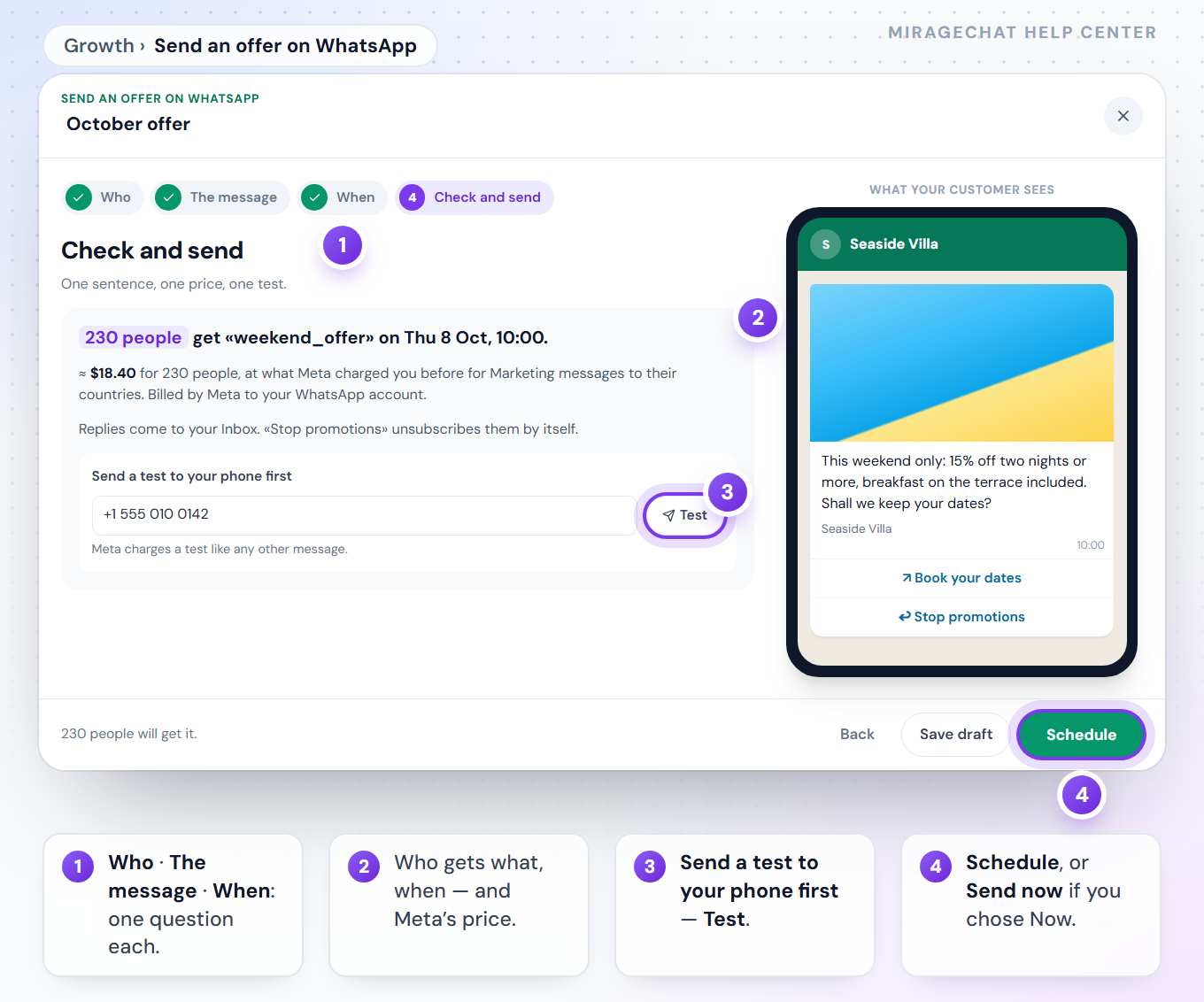
Press Send an offer on WhatsApp. Each step asks one thing, and the phone beside it shows the message exactly as your customer gets it.
Who gets it
From your clients: a group (Everyone, Waiting for you, VIP…), one of your lists, or a tag — and, under More filters, tags to leave out and what people did with your last campaigns. Or Import or add new: they join your clients first. The box under it says 3 of 8 people get this campaign: who said yes get it, who was not asked is skipped until they say yes, who said STOP never gets campaigns. Save as audience keeps the choice for next time.
The message
Choose an approved template and fill in its fields. If the template starts with a picture, Add a picture gives this offer its own photo. With Count clicks on the template’s button, each person gets a link of their own.
When
Now, Tomorrow, 10:00, or Pick a day and time — up to 90 days ahead.
Check and send
One sentence says who gets what and when, with what Meta will charge. Send a test to your phone first, then Schedule or Send now.
3. Read the report
- Delivered and read come from WhatsApp itself; replied counts answers within 7 days.
- Tapped the link appears when the template counts clicks.
- Unsubscribed shows who said STOP or turned off marketing messages after the offer.
- Brought adds up the sales your team marked as «Won» — see See what it brought.
- Pause, resume or cancel a campaign at any time, duplicate it, or send it again to the people who did not read it.
Good to know
- Only people who agreed get offers. STOP, and WhatsApp’s own «stop marketing», always win — and an import never marks them subscribed again.
- Nobody gets it twice. Each person is written down once before anything goes out; after a restart, a message WhatsApp already accepted is not sent again.
- Meta charges WhatsApp messages to your own account. MirageCHAT adds nothing on top; the report shows what Meta billed.
- The offer appears in the person’s conversation, so whoever answers sees what they were sent.
Can I send to someone who only wrote to me once?
Only if they agreed to get your offers. Without that, they stay «Not asked» and Growth leaves them out. Record a yes in their panel in Customers — They agreed…, with where and when.
Where did Growth › Contacts go?
Into Customers, on 8 October 2026: one list of everyone, with the same consent. Everything you imported is there.
Which template can I use?
Any template WhatsApp has approved on the number you send from. Offers belong in a Marketing template, and Growth warns you when the one you picked is not. Its fields are filled in for each person.
Can my agents send campaigns?
Yes, when the owner gives them Campaigns in Team › Agents.
Ready?
Opens MirageCHAT in this tab. Sign in first if you’re not already.
Did this guide help?
Related guides
Still stuck? Write to info@miragechat.io with your workspace name. Never send passwords or codes.