In short
There are two ways. Keep the number on your phone — it stays in the WhatsApp Business app and MirageCHAT answers the same chats. Or connect a dedicated number that is answered only in MirageCHAT, by the whole team. Either way you sign in to Facebook in Meta’s own window; MirageCHAT never sees your password.
Before you start
- A Facebook login with full control of your business — you’ll choose or create your business portfolio in Meta’s window.
- Keeping the number on your phone? The WhatsApp Business app, version 2.24.17 or newer, and your phone in your hand with the app open.
- Coming from ManyChat, WATI or another platform? Free the number there first — it takes ten minutes.
- About 5 minutes.
1. Choose where the number lives
In MirageCHAT, go to Channels and press WhatsApp. It asks one question: Where does this number live today?
Stays on the phone
It is already on a phone, in the WhatsApp Business app
- The number is not moved and not re-registered — the app keeps working.
- Up to 6 months of chat history can be copied over, if you allow it.
- Replies sent from the phone also appear in MirageCHAT, marked “Sent from phone”.
- Groups and calls stay on the phone.
Press Connect the number on my phone
Moves to MirageCHAT
Nowhere yet — a dedicated business number
- Answered only in MirageCHAT, by the whole team.
- Meta sends a code by text message or phone call to prove the number is yours.
- Nothing is copied over — conversations start in MirageCHAT.
- Once connected, it can no longer be used in the WhatsApp app.
Press Connect a dedicated number
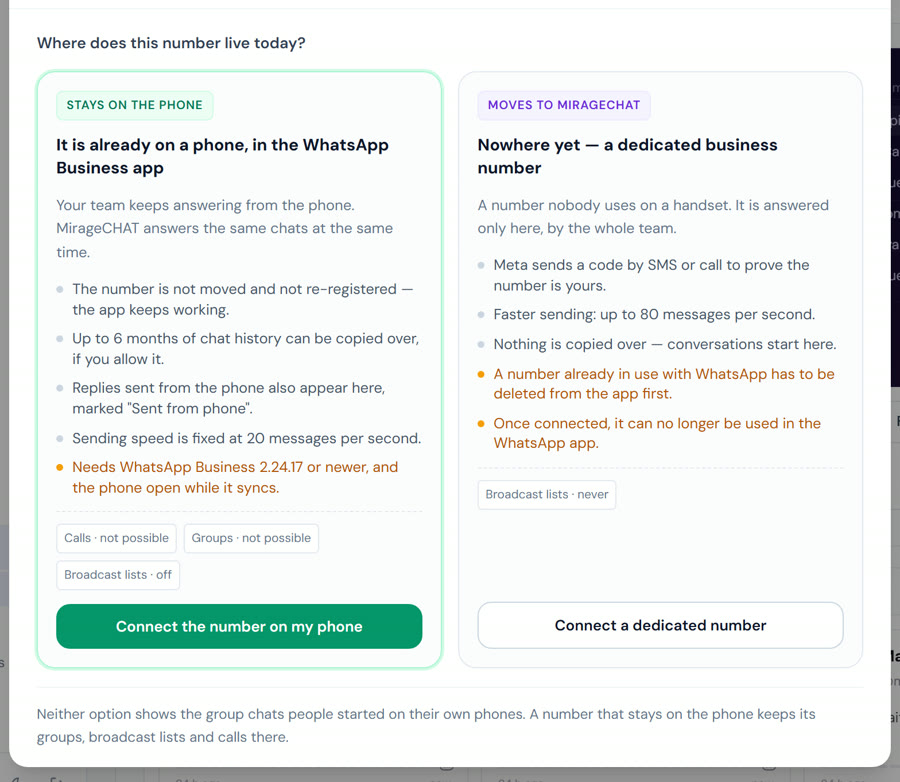
Dedicated number: it must be free. A number already in use with WhatsApp has to be deleted from the app first. You’ll confirm “I understand this number will no longer work in the WhatsApp app” before Meta’s window opens.
2. If the number stays on your phone
Keep the app open. If you agreed, chats from the past 6 months are copied in — with photos and files from the past 14 days. It takes about 5 minutes.
3. If it’s a dedicated number
Meta sometimes renames a button or swaps two screens in its own window. If a name here differs, the step itself stays the same.
What changes on your phone
Only when the number stays on the phone:
- Disappearing messages, view once and live location switch off in one-to-one chats.
- Broadcast lists become read-only — you can’t create new ones.
- Linked devices are signed out once; link them again afterwards. WhatsApp for Windows and Wear OS aren’t supported.
- Groups, calls, status, catalog, labels and quick replies stay on your phone only — they don’t come into MirageCHAT.
After you connect — at Meta
WhatsApp is run by Meta. Three things happen on Meta’s side, not in MirageCHAT:
- Add a payment method at Meta — WhatsApp charges stay on your own Meta account.
- Use templates after 24 hours — you create them in MirageCHAT; Meta approves them.
- Verify your business — until then a number can start 250 new conversations a day.
Usernames on WhatsApp
People on WhatsApp can choose a username and hide their phone number. MirageCHAT still keeps one conversation per person: when WhatsApp shows their number, now or later, their messages stay in the same conversation, and the inbox shows their @username beside their name.
- Keep Meta’s contact book on. It’s in Meta Business Suite, under
Business settings › Business info. Turned off, WhatsApp hides the number of anyone with a username who hasn’t written to you, or heard from you, in the last 30 days. - Need their number? Within 24 hours of their last message, press Ask for their phone number beside their name in the conversation. WhatsApp shows them a Share button; when they tap it, the number joins their conversation.
- A username is for reading only. Your replies go to the person, never to a username.
Ready?
Opens MirageCHAT in this tab. Sign in first if you’re not already.
Did this guide help?
Related guides
Still stuck? Write to info@miragechat.io with your workspace name. Never send passwords or codes.