In short
A business portfolio is your business’s home at Meta. It holds your Facebook Pages, Instagram accounts, WhatsApp accounts, the people who manage them and how you pay Meta. WhatsApp can’t connect without one — and you can create it in two minutes.
Before you start
- A personal Facebook profile. Meta requires one; your customers never see it.
- The name customers know you by, and your business’s legal name.
- A business email — ideally on your website’s domain, like you@yourbusiness.com. It makes verification easier later.
Create it while you connect — the easiest way
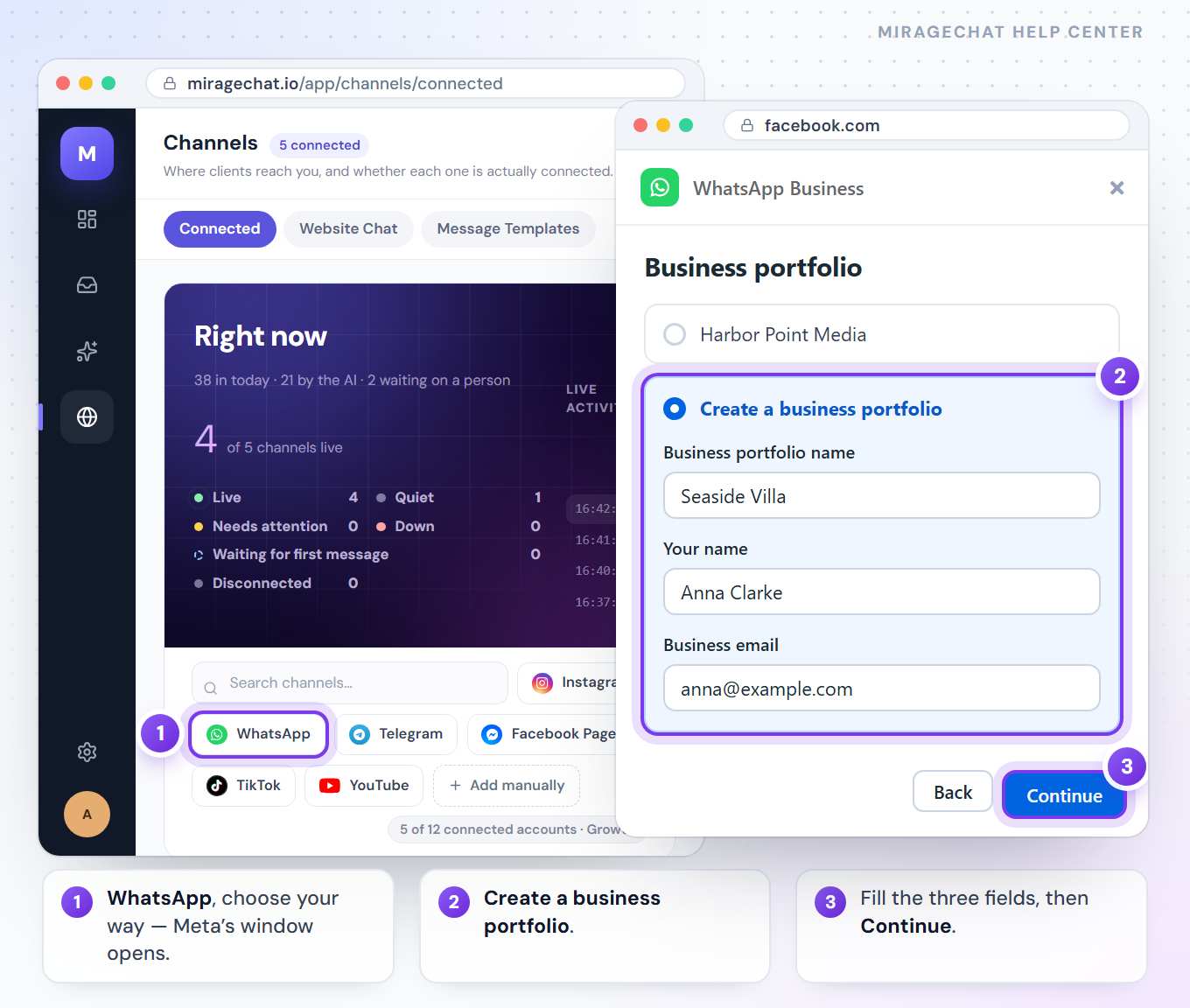
Start from MirageCHAT
Go to
Channels, press WhatsApp and choose your way. Meta’s window opens.At “Business portfolio”, create a new one
Choose Create a business portfolio instead of an existing one.
Fill in three things
The business portfolio name (as customers know you), your name, and your business email. Continue.
Confirm the email
Meta sends a message to that email. Open it and confirm — you can finish connecting WhatsApp first.
Or create it first, at Meta
Open Meta Business
Go to business.facebook.com and log in with your Facebook profile.
Create the portfolio
Choose Create an account — Meta may call it Create a business portfolio. Enter the portfolio name, your first and last name and your business email, then press Submit.
Confirm the email
Open Meta’s message and confirm.
Add your Page and Instagram (optional)
In
Settings › Accounts, add your Facebook Page and your Instagram account, so everything sits in one place.
Meta sometimes renames a button or swaps two screens in its own window. If a name here differs, the step itself stays the same.
Good to know
- One portfolio per business. Several businesses? Each can have its own — MirageCHAT brings them into one inbox.
- Use the business’s own portfolio, not your agency’s. WhatsApp can refuse a number held in an agency’s portfolio.
- You need full control. Check it in
Settings › People. If someone else is the admin, ask them to give you full control.
Ready?
Opens MirageCHAT in this tab. Sign in first if you’re not already.
Did this guide help?
Related guides
Still stuck? Write to info@miragechat.io with your workspace name. Never send passwords or codes.