In short
You don’t need verification to connect WhatsApp. It proves your business is real — and until you have it, a number can start 250 new conversations a day. Verification lifts that limit and helps your display name get approved.
Before you start
- Your business’s legal name, address and phone — exactly as on your official documents.
- One official document with that name, such as a business registration or tax certificate.
- A website on your own domain, and an email on the same domain.
- Admin access to your business portfolio.
Steps
Open the Security Center
At business.facebook.com, go to
Settings › Security Center. (Or:Settings › WhatsApp accounts, open your account and find Business verification.)Press Start verification
Choose the business you’re verifying.
Enter the legal details
Legal name, address, phone and website — the same as on your document.
Choose how to confirm
Usually an email to an address on your domain, a phone call or a text message.
Upload the document
A clear photo or PDF of the whole page. Submit.
Watch your email
Meta may ask for one more document. Its answer usually comes within a few days.
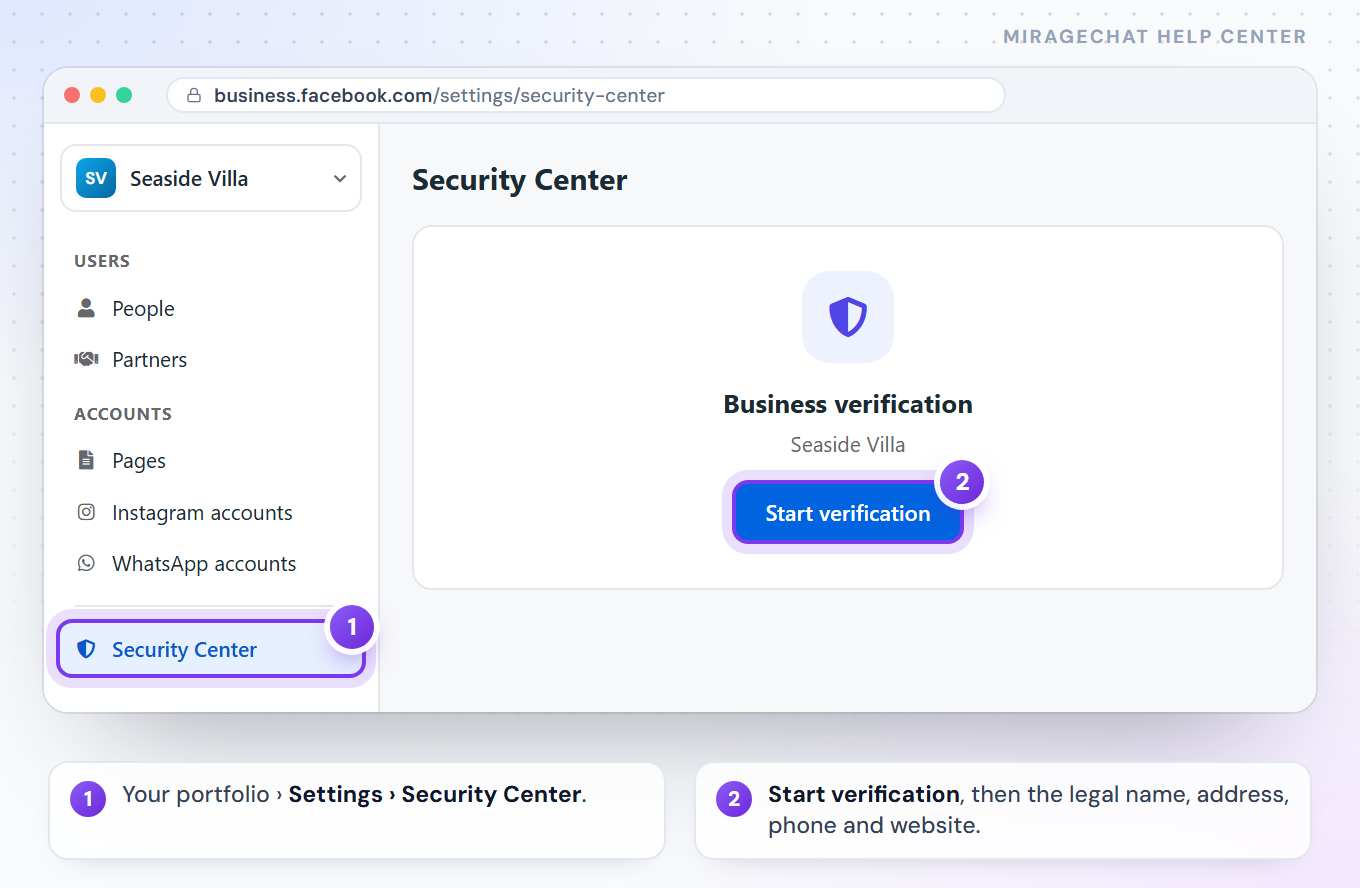
Meta sometimes renames a button or swaps two screens in its own window. If a name here differs, the step itself stays the same.
So it passes the first time
- Names must match. If customers know you by a trade name, show your legal name on your website too — a line in the footer is enough.
- Email on your domain. An address that doesn’t match your website can send the request to a manual review.
- Rejected? It doesn’t close your account. Fix what Meta names and submit again.
Did this guide help?
Related guides
Still stuck? Write to info@miragechat.io with your workspace name. Never send passwords or codes.