In short
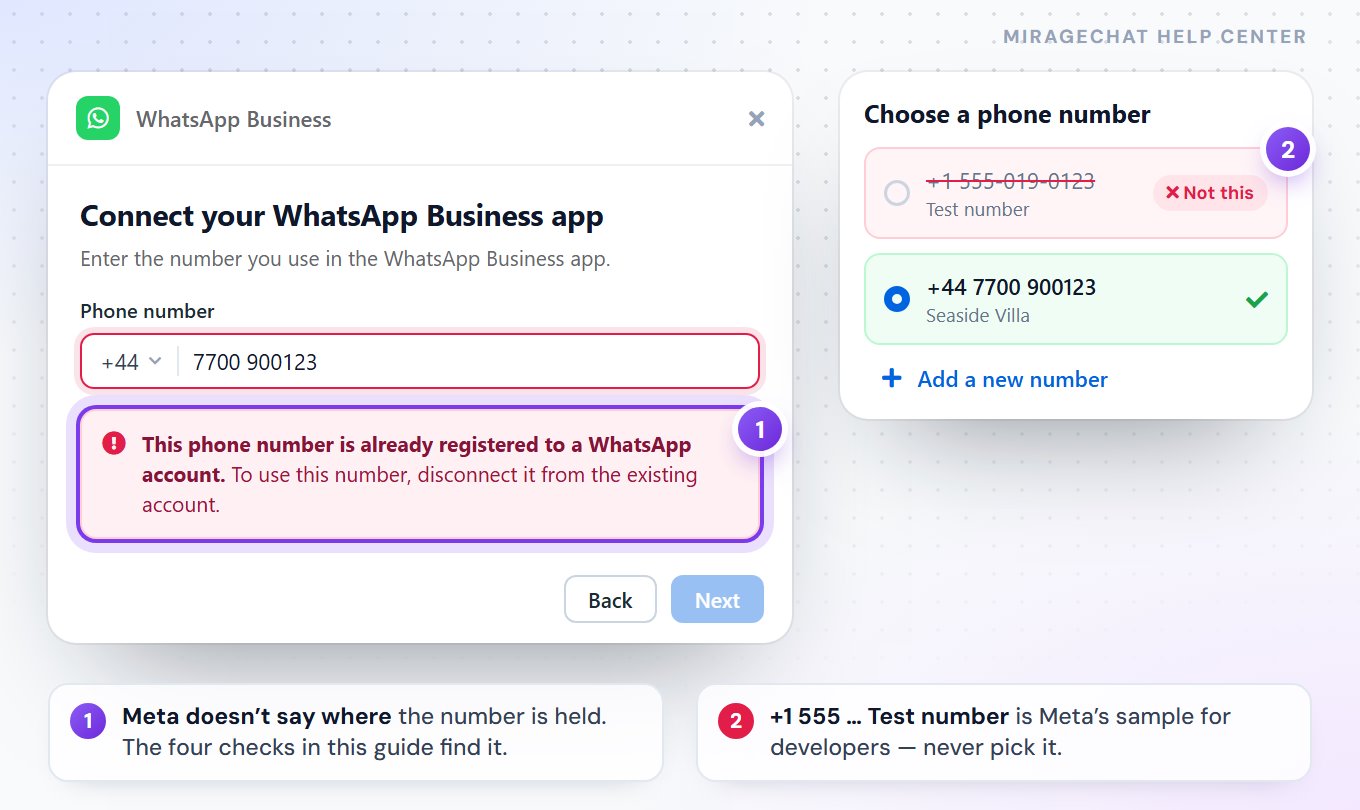
Meta shows this when your number is still held somewhere else — usually by another business portfolio, sometimes by a platform you used before. Meta’s window doesn’t say where. Four checks, in this order, find it. Your chats stay on your phone the whole time — none of these steps deletes them.
What the message means
- Connecting the number on your phone (“Stays on the phone”): the WhatsApp Business app is fine — something else at Meta still holds it. Go through the four checks below.
- Connecting a dedicated number (“Moves to MirageCHAT”): the number is still in a WhatsApp app on some phone. Delete it from that app first — or, to keep using the app, choose Stays on the phone instead.
1. Check the number and the app
Read the number from the app
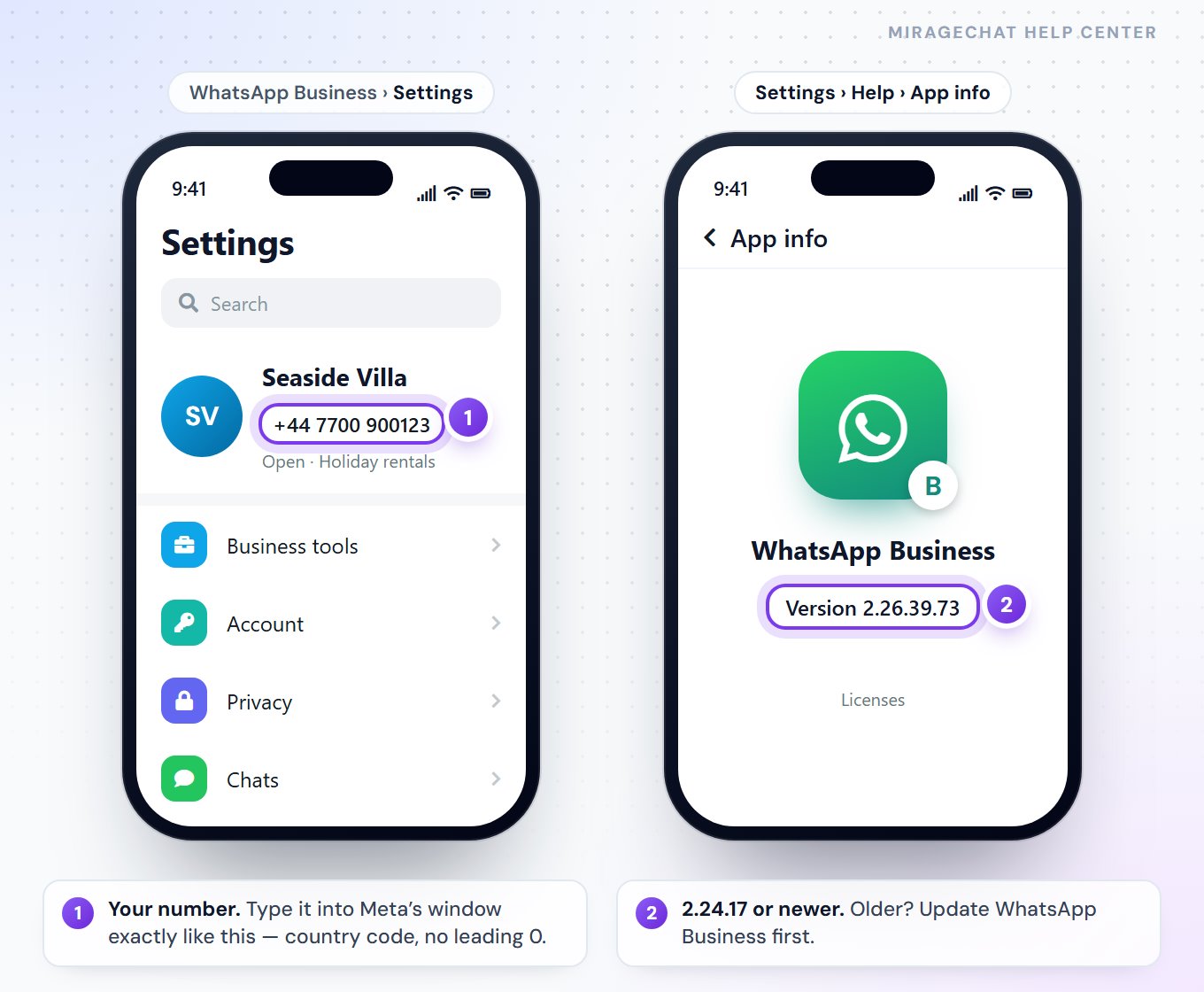
Open WhatsApp Business ›
Settingsand tap your business name. Type the number into Meta’s window exactly like that — with the country code, without a leading 0.Check the version
Settings › Help › App info. It needs 2.24.17 or newer; update it from the App Store or Google Play if not.Personal WhatsApp?
If the number is in the ordinary WhatsApp (the icon without a B), install WhatsApp Business on the same phone and choose to use the same number. It offers to bring your chats along.
2. Find the business portfolio that holds it
This is the cause most of the time: the app was once linked to a different business portfolio — an old agency’s, a colleague’s, or one you created and forgot. Meta names it, but only in one place:
Open your own portfolio
Go to business.facebook.com and pick your business in the portfolio list at the top left.
Add your WhatsApp account there
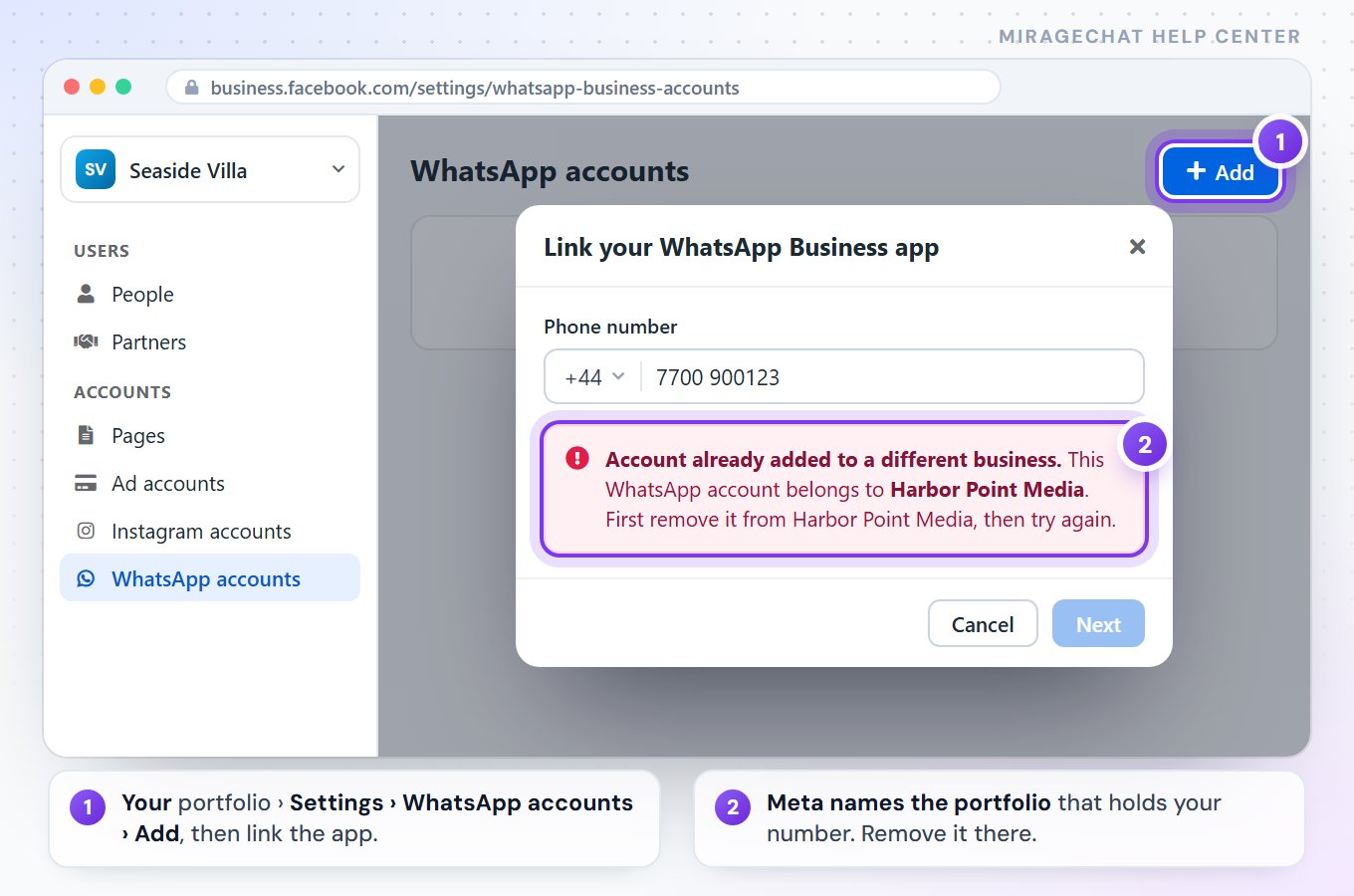
Settings › Accounts › WhatsApp accounts, press Add and choose to link your WhatsApp Business app. Enter the number; Meta sends a code to the app.Read Meta’s answer
If another portfolio holds it, Meta says “already added to a different business” — and names that portfolio.
Remove it there
If you manage that portfolio: open it, go to
Settings › Accounts › WhatsApp accounts, choose the account and press Remove. If you don’t, ask its admin to do it — they need only that one click.
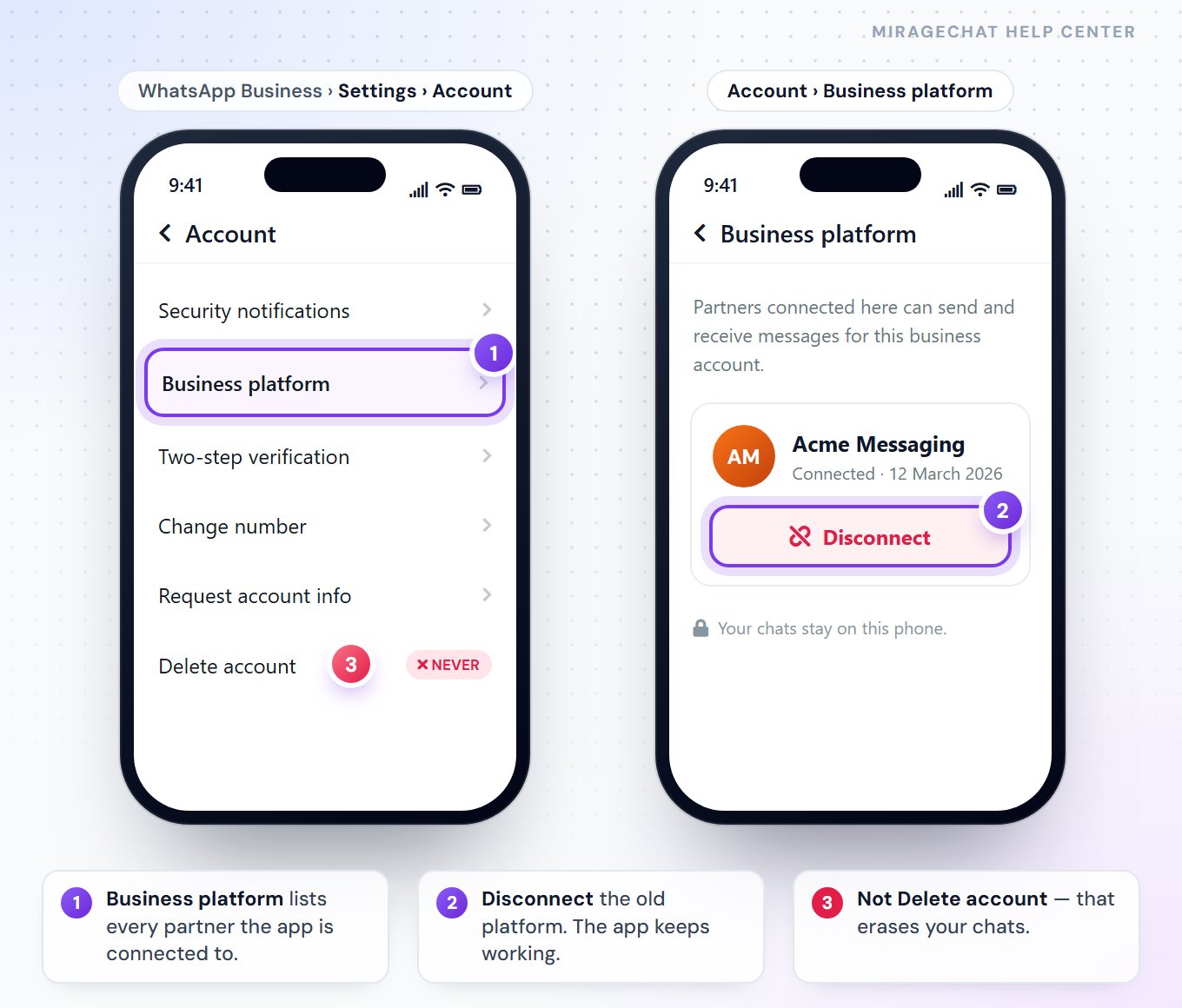
Don’t delete WhatsApp Business from your phone, and don’t use “Delete account” in the app — that erases your chats. Removing the account from a portfolio doesn’t touch a single message.
3. Disconnect the platform you used before
Used ManyChat, WATI, a CRM or another inbox with this number? Meta is moving WhatsApp accounts to a model where one number can work with several platforms; until yours has moved, the old platform still holds the number. Free it on both sides:
At Meta
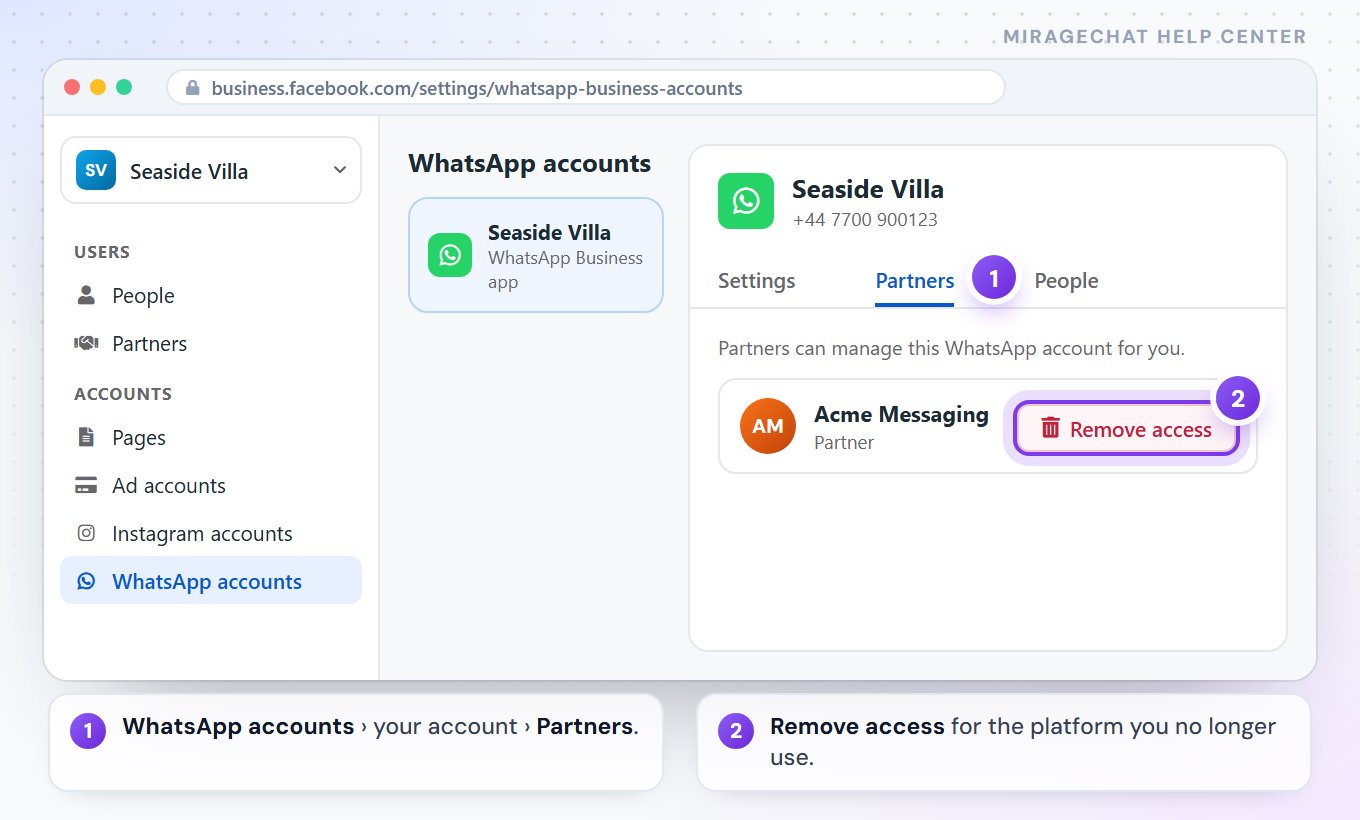
In your portfolio:
Settings › Accounts › WhatsApp accounts, choose the account, open Partners, choose the old platform and press Remove access.On your phone
WhatsApp Business ›
Settings › Account › Business platform, tap the old platform and press Disconnect.Wait a few minutes
Meta needs a moment to free the number. Then connect again.
4. Don’t pick Meta’s test number
When Meta’s window lists phone numbers, it can include one that starts with +1 555 and says Test number. It is Meta’s sample for developers — customers can’t reach it. Choose your own number, or Add a new number.
Then connect again
Start over in MirageCHAT
Go to
Channels, press WhatsApp and choose Connect the number on my phone.Go through Meta’s window
Same screens as before — step by step. This time it passes.
Done
MirageCHAT says “WhatsApp connected: +…” and, if you allowed it, your recent chats start arriving.
Meta sometimes renames a button or swaps two screens in its own window. If a name here differs, the step itself stays the same.
Ready?
Opens MirageCHAT in this tab. Sign in first if you’re not already.
Did this guide help?
Related guides
Still stuck? Write to info@miragechat.io with your workspace name. Never send passwords or codes.