In short
Meta’s WhatsApp Manager shows four things about your number: whether it’s connected, its quality, how many people you may message a day, and whether your display name is approved.
Open WhatsApp Manager
Go to your WhatsApp accounts
At business.facebook.com:
Settings › Accounts › WhatsApp accounts.Pick the account
Choose the WhatsApp Business account that holds your number.
Press WhatsApp Manager
Your phone numbers appear in a list.
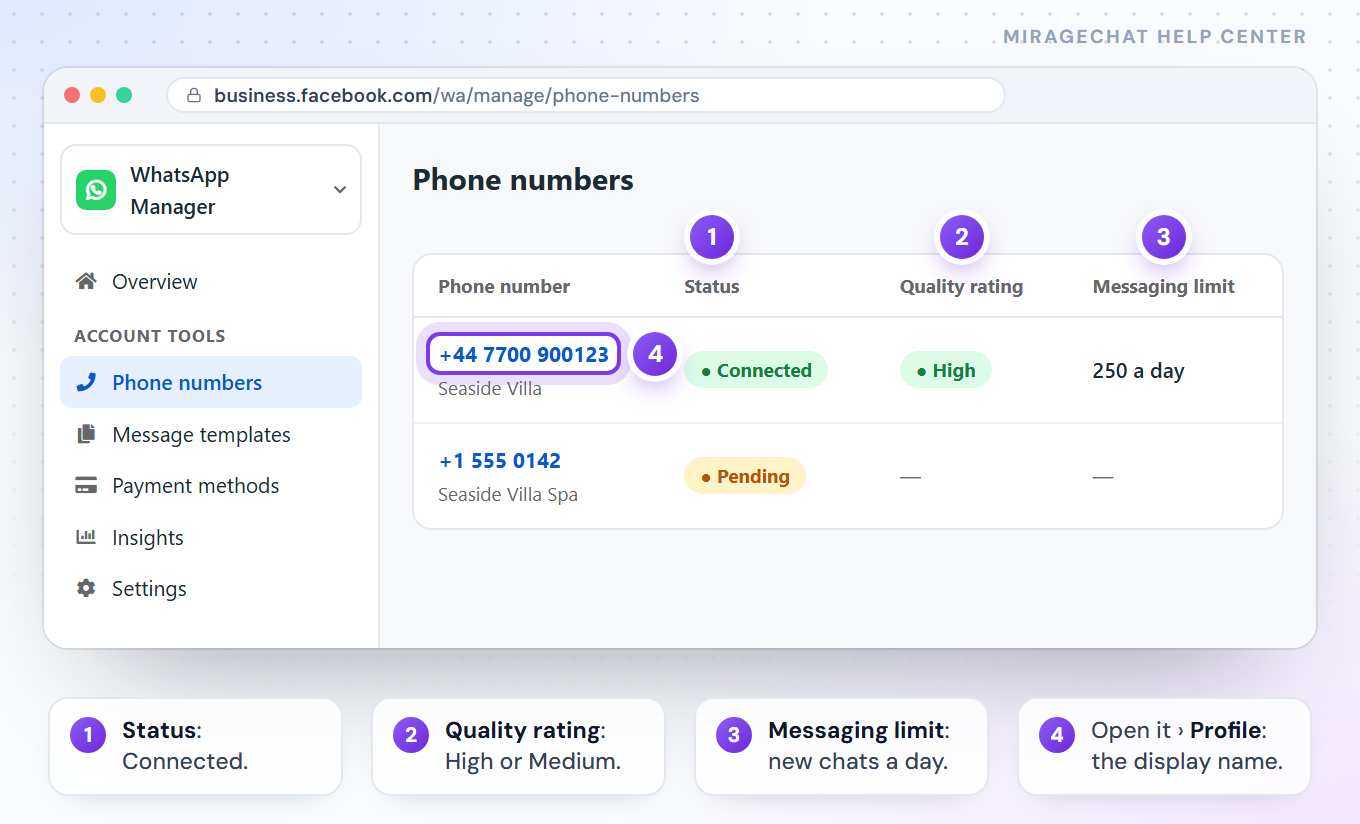
What each field means
| Field | What you want to see |
|---|---|
| Status | Connected. Pending or Offline is normal only while you’re still connecting. |
| Quality rating | High or Medium. It drops when many people block or report your messages. |
| Messaging limit | How many people you may start conversations with each day. It grows with good quality and verification. |
| Display name | Click the number, then Profile: the name shows Approved. |
If your display name was rejected
Edit the name
In
WhatsApp Manager › your number › Profile, press Edit next to the display name.Use your real business name
The name must clearly match your business — the one on your website and signage.
Submit
The new name gets its own review. Meanwhile your number keeps working.
In MirageCHAT, the WhatsApp card under Channels shows what your number can do today.
Ready?
Opens MirageCHAT in this tab. Sign in first if you’re not already.
Did this guide help?
Related guides
Still stuck? Write to info@miragechat.io with your workspace name. Never send passwords or codes.