In short
Every automation answers three questions: when it starts, what it does and where it runs. Build it in the form — quick, for a reply or a few steps in order — or on the visual canvas, where you drag steps in, connect them and give each button its own path. Both save the same automation.
1. Two ways, one automation
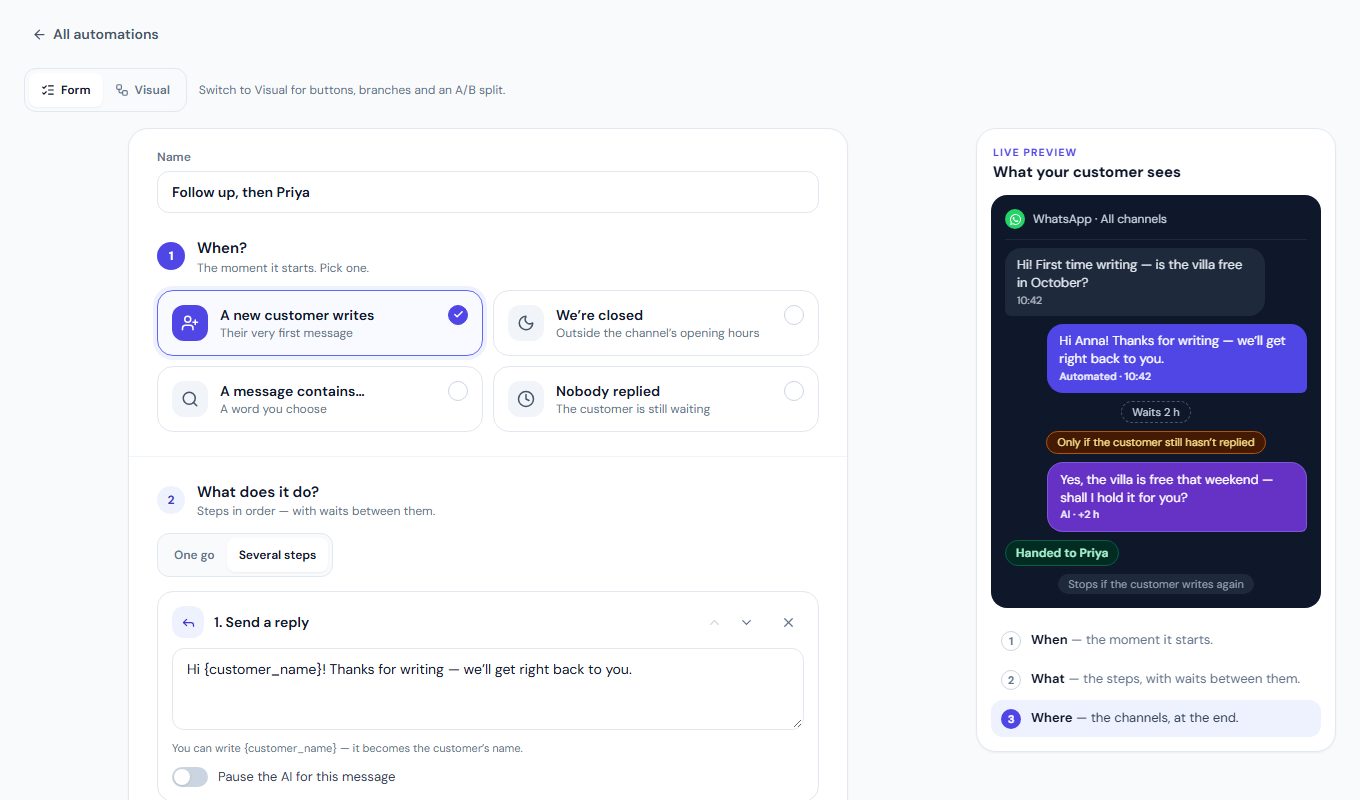
Form
A few steps, in order
- Pick when it starts, then add a reply, a tag, a wait or the AI — in the order they run.
- Made for welcome and away replies, and follow-ups.
- A live preview shows what the customer sees.
Press Form
Visual
Branches and buttons, drawn
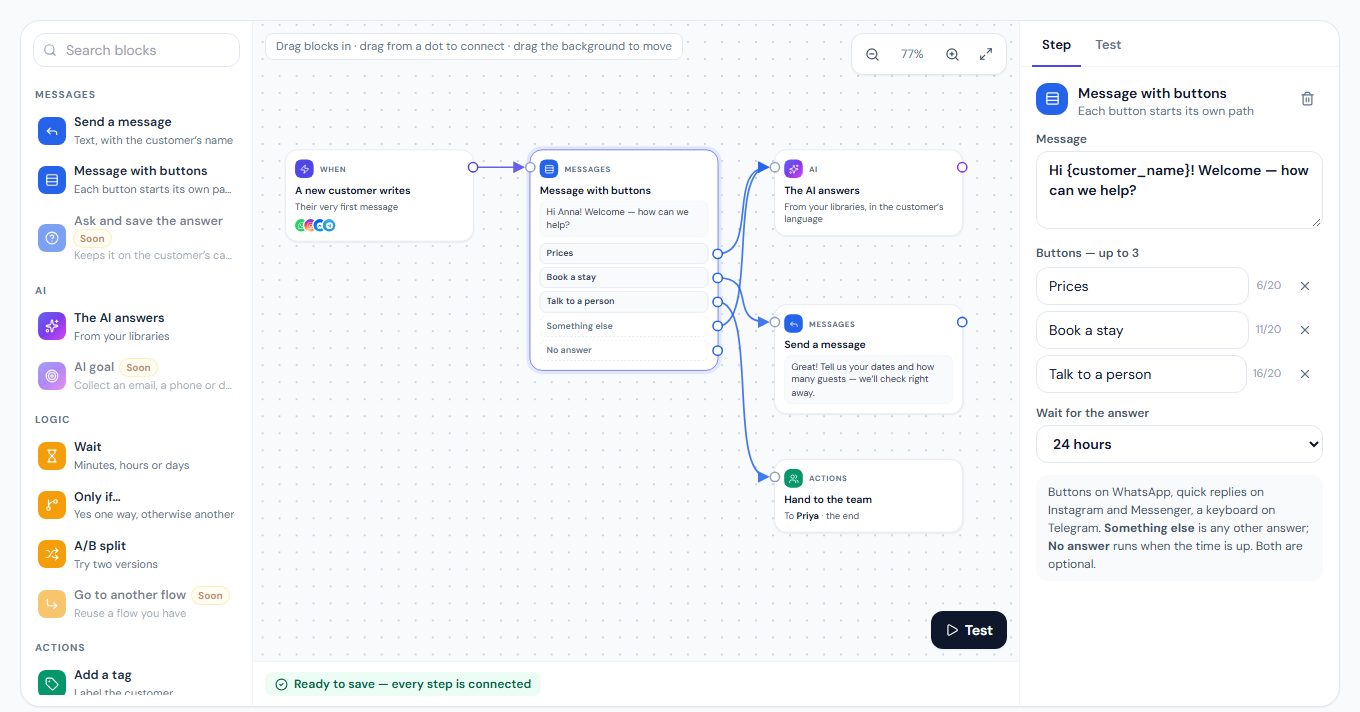
- Drag steps onto a canvas and connect them with lines.
- Buttons, «Otherwise» and an A/B split give each answer its own path.
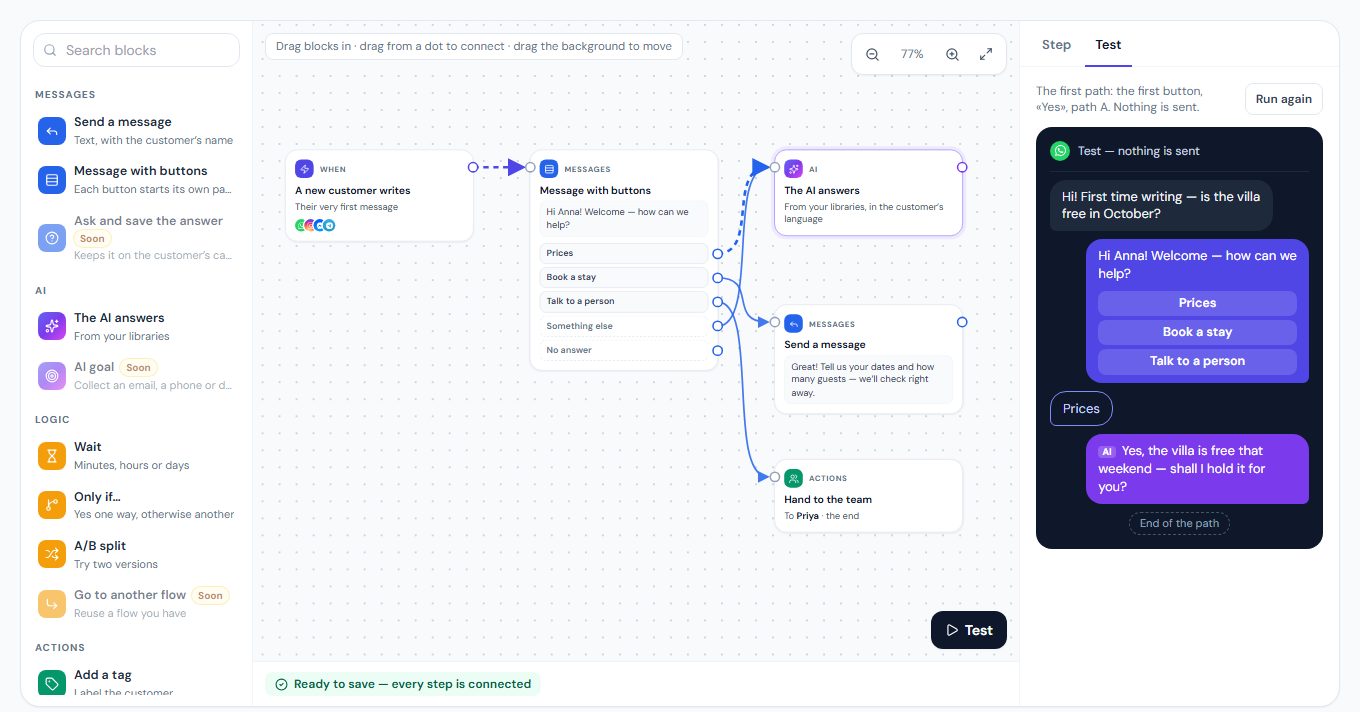
- Test plays the customer’s side before anything is sent.
Press Visual
The switch is at the top of the editor. A plain list of steps opens in both; an automation with buttons or branches opens on the canvas, because the form can’t draw them.
2. A message contains… — any of your words
Under When? pick A message contains… — on the canvas, on its first step — and fill Any of these words: type a word and press Enter or a comma, and it becomes a chip. Put every word your customers use for the same thing in one automation — booking, reserve, reservation. × on a chip, or Backspace in the empty box, removes it.
- Any one of the words starts it. The list says them all: “When a message contains “booking”, “reserve” or “reservation” → …”.
- At the start of a word. book finds “Booking”, “booked” and “#book” — never “Facebook” or “ebook”. A shorter word catches more: reserv finds “reserve”, “reserved” and “reservation”.
- Case and accents do not matter — “Café” and “cafe” are the same word.
- Up to 20 words, each up to 40 characters. A phrase works too: how much.
3. Build it on the canvas
Open the builder
Go to
Automation, press New automation, then Visual at the top. Start from a ready-made flow — Welcome + menu, Closed at night, Follow up, A/B test — or from an empty canvas.Choose when it starts
Select the first step and pick the moment: a new customer writes, you’re closed, a message contains one of your words, nobody replied — or someone comments on a post, on the platforms you choose under Comments on — Instagram, Facebook, TikTok, YouTube (Comment → DM).
Add the steps
Drag a block from the left onto the canvas — or tap it, and it joins the step you selected: a message, a message with buttons, a WhatsApp form, the AI answers, wait, only if…, an A/B split, a tag, a status, an email to you, VIP, or hand to the team.
Connect them
Drag from the dot on the right of a step to the step that comes next. Each button, «Yes» and «Otherwise», and A and B have their own dot.
Test, then save
Press Test to watch the customer’s side, step by step — nothing is sent. Choose the channels under the canvas and press Save automation.
4. Buttons: each answer, its own path
A message with buttons offers up to three choices — buttons on WhatsApp, quick replies on Instagram and Messenger, a keyboard on Telegram. The automation then waits for the customer’s answer and follows the button they tap.
- Something else — the customer writes anything that isn’t a button. Optional: without it, your other automations and the AI answer as usual.
- No answer — nobody answered within the time you choose, from 1 to 24 hours. Optional.
- A button says up to 20 characters.
5. A WhatsApp form, and its answer
A WhatsApp form is filled in inside WhatsApp — dates, guests, a name, a phone. Make it under Automation › WhatsApp forms with New form: start from a ready form — Meta’s own templates, marked by Meta, and ours for hotels, restaurants, clinics, salons, gyms, shops, car rental and events — or press Build your own and add the fields you need. The words come in the language of your WhatsApp number’s country when the library has it, otherwise in English, and every word can be changed. The whole story — statuses, the answers, each form’s log — is in WhatsApp forms.
Pick a form, or build your own
Search the forms by name or by a field. Each card shows its first fields; by Meta marks Meta’s four.
Change what you need
Rename any field, mark it Required, add or remove choices, move fields up or down, add a field or a step. A counter appears when a text nears WhatsApp’s limit, and says why when it is over. The phone beside it is the form as your customer sees it — try it.
Save as draft, then publish
Save as draft keeps it here. On the form’s page, press Publish at Meta: Meta checks it, and only a published form can be sent. A draft opens again with Edit; a published form can’t be changed — Copy into a new form instead.
Then send it from an automation:
Add «Send a WhatsApp form»
On the canvas, under Messages: choose the form, write the words above its button and the button’s own words — up to 30 characters, no emoji.
Connect what happens next
When it is answered carries on once the customer sends the form — a tag, a thank-you, an email to you. No answer runs when the time you chose is up, 1 to 24 hours.
Save
The automation runs on the form’s own WhatsApp number — «Where should it run?» follows the form.
- Inside the 24-hour window. WhatsApp lets a form go out only within 24 hours of the customer’s last message.
- The answers appear in the conversation as a card, under the form’s own labels, and in the form’s log — who it went to, who sent it, whether and when they answered.
- Example terms. Meta’s «Collect purchase interest» comes with example terms; Publish at Meta stays off until you write your own.
- Offers on WhatsApp. When a client ticks its consent box, they show as Subscribed in Customers, with the form and the day as proof — never if they said STOP.
- From the Inbox: in a WhatsApp conversation, press Form beside the reply box, choose a published form and send it.
- Owners and admins make and send forms.
6. On your phone
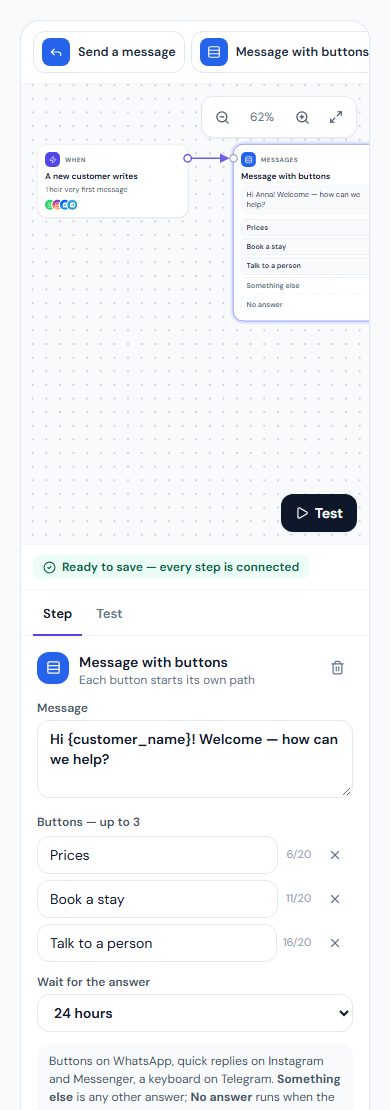
The builder works in your phone’s browser too: the blocks sit in a strip above the canvas, and the step you select opens underneath.
Good to know
- It stops by itself when someone on the team replies or takes the conversation, or it is closed — and, if you choose, when the customer writes again during a wait.
- After 24 hours WhatsApp sends only an approved template; Instagram and Messenger stop.
- A flow only goes forward. A line back to an earlier step is refused, so no customer is messaged in a loop.
- Comments have their own guide: reply, DM, like or hide — on Instagram, Facebook Pages, TikTok and YouTube.
- The list says what each one does: the channels it runs on, by name; how many times it ran and when it last did.
- Coming to the canvas: story automations, links and QR codes, saved answers.
Is the visual builder a separate product?
No. The form and the canvas save the same automation, and you switch between them at the top of the editor.
Which plans include it?
Every paid plan. One step or several, the short form or the visual builder — Starter, Growth and Pro have all of it.
Where do buttons appear?
On WhatsApp, Instagram, Messenger and Telegram — the channels automations run on.
Ready?
Opens MirageCHAT in this tab. Sign in first if you’re not already.
Did this guide help?
Related guides
Still stuck? Write to info@miragechat.io with your workspace name. Never send passwords or codes.