In short
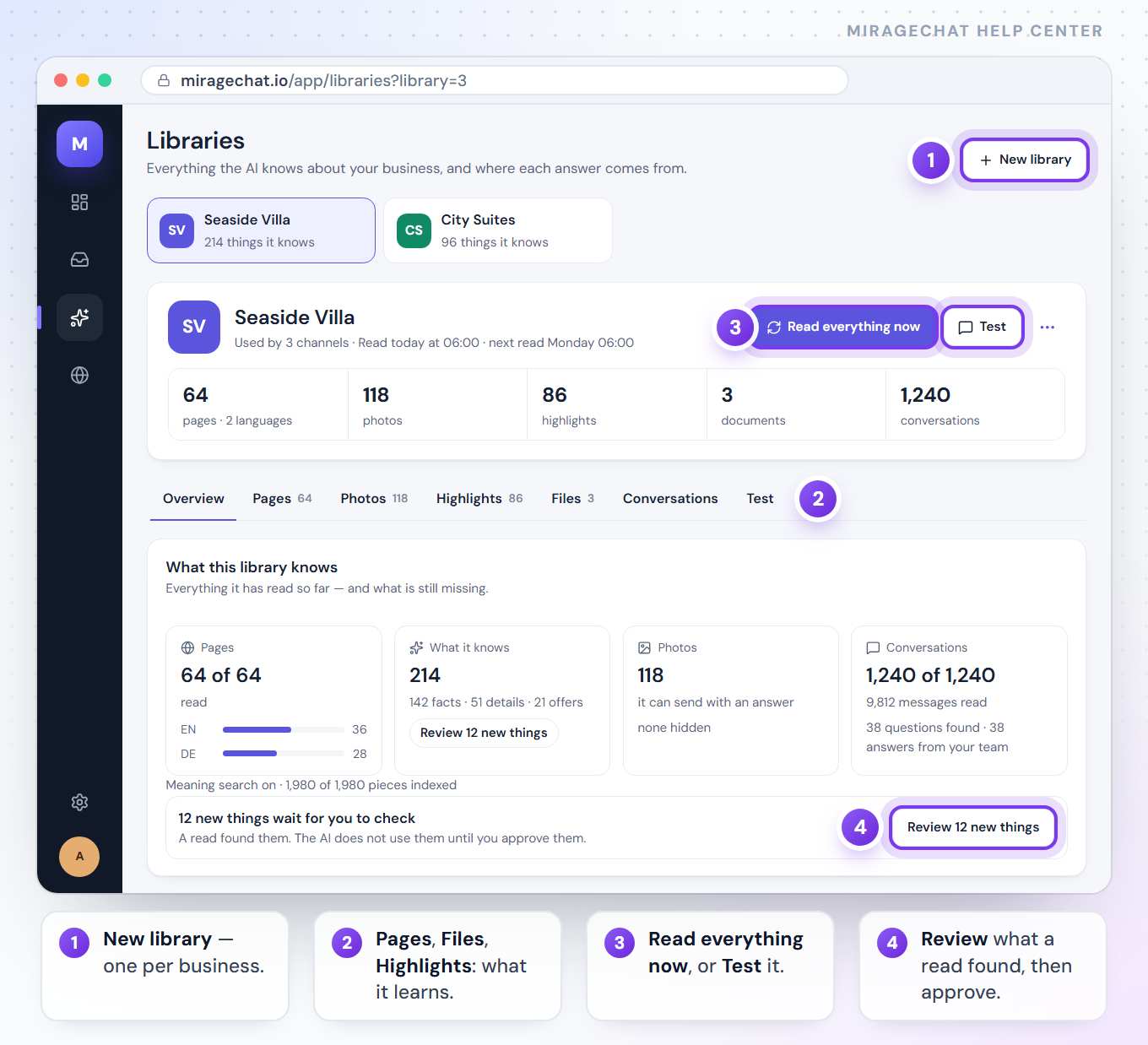
A library holds what the AI knows about one business: the pages of your website, your files, answers you write word for word, the photos it can send and what it learns from past conversations. Each channel reads one library, and every answer shows where it came from.
Before you start
- A paid package — Starter, Growth or Pro — or the free trial. Libraries are part of the AI, which Free does not include.
- The owner or an admin of the workspace.
- Your website address, and any PDF, Word (.docx), .txt or .md files — up to 10 MB each.
Create a library
Use one library per business, or per part of it — Seaside Villa and Northstar each get their own.
Open Libraries
Go to
AI › Librariesand press New library.Name it
Under Library name, type the business name — customers never see it. Pick a colour and press Next.
Bring what you already have
Under From what you already have, tick anything the AI learned before that belongs to this business. Under Add something new, tick what else it should read — Website, Instagram profile, Facebook Page, WhatsApp profile, File, Past conversations or Write a fact. Then press Next.
Choose its channels
Tick the channels that answer from it. A channel reads one library: ticking one that reads another moves it here. You can also choose later.
Create it
Press Create library. It opens on its Overview, ready for the steps below.
After Create library the first thing you ticked under Add something new opens at once, and the others wait under Also add. To add more later, open the library’s Overview: under Where it learns from, press A website, Instagram or Facebook, A file, Past conversations or Write it yourself.
Add your website
Open Pages
In the library, open the Pages tab and press Add page.
Give it an address
Type a page of your website and press Add and read. In a library that reads no website yet, that site becomes its website.
Read the whole site
Press Read everything now at the top. It finds the pages from the sitemap and the links, reads every language, and shows the page it is reading. You can leave — it keeps going, and Stop ends it early.
Check the pages
Each row says what the page gave — highlights and photos — and its status. On Overview, a skipped page says why, with Read it anyway; a page that failed has Try again on Pages.
Keep a page out
Exclude a row and confirm with Exclude: the AI no longer answers from it, and it is not read again. Include again brings it back.
Add files, and what isn’t on your site
Open Files
Open the Files tab.
Upload
Drop PDF, Word (.docx), .txt or .md files on the box, or press Choose files. Up to 10 MB each.
Keep what’s right
After the read it lists everything it found. Untick what’s wrong, correct a line in place, and press Save everything — or Review later.
Write something once
Under Something that is not on your site, write it — for example «We are closed on 1 January.» — and press Save. Up to 20,000 characters; the AI uses it from the next message.
Choose when a note is sent
Under Your notes, turn on Always send for a note the AI should have in every reply. Off, it uses the note only when the customer’s message is about it.
Write answers word for word
Highlights are the answers you want given word for word. The AI still reads the full pages for everything else.
Write one
On the Highlights tab, press Write one.
Fill it in
Give it a Topic in 1–3 words, the Question and the Answer, then press Save.
Check what a read found
New things from a read wait under To check. Press Approve, Edit or Remove on each — or Approve all, with Undo right after.
Find one fast
Search the highlights, or filter by kind and by where they came from. Highlights with No topic are grouped last: give each a topic when you edit it, and the AI finds them faster.
How the AI uses a library
| Order | What it does |
|---|---|
| 1 · A highlight that matches | It answers with your words, and links the page. |
| 2 · Otherwise, the pages | It reads the pages about the question, in the customer’s language, and gives the exact address. |
| 3 · Not in the library | It says it will check with your team, and the question lands in To do on AI › Assistant. |
Photos: the AI sends up to 5 photos of the page a customer asks about. On the Photos tab, click a photo to hide it, and click it again to send it again.
Learn from your past conversations
Add them once
If the Conversations tab says This library does not learn from your past conversations yet, press Add past conversations.
Choose the channels
On the Conversations tab, under Channels this library learns from, switch on the channels to learn from.
Learn the past
Press Learn the past. It reads the conversations those channels already have, once, and shows its progress.
Keep learning
Turn on Keep learning for a channel, and new conversations on it are learned too.
Review the questions
Under What clients ask most, each question shows the answer your team gave. Press Add to library, Edit first or Ignore. Nothing is added without you.
How your team writes, under it, is the style the AI copies when it replies.
Keep it up to date
- Read again on a schedule: on Overview, under Where it learns from, choose for each source how often: Every day to Every 30 days, or Only when I ask.
- What changed: after a read, a changed page waits with its before and after. Choose Use the new version or Keep the old, or Use all new versions. Until you choose, the AI answers from the old version. A page read for the first time is used at once.
- What’s missing: Overview lists the gaps — pages not read, questions without an answer, highlights with no topic — each with the button that closes it.
- Read everything now reads every source of the library at once.
Test a library
Open Test
Press Test at the top of the library.
Ask like a customer
Type in Ask a question, or pick one of Questions to try — the questions your customers ask most.
See the source
Each answer shows the page it came from, its address and the photos it would send. Not in this library yet means it doesn’t know.
Nothing in Test is sent to anyone.
Good to know
- Which channel reads which library is chosen on the Channels tab of
AI › Assistant. On Overview, Used by lists the channels that read it now, with Change in AI › Channels. - Several libraries each get a card at the top of
AI › Libraries. Click one to switch. - Rename or delete with the More button (three dots) at the top. A deleted library’s sources stay in «Not in a library yet», and its channels read no library.
- Meaning search: the line under the tiles on Overview says whether it is on. When it is off, it says what would turn it on.
If something looks wrong
«That address is on another website.»
A library reads one website. Add pages of the site it already reads, or make a new library for the other site.
«Old Word files (.doc) cannot be read.»
Open the file in Word, save it as .docx and upload it again.
«That file is over 10 MB.»
Split it into smaller files and upload each one.
Some pages were skipped
Overview lists them with the reason. Press Read it anyway on the ones you want.
The Photos tab is empty
Photos come from the pages of your website. With a website in the library, press Find photos; otherwise add your website on Pages first.
The AI still gives an old answer
Look at What changed on Overview: a changed page waits for your choice before the AI uses it.
Meaning search says to connect a Google key
Connect one on the Models & keys tab of AI › Assistant.
«Only the workspace owner or an admin can create a library.»
Ask the owner or an admin.
On your phone
In the MirageCHAT app, open Menu › Libraries. The library’s tabs are chips under its header, with Read everything now and Test at the top, Choose files on Files and Write one on Highlights.
Ready?
Opens MirageCHAT in this tab. Sign in first if you’re not already.
Did this guide help?
Related guides
Still stuck? Write to info@miragechat.io with your workspace name. Never send passwords or codes.