In short
A WhatsApp form opens inside the chat — dates, guests, a name, a choice — and the customer sends it back without leaving WhatsApp. Make it under Automation › WhatsApp forms, publish it at Meta, then send it from a conversation or from an automation. The answers come back into the conversation, and each form keeps a log of who it went to and what they answered.
Before you start
- A WhatsApp number connected in
Channels— how. The WhatsApp forms tab appears beside Automations once you have one. - To be the workspace owner or an admin — agents don’t make or send forms.
1. Make a form
Open the forms
Go to
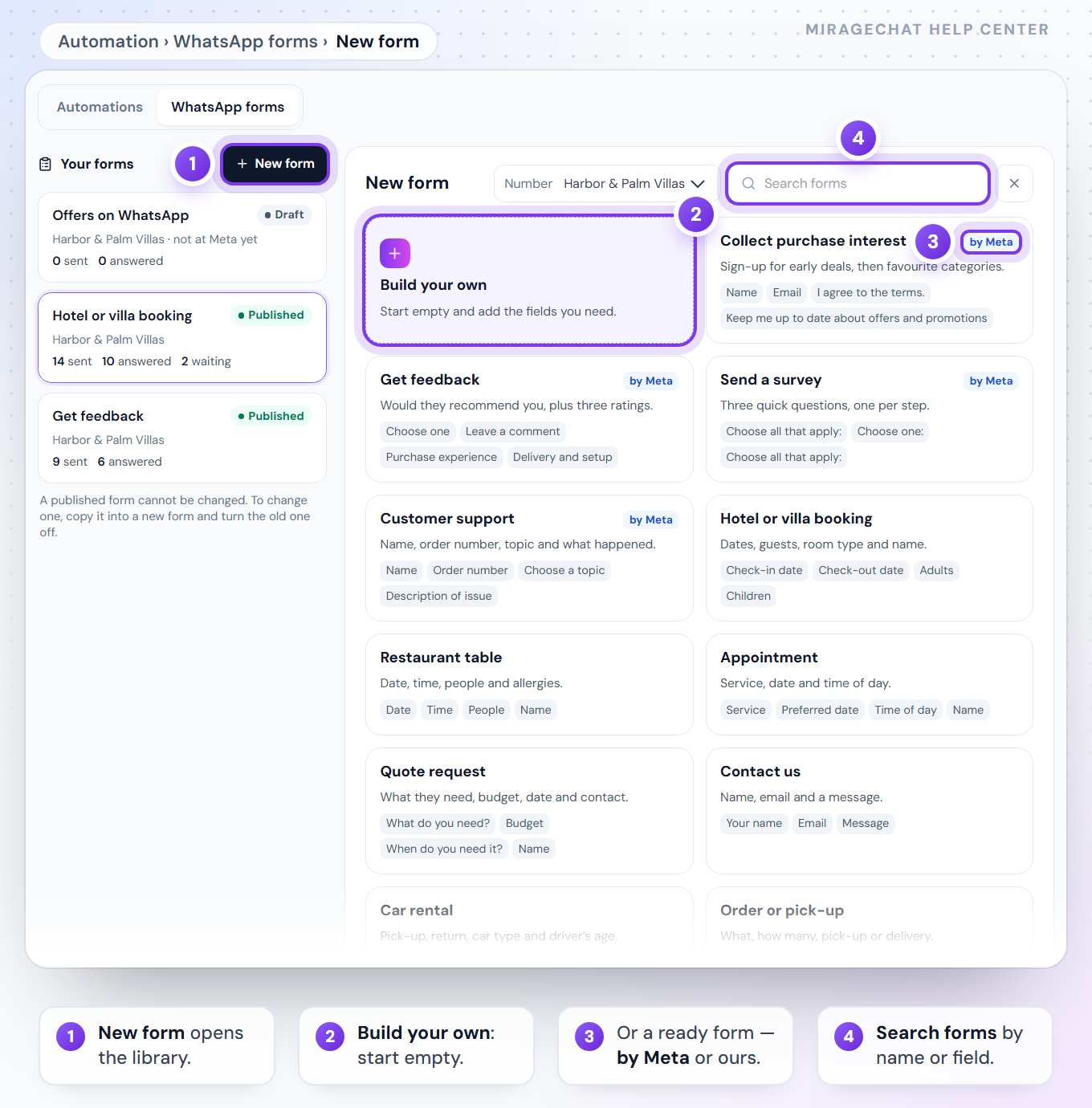
Automation, press the WhatsApp forms tab, then New form. With more than one WhatsApp number, choose the Number at the top — a form belongs to one number.Pick a ready form, or build your own
The first card is Build your own: start empty and add the fields you need. Then the ready forms — Meta’s four templates, marked by Meta: Collect purchase interest, Get feedback, Send a survey and Customer support — and ours: Hotel or villa booking, Restaurant table, Appointment, Quote request, Contact us, Car rental, Order or pick-up, Event registration and Offers on WhatsApp. Each card shows its first fields; Search forms finds one by its name or a field.
Read the words
The ready forms come in the language of your WhatsApp number’s country when the library has it, otherwise in English — a line under the form’s name says which. Every word can be changed.
2. Change it
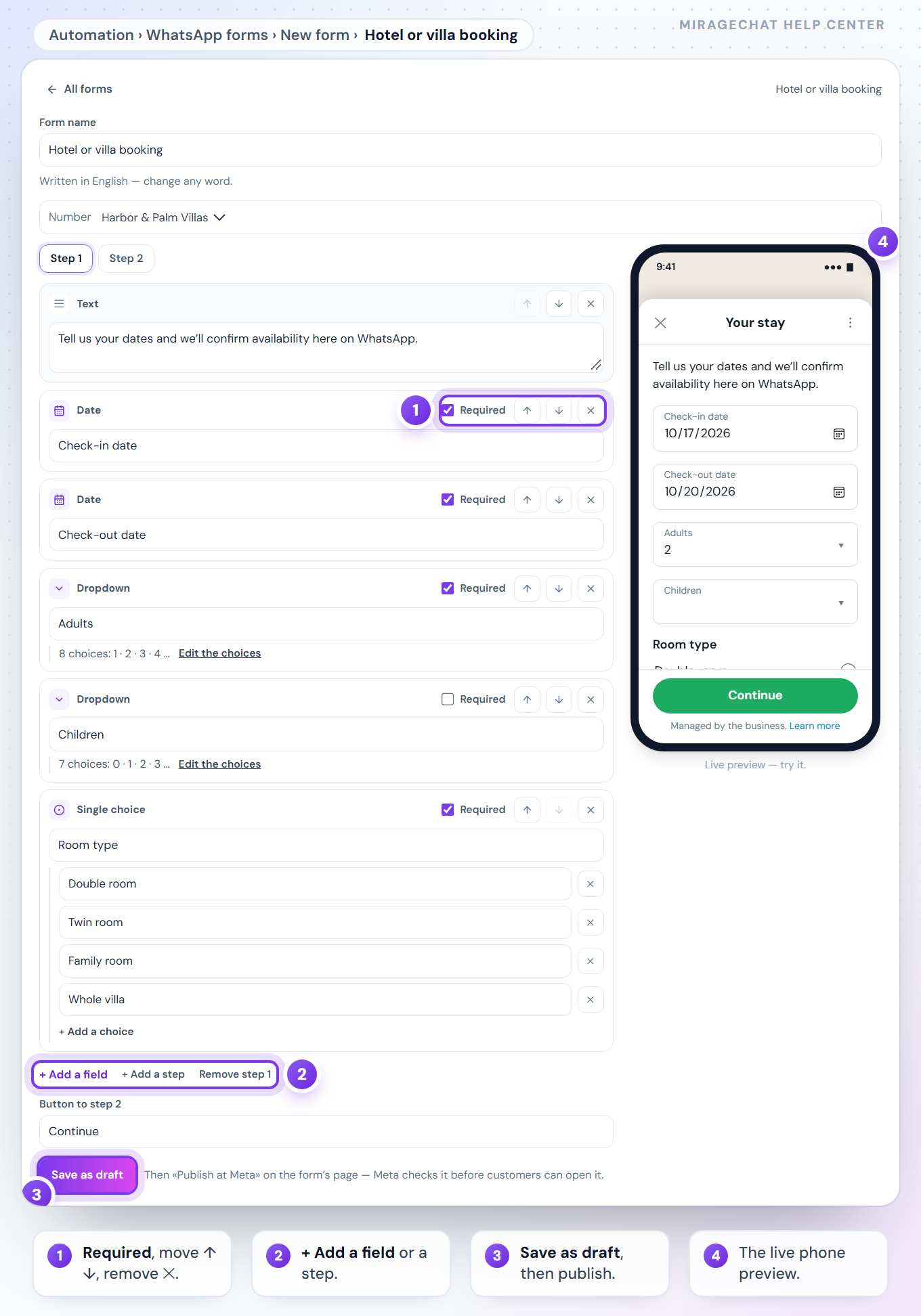
The form opens in a short editor, with the form live on a phone beside it — fill it in there as your customer will. On a smaller screen, switch between Edit and Phone preview.
- Form name — for you and for Meta. Two forms on the same number can’t have the same name.
- Each field — rename its label, tick Required, move it with ↑ and ↓, remove it with ✕. A list of choices shows them one under the other, with + Add a choice; a long list folds after five behind Edit the choices.
- + Add a field — Short text, Long text, Email, Phone, Number, Date, Dropdown, Single choice, Multiple choice, Consent checkbox, or a line of Text.
- + Add a step — up to five steps. Each step ends with its button: Button to step 2, and on the last step the Final button.
- WhatsApp’s limits — a counter appears when a text nears its limit, and turns red with the reason when it is too long or empty. Saving waits until every problem is fixed.
3. Save it, then publish it at Meta
Save as draft
Press Save as draft. The form joins Your forms; a draft opens again with Edit.
Publish at Meta
On the form’s page, press Publish at Meta. Meta checks the form first: if it finds a problem, the problem is listed under the form in Meta’s own words and nothing is published.
Check it
Once it reads Published, customers can open it. Preview opens Meta’s own preview of the form; the round arrow asks Meta for its status again.
| Status | What it means |
|---|---|
| Draft | Not published yet — change it with Edit. A draft already at Meta opens only for testers. |
| Published | Customers can open it, and it can be sent. It can’t be changed any more. |
| Turned off | It can no longer be sent. |
| Blocked by Meta | Meta blocked it — it cannot be opened. |
| Throttled | Meta lets it go out at most 10 times an hour. |
A published form can’t be changed — Meta doesn’t allow it. Press Copy into a new form, change the copy, publish it and turn the old one off.
Example terms. Meta’s «Collect purchase interest» comes with example terms behind its consent box. Publish at Meta stays off until you replace them with your own — open The terms «Read more» opens under that box in the editor.
4. Send it
WhatsApp lets a form go out only within 24 hours of the customer’s last message, and from the form’s own number.
From a conversation
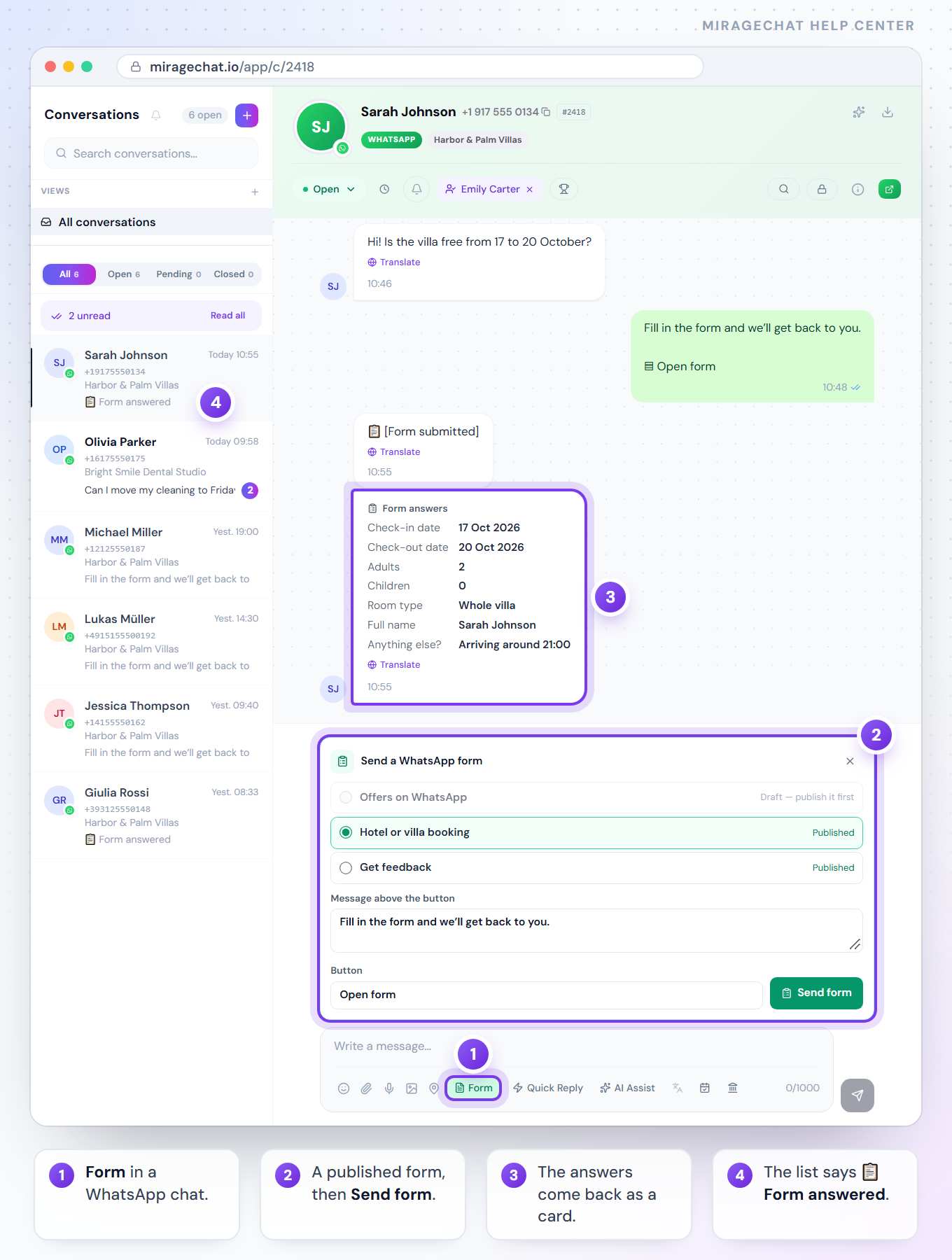
Open a WhatsApp conversation in the Inbox and press Form under the reply box. Choose one of the number’s published forms — a draft says Draft — publish it first — change Message above the button and Button if you like (the button says up to 30 characters, no emoji), and press Send form.
From an automation
On the form’s page, press Use in an automation: the visual builder opens with Send a WhatsApp form and this form in it — or drag the block in yourself, from Messages on the canvas. When it is answered carries on once the customer sends the form; No answer runs after the time you choose, 1 to 24 hours. More in Build an automation.
5. The answers
- In the conversation — the answers arrive as a card, Form answers, under the form’s own labels, with dates written out (17 Oct 2026).
- In the list — the conversation reads 📋 Form answered.
- Offers on WhatsApp — a client who ticks its consent box shows as Subscribed in
Customers, with the form and the day as proof. Keep the box’s words as they are. Someone who replied STOP, or turned off marketing messages in WhatsApp, is never marked subscribed.
6. Each form’s log
In Automation › WhatsApp forms, choose a form: its number, when it was published, its fields — and every time it was sent.
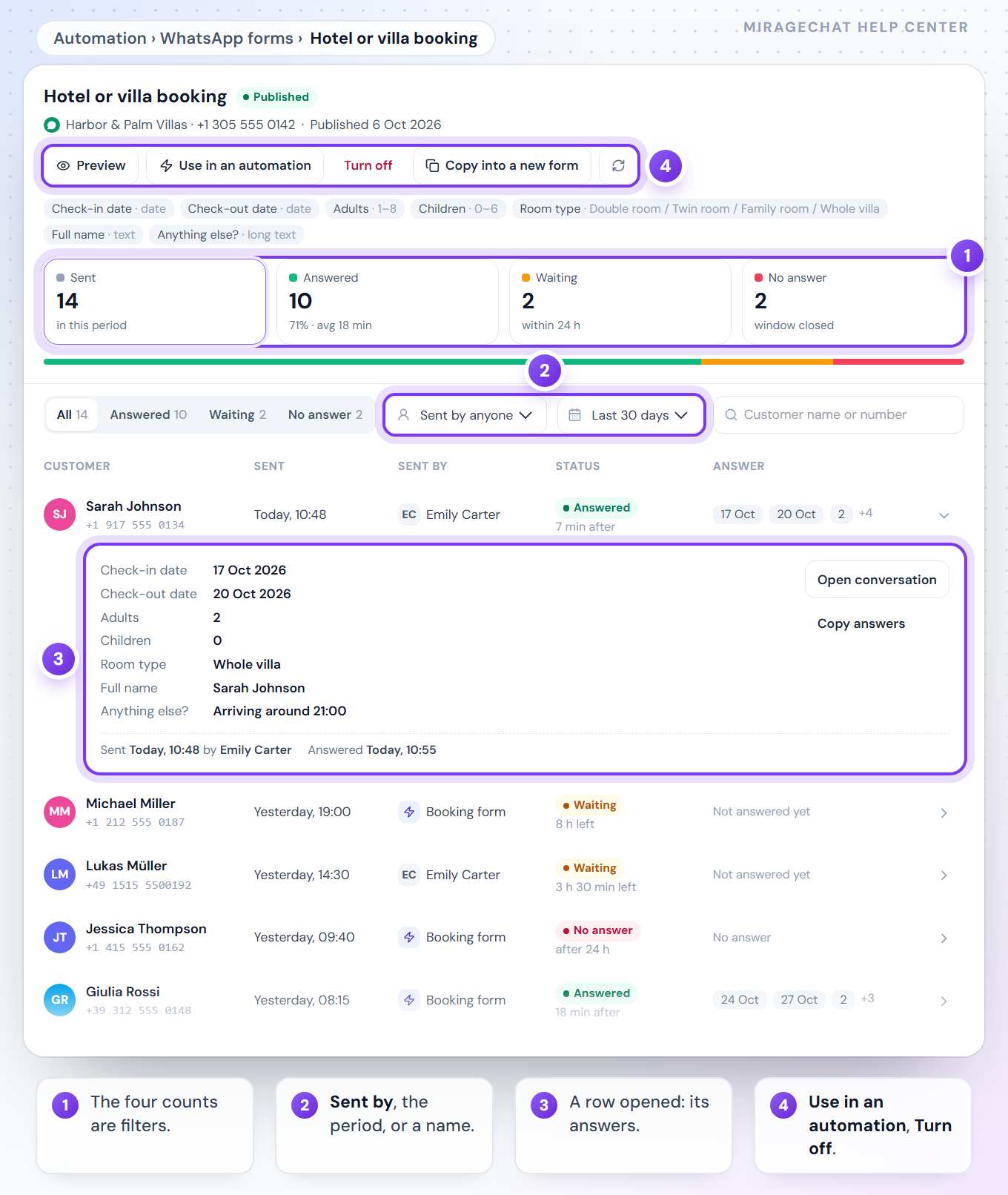
- Sent · Answered · Waiting · No answer — four numbers for the period, and each one is a filter. Answered also says the share and how long customers took on average.
- Waiting — sent less than 24 hours ago and not answered yet. After 24 hours it counts as No answer; an answer that comes later still turns it into Answered.
- The filters — Sent by (a person, from the Inbox, or an automation), Last 7 days, Last 30 days or All time, and a search by the customer’s name or number.
- A row — the customer, when it went, who sent it, its status and the first answers. Click it for every answer, Open conversation and Copy answers — and, when nobody answered, Send again, which opens the conversation with the form already chosen.
- Turn off — the form can no longer be sent, from the Inbox or an automation. It can’t be turned back on; make a new one instead.
- Delete — the last button on a form’s page. A draft is deleted at Meta too; a published form is turned off there first. Its log goes with it, the answers stay in each conversation, and an automation that sends it stops until you pick another form.
On your phone
In the MirageCHAT app, Automations › WhatsApp forms lists your forms; tap one for its log — the four numbers, Sent by, the period and the search — and each answer with Open conversation, Copy answers and Send again. In a WhatsApp conversation, Send form in the Attach sheet sends a published form. New form opens the same library and editor; Build your own opens the web, and a draft is published at Meta from the web.
If something looks wrong
«Form» is grey in the conversation.
WhatsApp sends a form only within 24 hours of the customer’s last message. Once they write again, it opens.
The Form panel says “This number has no forms yet”.
A form belongs to one WhatsApp number. Make one for the number of this conversation, under Automation › WhatsApp forms, and publish it.
«Publish at Meta» is grey.
The form still shows the example terms. Press Edit, write your own, save, then publish.
I need to change a published form.
Press Copy into a new form, change the copy, publish it, then turn the old one off.
A row says «Locked conversation».
The answers sit in a locked conversation — open it with your PIN to read them.
Ready?
Opens MirageCHAT in this tab. Sign in first if you’re not already.
Did this guide help?
Related guides
Still stuck? Write to info@miragechat.io with your workspace name. Never send passwords or codes.