In short
Messages from WhatsApp, Instagram, Messenger, Telegram and your website chat land in one Inbox. Click a conversation, write in the box at the bottom and press Enter. Quick replies, AI help and translation sit right under the box.
Before you start
- At least one channel connected in
Channels. Until then the Inbox says Nothing arrives until a channel is connected. Guides: WhatsApp · Instagram · Facebook Page · Telegram · your website. - For AI drafts: a plan with AI (the Free plan has none), and the channel set to Suggests under
AI › Channels. An agent also needs AI assistant: Use drafts inTeam › Agents.
1. Find the conversation
Open the Inbox
Click
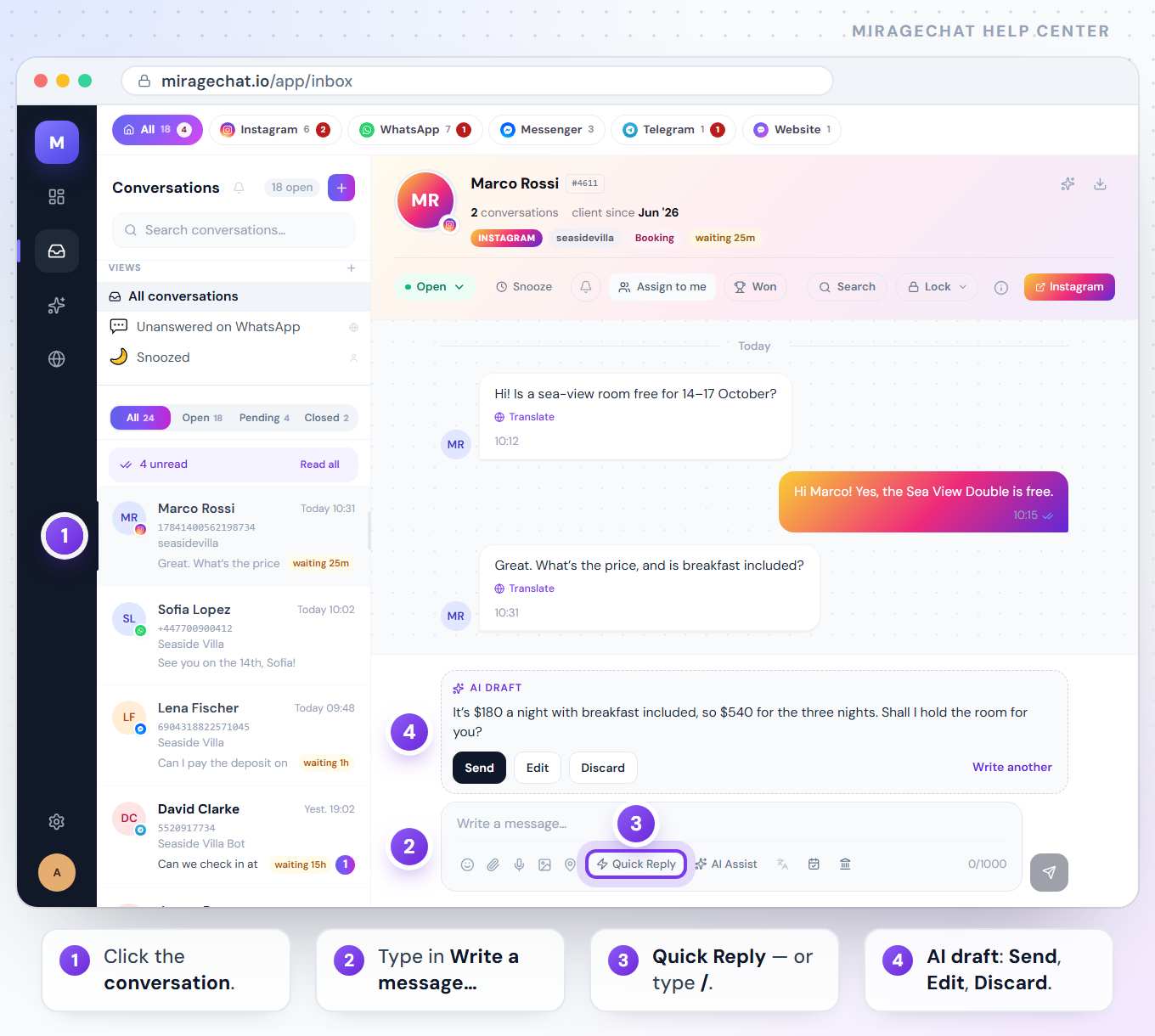
Inboxin the menu. The conversation with the newest message is on top, whoever wrote it — the way WhatsApp and Instagram order chats on your phone. Each row shows the date and time of its last message.Narrow it to one channel (optional)
The row above the list holds All and one button per platform, each with its open count. Click a platform to see only it. If it has several accounts, a list opens: pick one, or All Instagram (for example) for all of them.
Spot who is waiting
A row marked waiting 25m means the customer wrote last and nobody has answered for at least 5 minutes; the mark turns red after 24 hours. The round number is the unread messages.
Open it
Click the conversation. It opens on the right with the newest message at the bottom, and its messages are marked read.
With no conversation open, the right side shows the numbers of whatever you selected: open conversations, waiting on us, longest wait, first reply, 7 days, and Needs you now — the customers waiting, longest first.
2. Write and send a reply
Type in the box
Write in Write a message… at the bottom. Enter sends; Shift + Enter starts a new line. A message can be up to 1,000 characters — the counter is on the right.
Add a photo, a file, a voice note or your location
The icons under the box: Emoji, Attach (a file), Voice (press to record, press again to stop), Image and Share location. A photo or a voice note can go without any text.
Answer one message in particular (optional)
Hover over a message and click the arrow, Reply to this message. The quote shows above the box; × removes it.
Check that it arrived
Under your message, one tick means sent and two ticks delivered; they turn blue once the customer has read it, where the channel reports it. A red ! means it failed — the reason is written beside it, so you know what to fix before sending again.
3. Use a quick reply
Open the list
Click Quick Reply under the box — or type / in an empty box. Only the replies meant for this conversation’s channel are listed.
Find the right one
Type in Search…, or click a category at the top of the list.
Pick it
The text drops in where your cursor is, with the customer’s first name already filled in, and your own words stay. A reply with a photo sends at once — photo and text together.
Fill in what only you know
If the reply needs a price, a date or a time, a small form opens first: Fill in before adding. Type the values and press Add to reply (or Send for a reply with a photo).
A blank left in the box, like [price], is caught before it reaches the customer: the Inbox asks before sending, and Tab jumps to the next blank. To write your own replies, see Create quick replies.
4. Let the AI help
- AI draft — on a channel set to Suggests, the AI writes a reply and leaves it above the box, marked AI draft. Send sends it as it is, Edit moves it into the box so you can change it, Discard throws it away and Write another asks for a new one. Nothing reaches the customer until someone on your team presses Send.
- AI Assist — press AI Assist under the box and the AI writes a suggestion into it. When it has nothing to suggest, a note above the box says why — and your own text stays untouched.
- Read their language — under a customer’s message, Translate shows it in your language; Show original brings the original back.
- Answer in their language — write in your own, then press the translate button under the box (Translate into the customer's language). Press it again to go back to what you wrote.
- Rate the AI — under a reply the AI wrote, press Helpful or Not helpful.
A channel set to Replies lets the AI answer by itself; it hands over to your team when it isn’t sure. The AI settings icon next to the customer’s name shows what the AI does on this channel, with Manage AI settings to change it.
5. When the 24-hour window has closed
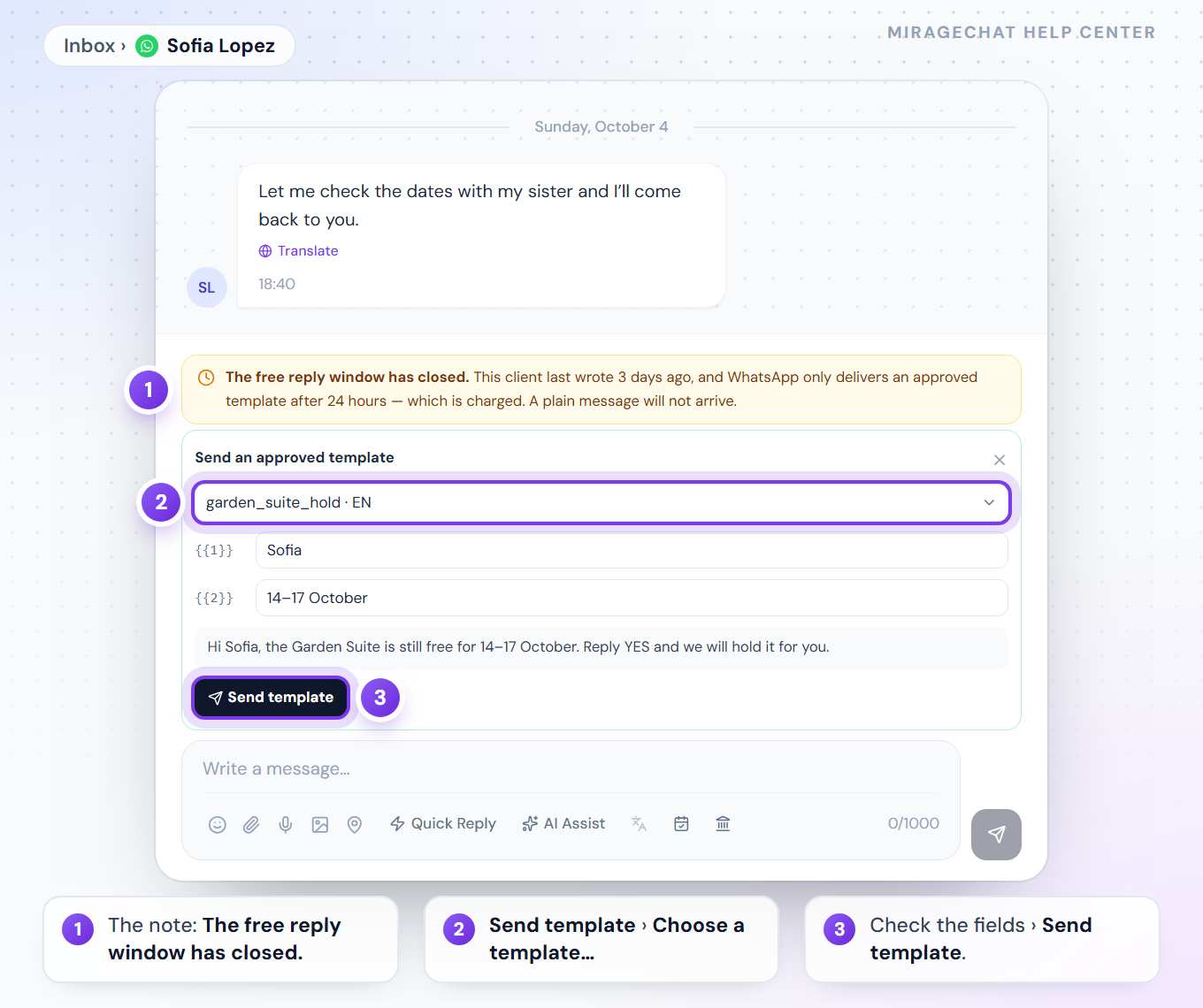
WhatsApp, Instagram and Messenger let a business reply freely only within 24 hours of the customer’s last message. Once that has passed, an amber note above the box says The free reply window has closed.
WhatsApp: send an approved template
A plain message will not arrive. Press Send template in the note, choose one under Choose a template…, check its fields — the first one starts as the customer’s first name — and press Send template. Meta charges for it. No template yet? Create one in
Channels › Message Templates.Instagram and Messenger: answer within 7 days
For up to 7 days after the customer’s last message, a signed-in team member can still answer — the reply goes out with Meta’s Human Agent tag, and the note shows the exact time this ends. If Meta has not switched that on for MirageCHAT yet, the note says so. After 7 days, the customer has to write first.
Telegram and website chat have no such window.
6. Start a new WhatsApp conversation
Press +
At the top of the conversation list, press + (New conversation).
Choose the number to send from
Under Channel, pick your WhatsApp number.
Enter their number and a template
Type the phone number with the country code, without + or 00. Choose an approved template under Message template and fill in every value.
Send
Press Send & open. The conversation opens; once they reply, you can write freely for 24 hours.
Only WhatsApp lets a business start a conversation. On the other channels you answer people who wrote to you first.
7. More inside a conversation
- Contact Info — the Contact Info button (the i) opens the customer’s card: their photo, the channel, their status, an AI summary of the conversation, tags and private notes. See Organise conversations.
- Search in this conversation — Search in the bar under the name finds a word anywhere in the thread. Type at least two letters and click a result to jump to it.
- The conversation number — click #1234 next to the name to copy it, so you can point a colleague to the exact chat.
- Export CSV — the download icon next to the name saves the whole conversation as a CSV file.
- Won — when a conversation ends in a sale, press Won and enter the amount. See what it brought.
- Bank transfer request — the Bank icon under the box sends your IBAN, the amount and a unique reference in the chat (Send IBAN + reference). Add your bank account first in
Workspace › Guest Payments. - WhatsApp form — in a WhatsApp conversation, Form under the box sends one of the number’s published forms while the 24-hour window is open; the answers come back as a card. Owners and admins. See WhatsApp forms.
- Buttons on Messenger — in a Messenger conversation, the Quick replies button with two arrows above the box adds up to 13 tap-to-answer buttons under your message. Separate them with commas.
- Open on the platform — the coloured button at the right of the bar (WhatsApp, Instagram or Messenger) opens the same chat there.
Good to know
- When a person answers, automations in that conversation wait 30 minutes, so the customer never gets two answers.
- Every reply is recorded with who sent it, and shows in the conversation’s activity log.
- WhatsApp kept on your phone? Replies typed in the WhatsApp Business app appear here too, marked Sent from phone; copied history sits under Copied from WhatsApp Business.
- A message the customer deleted stays readable here, with a label saying who deleted it.
- Search everything with Ctrl + K (Cmd + K on a Mac) — see Organise conversations.
If something looks wrong
The send button stays grey.
Type something or attach a file first. In a locked conversation the box is closed until you enter your PIN.
My message has a red ! next to it.
It did not go out. Read the reason beside it (or hover the !). If it says the 24-hour window has closed, use a template on WhatsApp — see step 5. Otherwise fix the cause and send it again.
I don’t see AI drafts.
Check three things: the channel is set to Suggests in AI › Channels, your plan includes AI, and — for an agent — AI assistant is set to Use drafts in Team › Agents.
AI Assist didn’t write anything.
The note above the box says why — for example the AI is paused for the workspace, or it stays silent while a person is answering the conversation. Your draft is never lost.
A Messenger conversation says «Another app owns this thread right now».
Another app connected to your Page holds the conversation. Press Take control; messages keep arriving meanwhile.
On your phone
In the MirageCHAT app, open the Inbox tab and tap a conversation. Above the box sit Quick replies, AI draft, Follow-up and — once you have typed something — Translate. AI drafts written for the conversation show above the box, with the same Send, Edit and Discard. The status button at the top right also holds Won….
Ready?
Opens MirageCHAT in this tab. Sign in first if you’re not already.
Did this guide help?
Related guides
Still stuck? Write to info@miragechat.io with your workspace name. Never send passwords or codes.