In short
Each conversation has a status — Open, Pending or Closed — and an owner. Filters, search and saved views show the ones that need you; snooze, reminders and scheduled messages bring them back on time; notes and tags stay with the customer, for your team only.
1. Open, Pending, Closed
| Status | Use it for |
|---|---|
| Open | Needs an answer or work from your team. New conversations start here. |
| Pending | Waiting on something else — a payment, a colleague, the customer’s decision. |
| Closed | Done. It keeps every message and can be found again at any time. |
Change the status
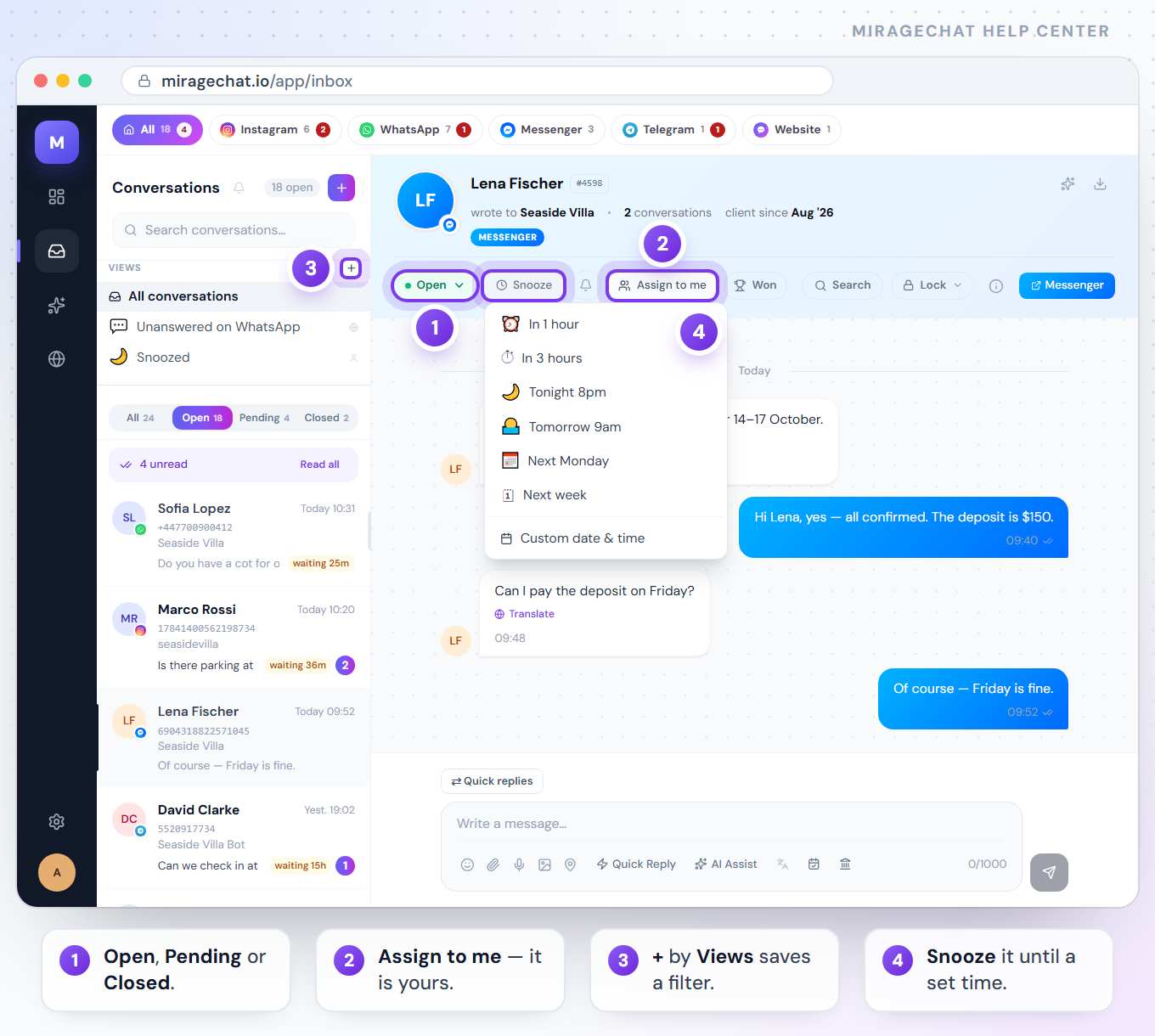
In the conversation, click the status button at the start of the bar under the name — it shows the current one, for example Open — and pick another.
Show one status
Above the list, All · Open · Pending · Closed filter the list; each shows its count.
Closing doesn’t stop messages. If the customer writes again, the conversation comes back to the top of All with an unread count — set it to Open when it needs work again.
2. Take ownership
Take it
Press Assign to me in the bar under the name. Your name replaces the button, and the whole team sees the conversation is yours.
Let it go
Press your name in the bar (it has a ×) to unassign the conversation.
Overview’s Do this next counts the open conversations nobody owns. With no conversation open, the Inbox shows Who has them — how many each person holds, with Nobody yet first. An automation can also hand a conversation to your team: Build an automation.
3. Unread, search and Ctrl + K
Show only unread
Click N unread above the list to keep only conversations with unread messages. Click it again to show them all.
Mark everything read
Press Read all, then Yes. It clears the unread messages of the channel you have selected in the row above — closed conversations included. Select All first to clear everything.
Search the list
Type in Search conversations…: a name, an @username, a phone number or a word from any message — the list keeps every conversation that holds it, snoozed ones included. A conversation number such as 4611 or #4611 finds that conversation. Opening a result empties the box; Search «…» again brings the search back.
Search every message
Press Ctrl + K (Cmd + K on a Mac) and type at least 2 characters. It looks through names, numbers and the text of every message. ↑ and ↓ choose, Enter opens, Esc closes. Typing a conversation number such as 4611 or #4611 finds that conversation.
4. Save a view
A view is a filter you use every day — for example Unanswered on WhatsApp — saved under Views in the list column.
Start a view
Next to Views, press + (New view).
Name it and choose who sees it
Give it a name and, if you like, an emoji. Under Visibility choose Just me or — owners and admins — Whole team.
Choose the filters
Status, Platform, Unanswered (the customer wrote last), Snoozed and Locked. The last three take Yes (only those) or No (all the others). Leave the ones you don’t need on any.
Save it and use it
Press Create. Click the view to apply it; All conversations goes back to everything. Hover a view to edit or delete it.
5. Come back to it later
- Snooze — press Snooze in the bar and pick In 1 hour, In 3 hours, Tonight 8pm, Tomorrow 9am, Next Monday, Next week or Custom date & time (with an optional reason). The conversation leaves the list and the button reads Snoozed until …. It comes back by itself at that time — or as soon as the customer writes; Wake up now ends it early. Meanwhile the search finds it, and a view with Snoozed set to Yes lists every snoozed conversation.
- Reminder — press the bell in the bar, choose In 1 hour, In 3 hours, Tonight 18:00, Tomorrow 09:00 or Pick date…, add a note such as «deposit promised» and press Set reminder. Only you are reminded — on your phone, and on the bell next to Conversations at the top of the list, which lists all your reminders. The customer sees nothing.
- Scheduled message — press Follow-up (the calendar icon under the box), choose Scheduled message, write the message, pick a time and press Schedule message. It waits in the conversation, marked Sends …, where anyone on the team can Send now, Edit or Cancel it. If it can’t be delivered, whoever wrote it is told. The other tab, Remind me, sets a reminder, like the bell.
A scheduled message is sent like any other reply, so the 24-hour window of WhatsApp, Instagram and Messenger applies at the moment it goes out.
6. Notes, tags and VIP
Open the customer’s card
Press Contact Info (the i at the right of the bar).
Write a private note
Under Internal notes, type in Add a private note (visible only to your team)… and press Add note. The pin marks an important note; the bin deletes one.
Tag the customer
Under Tags, press + add, type a word and press Enter. Tags are saved in lower case, with spaces turned into dashes; × removes one.
Mark a VIP
The star at the top of the card (Mark as VIP) puts a star next to their name.
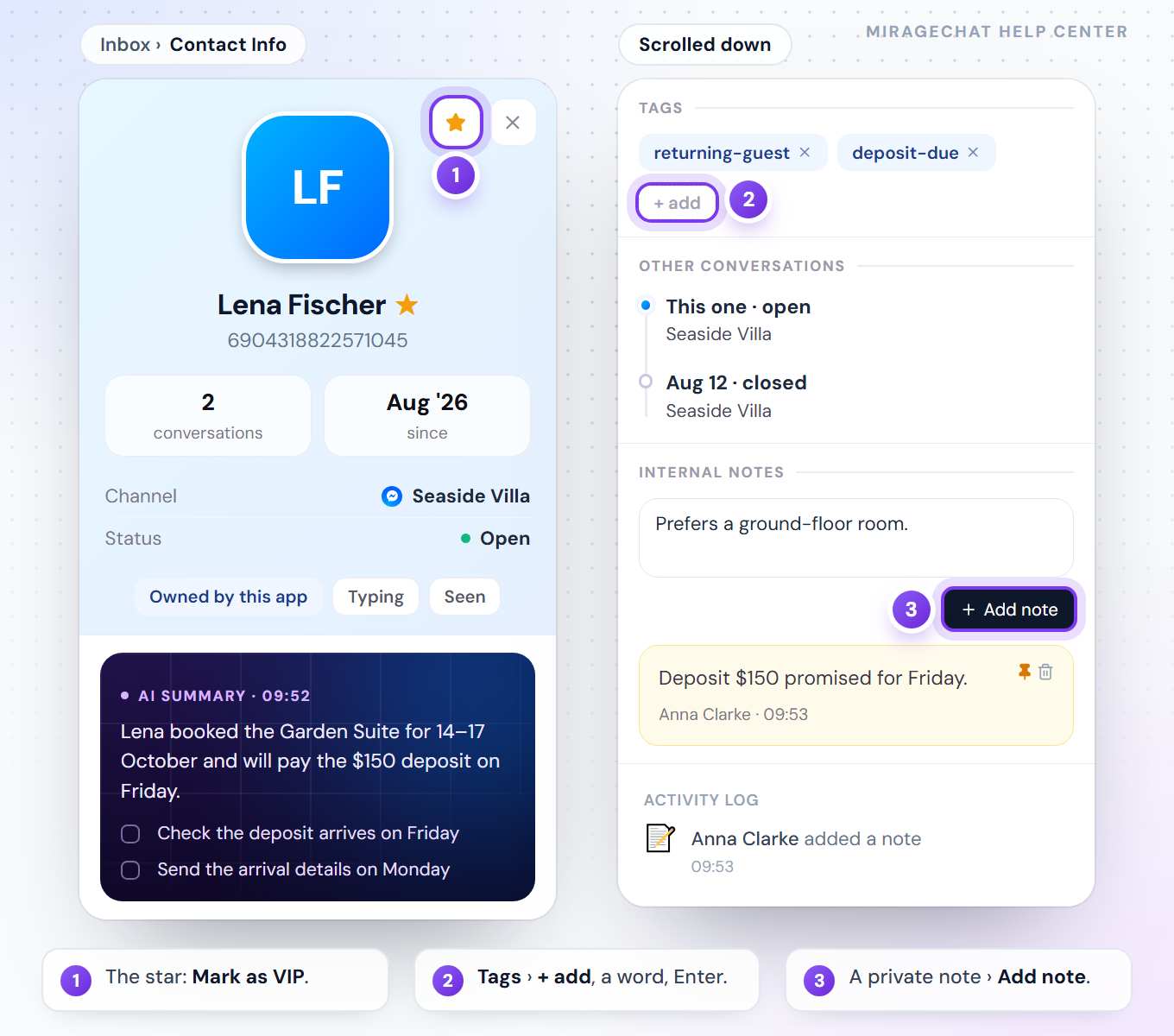
The card also shows the AI summary of the conversation with its to-dos (click one to tick it off), the customer’s numbers, Other conversations they had with you, and the Activity log — who assigned it, changed its status or added a note, and when.
An agent needs Clients: Edit tags & VIP in Team › Agents to add tags, mark a VIP or write notes.
7. Lock a private conversation
A lock hides a conversation behind a six-digit PIN. Everyone who can see the conversation opens it with their own PIN.
Create your lock PIN
Click the lock at the bottom of the menu (Lock PIN), type six digits twice and press Save PIN. It is separate from your password.
Lock the conversation
In the conversation, press Lock. Choose when it asks for the PIN: Every time, When I leave or After a time (5, 15 or 30 minutes, or 1 hour). Keep Hide message text on to hide the words in the list, notifications and search. Press Lock conversation.
Open it
A locked conversation shows a PIN card instead of the messages. Type your PIN and press Open conversation.
Remove the lock
Open it, press Locked, then Remove the lock… and type your PIN.
Five wrong PINs in a row pause that person for 15 minutes and email the owner. Forgot your PIN? An admin resets it in Team › Agents with Reset lock PIN.
Owners and admins can lock a whole channel too: on its card in Channels, ⋯ › Lock channel…, and choose whether agents who created their PIN may open it.
Good to know
- Everyone sees the same status and owner — the whole team works from one Inbox.
- Each change is recorded in the conversation’s activity log, with who made it.
- A snoozed conversation leaves the list — and the waiting, unread and Overview counts — until its time comes or the customer writes, whichever is first. A message from your side doesn’t wake it. Its reply-time target keeps running: a snooze doesn’t stop the customer waiting.
- Reminders are personal: the alarm rings only for the person who set it.
If something looks wrong
I can’t find a conversation I closed.
Choose Closed or All above the list, or press Ctrl + K and search for the name or a word they wrote.
I can’t find a conversation I snoozed.
It is out of the list until it wakes. Type the name in Search conversations…, or open a view with Snoozed set to Yes.
Read all didn’t clear every unread message.
It clears the channel selected in the row above the list. Select All there and press it again.
Can I give a conversation to a colleague?
In the Inbox, each person takes a conversation with Assign to me. An automation can hand conversations to the team.
I can’t add tags or notes.
Ask the owner to set your Clients access to Edit tags & VIP in Team › Agents.
A conversation asks for a PIN I never set.
Someone locked it, or an admin locked its channel. Create your own PIN from Lock PIN, then open it with that. If it says Only an admin can open this channel, only the owner and admins can read it — new messages still arrive.
On your phone
In the app’s Inbox tab: All · Open · Pending · Closed, the search and Read all. Swipe a conversation to the left for Read, Snooze and Close (or Reopen). Inside a conversation, the status button at the top right holds the statuses, Snooze… and Follow-up…; Notes sits beside Messages; the lock icon locks it. Assigning is done on the web.
Ready?
Opens MirageCHAT in this tab. Sign in first if you’re not already.
Did this guide help?
Related guides
Still stuck? Write to info@miragechat.io with your workspace name. Never send passwords or codes.