In short
Comments lists every post people commented on, from all your accounts, the ones with new comments first. Open a post and press Reply under a comment — or answer privately. Mentions shows where people name your account, and Reviews your Facebook Page’s recommendations.
Before you start
- An Instagram professional account, a Facebook Page or a TikTok account with comments on, connected in
Channels— Instagram · Facebook Page · TikTok. - A Facebook Page connected before 1 October 2026: press ⋯ › Refresh permissions on its card in
Channelsonce, so its comments open here. - Agents: Comments access in
Team › Agents— Reply to answer, Reply + hide/delete to moderate, + Message privately for private replies.
1. Find the comments that need you
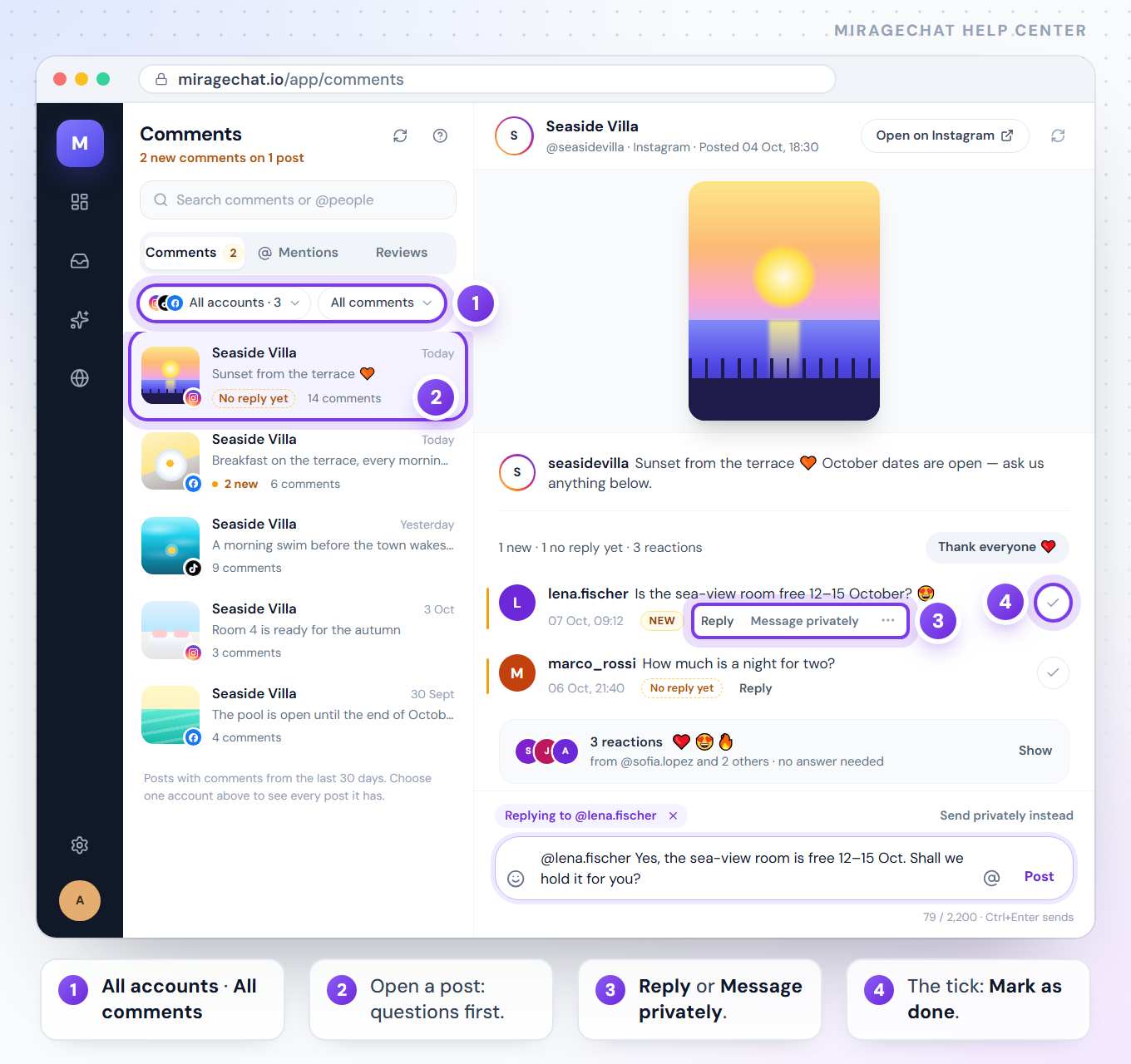
Open Comments
Click
Commentsin the menu. The line under the title says what is new — for example 2 new comments on 1 post. The list holds every post with comments from the last 30 days; posts with new comments come first and carry their number.Choose the accounts
The first menu, All accounts, picks a whole channel (such as All Instagram) or one account. Choosing one account lists every post it has, commented on or not.
Choose what to show
The second menu: All comments, New (nobody on your team has seen them yet) or No reply (a question still waits for an answer).
Search
Type in Search comments or @people. Press / to jump to the search, and J / K for the next and previous post.
Open a post
Click it. The post opens beside its comments, the way the platform shows it — a video plays right there. Questions still waiting are on top, marked New or No reply yet.
2. Reply in public or in private
Reply under a comment
Press Reply under the comment. The bar at the bottom opens with their @name; write your answer and press Post (or Ctrl + Enter). Everyone who sees the post sees it — good for prices, hours, anything that helps others too.
Or message them privately
Hover the comment and press Message privately. Write and press Send. It arrives as a direct message and opens a conversation in your Inbox. Instagram allows this within 7 days of the comment.
Switch if you change your mind
Send privately instead and Reply in public instead switch between the two.
Tag someone
Type @, or press the @ button in the bar, to tag someone who commented on this post.
Post your own comment
With no comment chosen, the bar is your own new comment on the post: write in Add a comment… and press Post.
3. Clear what needs no answer
- Done — the round tick at the right of a comment (Mark as done) means no answer is needed: No reply yet goes away. Undo in the message at the bottom of the screen brings it back.
- Reactions — emoji and praise never count as new. They fold into one line, for example 6 reactions; Show opens them. Thank everyone posts a heart as a public reply under each, after you confirm; on TikTok, Like each and clear likes them instead.
- The same question, several times — when people ask the same thing (the price, the dates, where it is, the song), a card says so, for example 3 people ask the price. Press Answer all 3, write one answer and press Reply to all 3. Start each reply with the person's @name tags each one.
- Seen for the whole team — opening a post marks its new comments seen for everyone, so the numbers drop on every screen. They keep their New mark while you read.
4. Like, hide or delete
- Like — Like under a comment adds a like from your account, on TikTok, on a Facebook Page and on an Instagram account connected through its Facebook Page. Press it again to take it back.
- Hide — More actions (•••) › Hide: the comment stays visible to the person who wrote it and to nobody else. Nothing is deleted; Unhide brings it back.
- Delete — More actions › Delete…, then Delete. It is gone for good, so hiding is usually the safer choice. On TikTok you can delete only your own comments.
- Comments on / off — on an Instagram post, the Comments on switch in the post’s header closes or reopens its comments on Instagram itself. The comments already there stay.
- Edit or delete a post (owners and admins) — the ••• in a Facebook Page post’s header has Edit text and Delete post; on an Instagram account connected through its Page it has Delete post. Deleting always asks first.
5. Mentions: where people name you
Open Mentions
Press Mentions at the top of Comments. Choose the accounts and the period — Last 7 days, Last 30 days or Last 90 days.
Answer a mention
Under Mentions, each row is a comment or a caption that names your account. Press Reply, write and press Post: it appears under their comment, on their post, as your account.
See posts that tag you
Tagged shows posts that tag or name your account. No app can comment there, so press Open on Instagram (or Facebook, or TikTok) to answer on the platform.
Clear it
Mark as seen takes a mention off the new count.
6. Reviews on your Facebook Page
Open Reviews
Press Reviews at the top of Comments — it appears once a Facebook Page is connected. Choose the Page, and All reviews or Not answered.
Bring in older reviews
New reviews arrive by themselves. Press Load older reviews for the ones written before the Page was connected.
Answer on Facebook
Open a review, write your answer and press Reply on Facebook. Facebook doesn’t let apps post an answer to a review, so MirageCHAT keeps your answer, copies it and opens the review on Facebook — paste it there.
Google reviews are coming soon to the same place: a Google source next to Facebook, a star filter, and Post reply on Google — Reply to Google reviews.
Good to know
- New comments arrive by themselves; the round arrow next to the title asks again.
- The ? next to the title (What can I do here?) explains every action on the page.
- Reply automatically to comments with your words, and send a DM: Reply to comments with a DM.
- TikTok lets a business answer comments in public only, up to 1,200 characters, and shows mentions a day or two late.
- A Page that says «One more permission» needs Refresh permissions › once — the link is right there.
If something looks wrong
The page says «No account with comments connected».
Connect an Instagram account or a Facebook Page in Channels; the comments under your posts then arrive here by themselves.
A commenter shows as «Someone».
The platform didn’t send their name. You can still reply to the comment.
I don’t see Hide or Delete.
They are for owners, admins and agents with Reply + hide/delete in Team › Agents. On a Facebook Page, Facebook doesn’t let a Page hide its own comments.
Why is there no Message privately on TikTok?
TikTok lets a business answer comments in public only.
Can I answer when someone tags my account in a photo?
No app can: Instagram doesn’t allow it. Tagged shows the post with Open on Instagram and Mark as seen.
On your phone
In the MirageCHAT app, the Comments tab at the bottom has the same three parts — Comments, Mentions and Reviews — with the same two menus, All accounts and All comments. Tap a post to open it on its own screen and reply. The tab shows for everyone allowed to reply to comments.
Ready?
Opens MirageCHAT in this tab. Sign in first if you’re not already.
Did this guide help?
Related guides
Still stuck? Write to info@miragechat.io with your workspace name. Never send passwords or codes.