In short
The Follow-up button in a conversation does one of two things. Remind me sets a private reminder — the client sees nothing. Scheduled message sends the client a reply at the time you pick.
Before you start
- A conversation open in the Inbox.
- For a scheduled message: a channel you can reply on.
Two things share the name. This guide is the Follow-up button inside one conversation. A series of messages sent over days to many people is a different tool: Follow up over days.
1. Remind me
Open Follow-up
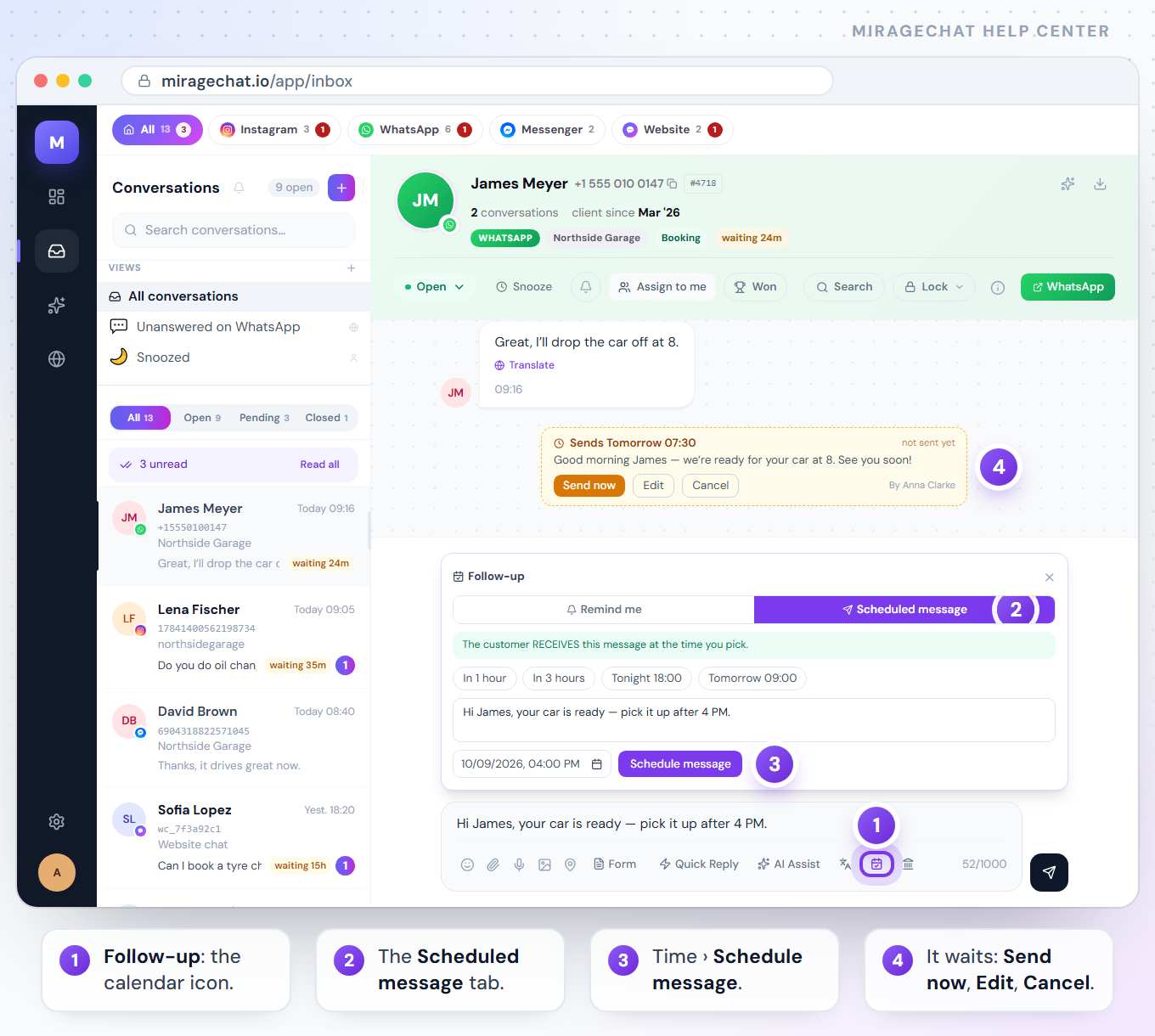
In the reply box, press Follow-up — the calendar icon in the row of tools under your text. The panel opens on Remind me: “Only your team sees this — nothing goes to the customer.”
Add a note
Type a note, for example “deposit promised for tomorrow”. It is optional.
Pick the time
Press In 1 hour, In 3 hours, Tonight 18:00 or Tomorrow 09:00 — the reminder is set at once. Or choose a date and time and press Set reminder.
At that time you are reminded on your phone and on the bell beside Conversations, at the top of the list. The bell lists all your reminders — or says Nothing scheduled. Only the person who set a reminder is reminded.
2. Scheduled message
Open the second tab
In the Follow-up panel, press Scheduled message: “The customer RECEIVES this message at the time you pick.”
Check the message
Whatever you had typed in the reply box is already there, under Message to the customer…. Change it if you need to.
Pick the time
Press In 1 hour, In 3 hours, Tonight 18:00 or Tomorrow 09:00 to schedule it at once — or choose a date and time and press Schedule message.
The message waits in the conversation as a card: Sends … with the time, not sent yet, and By with who wrote it. Anyone on the team who can open the conversation can use its buttons:
| Button | What it does |
|---|---|
| Send now | Sends it straight away. |
| Edit | Puts the text back in the reply box and cancels the scheduled one — change it, then send or schedule it again. |
| Cancel | Removes it. Nothing is sent. |
A scheduled message is sent like any other reply, so the 24-hour window of WhatsApp, Instagram and Messenger counts at the moment it goes out. If the time you pick is after that window, MirageCHAT asks first — the platform may refuse it — and you choose whether to schedule it anyway.
3. On your phone
In the MirageCHAT app, open a conversation and press Follow-up above the reply box — or the status button at the top right, then Follow-up…. The same two tabs open: Follow-up on your phone, step by step.
Good to know
- A reminder is private: only you are reminded, and the client never sees it.
- A scheduled message belongs to the team: everyone who can open the conversation sees the card and can send, edit or cancel it.
- The same on the web and the phone: a reminder or a message set on one shows on the other.
- Want to bring a conversation back without sending anything? Snooze hides it until a time you pick.
If something looks wrong
“Scheduled reply failed”
The platform refused it — most often because the 24-hour window had closed. The card shows the reason, and whoever wrote it is notified. Press Retry now, or Cancel it and answer another way.
“Pick a time in the future.”
The time you chose has already passed. Pick a later one.
Schedule message stays grey
It needs both a message and a date and time.
There is no Follow-up button
The conversation is locked — open it with your Lock PIN. Everywhere else it is the calendar icon in the reply box.
Ready?
Opens MirageCHAT in this tab. Sign in first if you’re not already.
Did this guide help?
Related guides
Still stuck? Write to info@miragechat.io with your workspace name. Never send passwords or codes.