In short
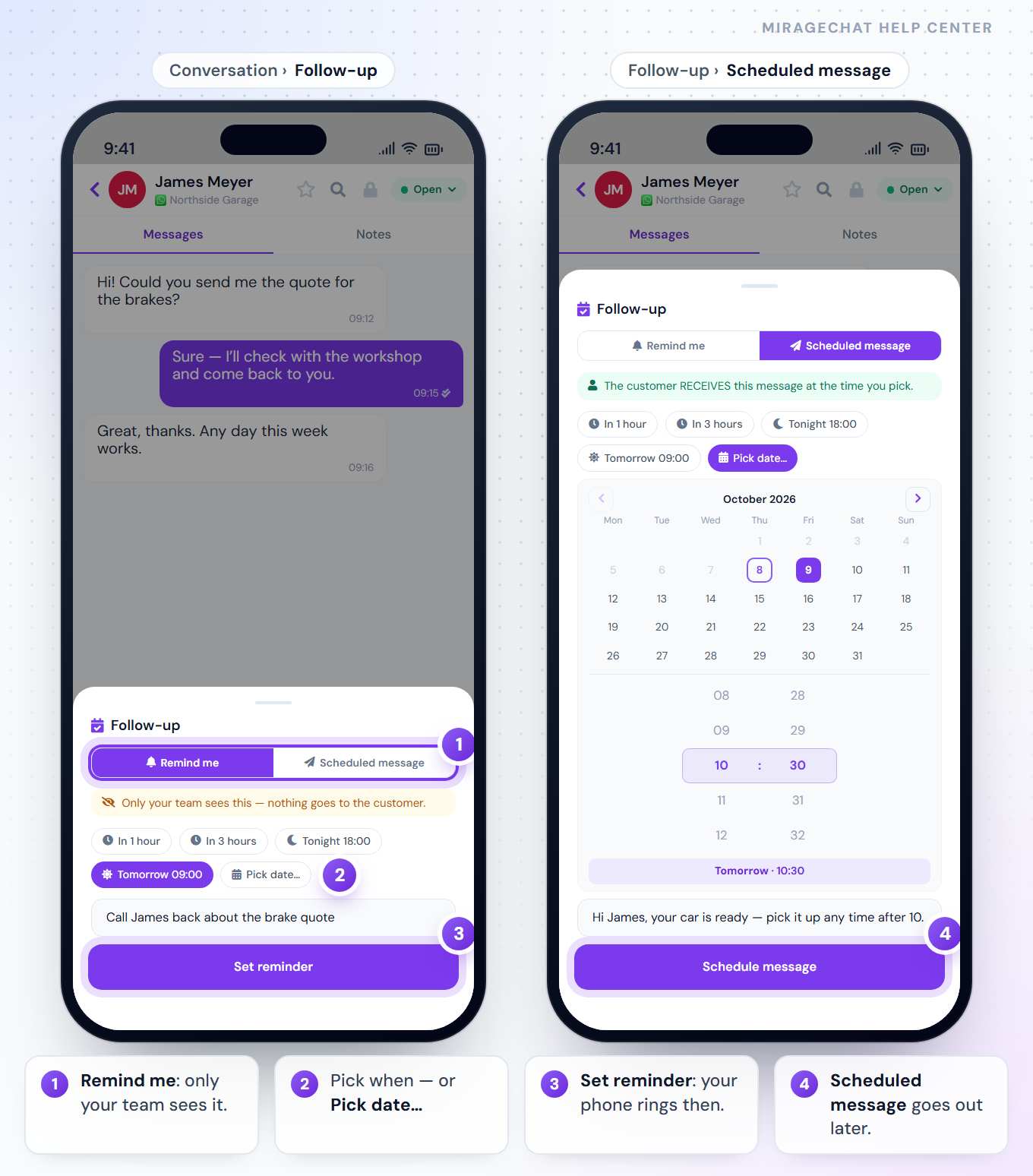
In a conversation, Follow-up opens a sheet with two tabs. Remind me rings your phone later — the client sees nothing. Scheduled message sends the client your reply at the time you pick.
Before you start
- The MirageCHAT app, signed in — Get started with the app.
- Notifications allowed for MirageCHAT, so the reminder can ring.
1. Open Follow-up
Open the conversation
In Inbox, tap the conversation.
Press Follow-up
Above the reply box, press Follow-up (the calendar icon). Or press the status button at the top right and choose Follow-up….
The sheet opens on Remind me. The coloured line under the tabs always says who will see it.
2. Remind me
Pick when
In 1 hour, In 3 hours, Tonight 18:00, Tomorrow 09:00 — or Pick date….
Add a note
Under Note — e.g. deposit promised for tomorrow, write what to do. It is optional.
Save it
Press Set reminder.
A card shows in the conversation: Reminder · the time, team only, and Set by you. At that time your phone rings and the card reads Reminder rang, with Done and +1 hour. Before then, tap the card for Mark done, Snooze +1h or Cancel reminder.
3. Scheduled message
Open the second tab
Press Scheduled message. The line under the tabs turns green: “The customer RECEIVES this message at the time you pick.”
Pick when
Choose a preset, or Pick date….
Write the message
What you had typed in the reply box is already under Message to the customer…. Change it if you need to.
Save it
Press Schedule message.
A card shows in the conversation: Sends with the time, not sent yet, and By with who wrote it. Tap it for Send now, Edit in composer (the text goes back into the reply box and the schedule is cancelled) or Cancel schedule. When it goes out, it arrives as a normal message and the card reads Scheduled reply sent.
4. Pick a date and time
Choose the day
Press Pick date…: a month calendar opens. Days that have passed are grey; the arrows change the month.
Choose the time
Turn the hour and minute wheels, like a phone alarm — or tap a number you can see.
Check the line under the wheels
It spells the choice out: Today · 15:00, Tomorrow · 09:00 or a date. If you pick today at an hour that has passed, it moves to the next full hour by itself.
WhatsApp, Instagram and Messenger take a free reply only within 24 hours of the client’s last message. If you schedule after that, the sheet says so: “That is after the 24-hour reply window — the platform may refuse it.” You can still save it; a new message from the client reopens the window.
Good to know
- The same as the web. A reminder or a message set on the phone shows on the web, and the other way round — Follow-up on the web.
- A reminder rings only for you; the card in the conversation is for your team to see.
- A scheduled message belongs to the team: anyone who can open the conversation can send, edit or cancel it.
- The same on iPhone and Android — the calendar and the wheels are the app’s own, not the phone’s.
- Two things share the name. Follow up over days is a series of messages to many people — a different tool.
If something looks wrong
There is no Follow-up
The conversation is locked: open it with your Lock PIN first, and Follow-up comes back.
Schedule message stays pale
It needs a message. With Pick date…, the time must also be in the future.
“That time has already passed — pick a later one.”
Turn the wheels to a later time, or pick another day.
“Scheduled reply failed”
The platform refused it — the card shows why, and whoever wrote it is notified. Press Retry now, Edit or Cancel.
The reminder didn’t ring
Check that notifications are allowed for MirageCHAT in your phone’s settings. The reminder still waits on its card in the conversation.
Ready?
Opens MirageCHAT in this tab. Sign in first if you’re not already.
Did this guide help?
Related guides
Still stuck? Write to info@miragechat.io with your workspace name. Never send passwords or codes.