In short
The MirageCHAT app puts your inbox on your phone: answer conversations, reply straight from a notification, post with Instant Post and answer comments. Sign in with the same account you use on the web.
Before you start
- An iPhone or an Android phone.
- Your MirageCHAT account: the email and password, or the Google, Apple or Facebook account you sign in with on the web.
- If someone added you to the team: Mobile access switched on for you in
Team › Agents. People added with Add agent have it already.
1. Install the app
Get it from your store
iPhone: App Store. Android: Google Play. Or search for MirageCHAT.
Open it
The first screen has one button, Sign in, and under it Don’t have an account? Try free.
2. Sign in
Press Sign in
Press Sign in.
Choose how
Press Continue with Google, Continue with Apple or Continue with Facebook — or type your Email and Password and press Sign in.
Type the code, if asked
If we email you a 6-digit sign-in code, type it under Sign-in code; it expires in 10 minutes. Tick Remember this device for 30 days to be asked less often.
You’re in
The app opens on Home.
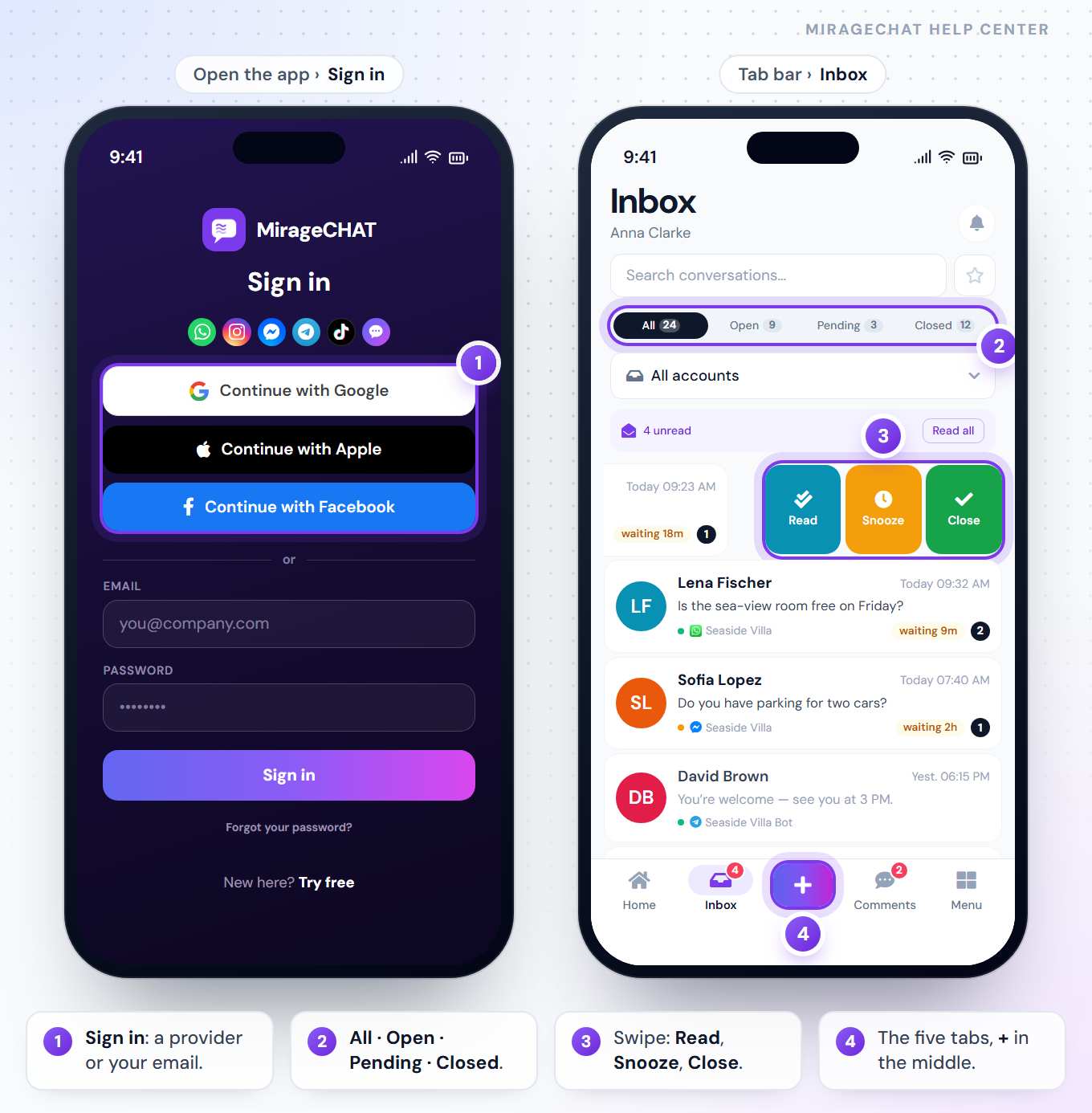
Forgot your password? Press Forgot your password? under the sign-in button.
New to MirageCHAT? Press Try free, fill in the form and press Start free trial — 14 days, no card needed. Then: your first hour.
3. Turn on notifications
Allow them
After you sign in, your phone asks whether MirageCHAT may send notifications. Allow it.
Answer from the notification
Expand a message notification: Reply lets you type and Send without opening the app, and Close and Pending set the conversation’s status. iPhone also has Mark read.
Open the chat
Tap the notification to open that conversation.
You are notified only about the accounts you can open. What else tells you — a customer waiting, reports — is set in Menu › Notifications by whoever manages notifications.
4. Lock the app
Open Settings
Open the Menu tab and press the card with your name at the top: it opens Settings.
Turn on your face or fingerprint
Under Security, switch on Fingerprint / Face and confirm with your face or finger.
Or set a PIN
Switch on PIN code and choose a 4-digit PIN. Change PIN changes it later.
The app then asks for your face, finger or PIN each time it starts fresh — not each time you come back from another app. Both can be on together.
Lock PIN, further down in Settings, is different: 6 digits that open the conversations you lock, on every device. The PIN code above only locks this phone.
5. The five tabs
| Tab | What it does |
|---|---|
| Home | Today: what needs you — chats waiting, new comments, questions for you, Instant Post — then the last 24 hours, shortcuts and live activity. |
| Inbox | Every conversation from the accounts you can open. The badge counts unread messages. |
| + | Create: Instant Post, a new automation, a WhatsApp campaign or a quick reply — whatever your account may create. |
| Comments | Comments on your posts, mentions and reviews, with a badge for those waiting. Shown to people who may reply to comments. |
| Menu | The rest of the workspace — tile by tile. |
Press the tab you are already on to take its list back to the top.
6. Answer a conversation
Find it
In Inbox, use All, Open, Pending or Closed, the star for starred chats, or Search conversations…. The filter sheet picks one channel or account.
Reply
Open it and type. Above the reply box: Quick replies, AI draft (when your package and access include the AI) and Follow-up. The microphone records a voice message, and the attach button adds photos and files.
Tidy up with a swipe
Back in the list, swipe a conversation for Read, Snooze and Close — or Reopen on a closed one.
Good to know
- One account, everywhere. The app shows the same accounts and conversations as the web.
- No signal? The Inbox shows the last list it loaded.
- A link to a conversation in an email opens it in the app when the app is installed.
- Appearance — Light, Dark or System — and Sign out are in
Menu › Settings. - What’s new, in the Menu, has the notes of each release.
If something looks wrong
“Mobile access is not enabled for this account”
An owner or admin switches on Mobile access for you in Team › Agents. With Google, Apple or Facebook the same thing reads “This account cannot sign in on this app.”
“Enter your email and password”
One of the two fields is empty.
Notifications don’t arrive
Check that notifications are allowed for MirageCHAT in your phone’s settings, and that you can see that account in your Inbox — you are notified only about accounts you can open.
Fingerprint / Face can’t be switched on
It says “No fingerprint set up on this phone”: set up your face or a fingerprint in the phone’s own settings first, or use a PIN code.
There is no Comments tab
It shows only to people who may reply to comments. Ask an owner or admin to change your access.
“No account with comments connected”
Connect an Instagram account or a Facebook Page in Channels — Instagram · Facebook Page.
Ready?
Opens MirageCHAT in this tab. Sign in first if you’re not already.
Did this guide help?
Related guides
Still stuck? Write to info@miragechat.io with your workspace name. Never send passwords or codes.