In short
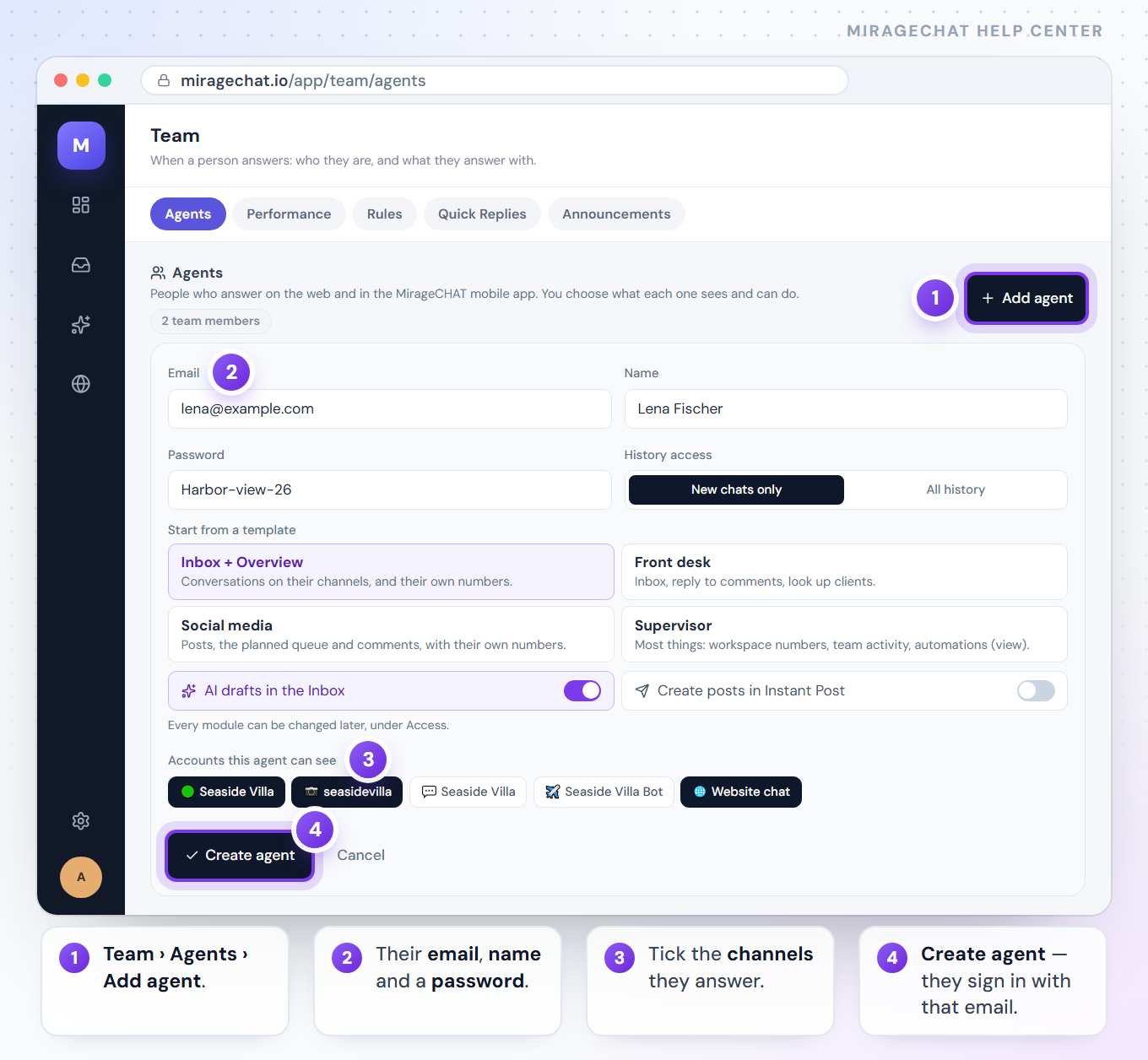
Each colleague gets their own sign-in and sees only the accounts you choose — on the web and in the MirageCHAT app. Notifications go only to people who can open that account.
Steps
Open Team
In MirageCHAT, go to
Team › Agents.Add the colleague
Press Add agent. Enter their name, their email and a password for them, then press Create agent.
Choose what they see
Under Accounts this agent can see, tick the channels they answer, then press Save access. That list decides what appears in their inbox, on the web and in the app.
Tell them how to sign in
They sign in at miragechat.io/app or in the MirageCHAT app for iPhone and Android, with the email and password you set.
Good to know
- An agent with no accounts gets no notifications — and a conversation is only handed to someone who can open it.
- Posting is set separately, with each agent’s Instant Post access, so answering and publishing can be given to different people.
- Everyone has their own sign-in. Replies, assignments and changes are recorded with the person who made them.
Ready?
Opens MirageCHAT in this tab. Sign in first if you’re not already.
Did this guide help?
Related guides
Still stuck? Write to info@miragechat.io with your workspace name. Never send passwords or codes.