In short
An announcement is a notification on your team’s phones: a title and a short message, to everyone or to the people you pick. Your team only — customers never see these.
Before you start
- You are the owner or an admin.
- A paid package.
- Your colleagues have the MirageCHAT app on their phone, signed in, with Mobile access on in
Team › Agents.
Send one
Open Team › Announcements
Go to
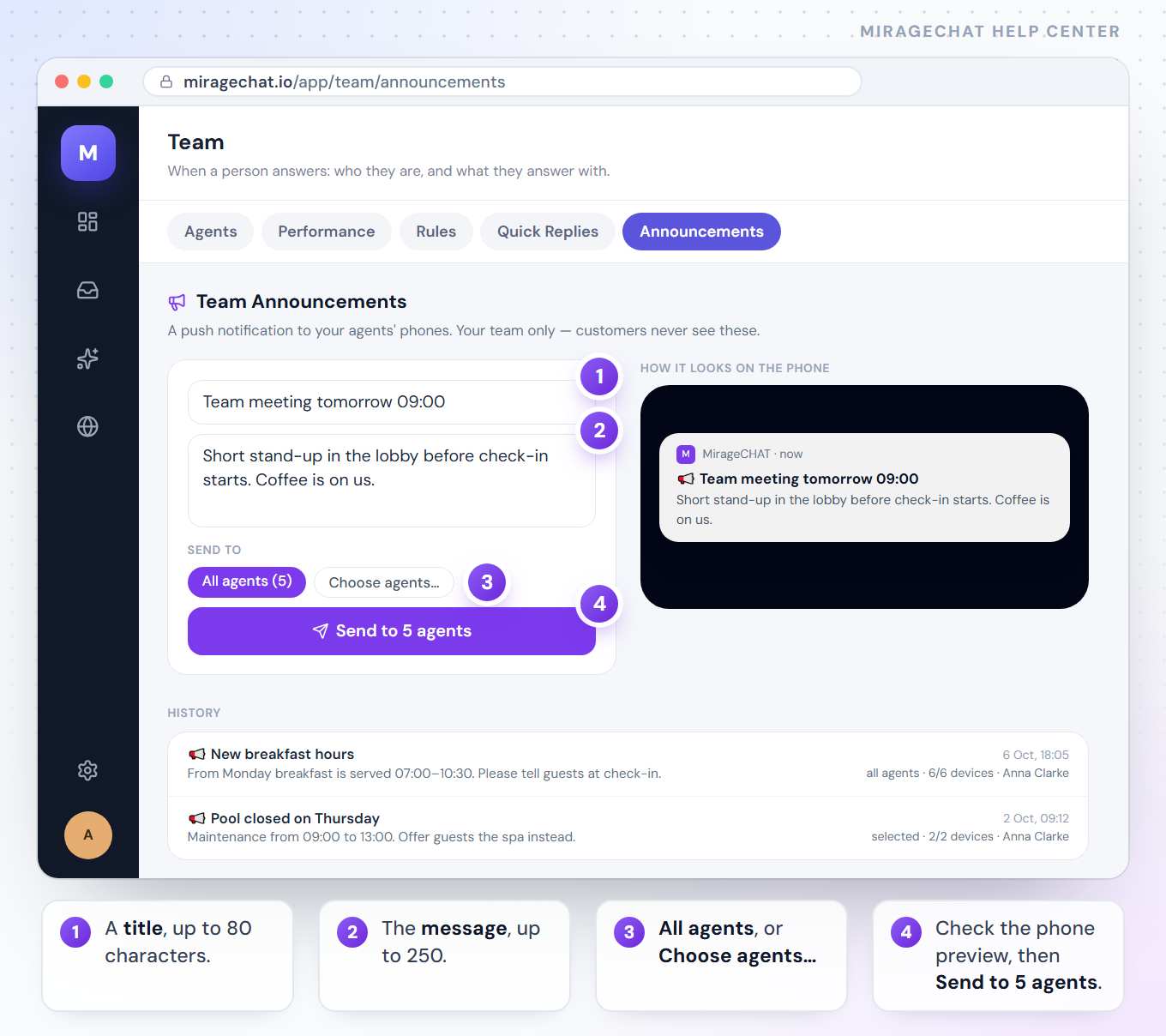
Team › Announcements.Write the title
Up to 80 characters — for example “Team meeting tomorrow 09:00”.
Write the message
Up to 250 characters.
Choose who gets it
Press All agents, or Choose agents… and tap the names. Both list the people with mobile access.
Check the preview and send
How it looks on the phone shows it as it will arrive. Press Send to 5 agents — the number is yours — and confirm. The page then says how many devices took it, for example Sent to 6 of 6 devices.
See what was sent
History lists the last announcements: the title and message, when, to all agents or to selected ones, how many devices took it, and who sent it.
Good to know
- Up to 10 announcements in 24 hours for the whole workspace.
- It goes to every phone where that person is signed in to the app. “Sent to 6 of 6 devices” counts the phones that accepted it.
- Missed it? In the phone app,
Menu › Announcementskeeps what was sent to each person in the last 30 days. - Each announcement is recorded in
Security › Activity log. - To write to customers, use Growth instead — send a WhatsApp offer.
If something looks wrong
“Daily limit reached (10 announcements per 24h).”
The workspace sent ten in the last 24 hours. Try again once the oldest of them is a day old.
“No mobile agents yet.”
Nobody has mobile access. Open Team › Agents, press Access on a person and turn on Mobile access.
It was sent to fewer devices than people
Some phones didn’t accept it — the app isn’t signed in there, or was removed. Those people can still read it in Menu › Announcements once they sign in.
“Title and message are both required.”
Fill in both fields; the Send button stays off until you do.
The page shows a lock card
Your package doesn’t include Team Announcements. See packages opens Billing.
On your phone
Owners and admins send from Menu › Team, the Announcements tab — the same form, preview and history. Everyone on the team reads the ones sent to them in Menu › Announcements.
Ready?
Opens MirageCHAT in this tab. Sign in first if you’re not already.
Did this guide help?
Related guides
Still stuck? Write to info@miragechat.io with your workspace name. Never send passwords or codes.