In short
Account › Notifications is one page for what tells you, and whom. Each rule has a switch, the people who hear it, and how — by Email, in the App on their phone, or both. Every change saves at once.
Before you start
- You are the owner or an admin — or an agent whose Notifications level is Rules.
- For alerts in the App: the MirageCHAT app on iPhone or Android, signed in.
- A paid package for the reply-time steps, Numbers to watch and Summaries.
A new workspace starts with every rule off. Turn on the ones you want — nothing is sent until you do.
Turn a rule on
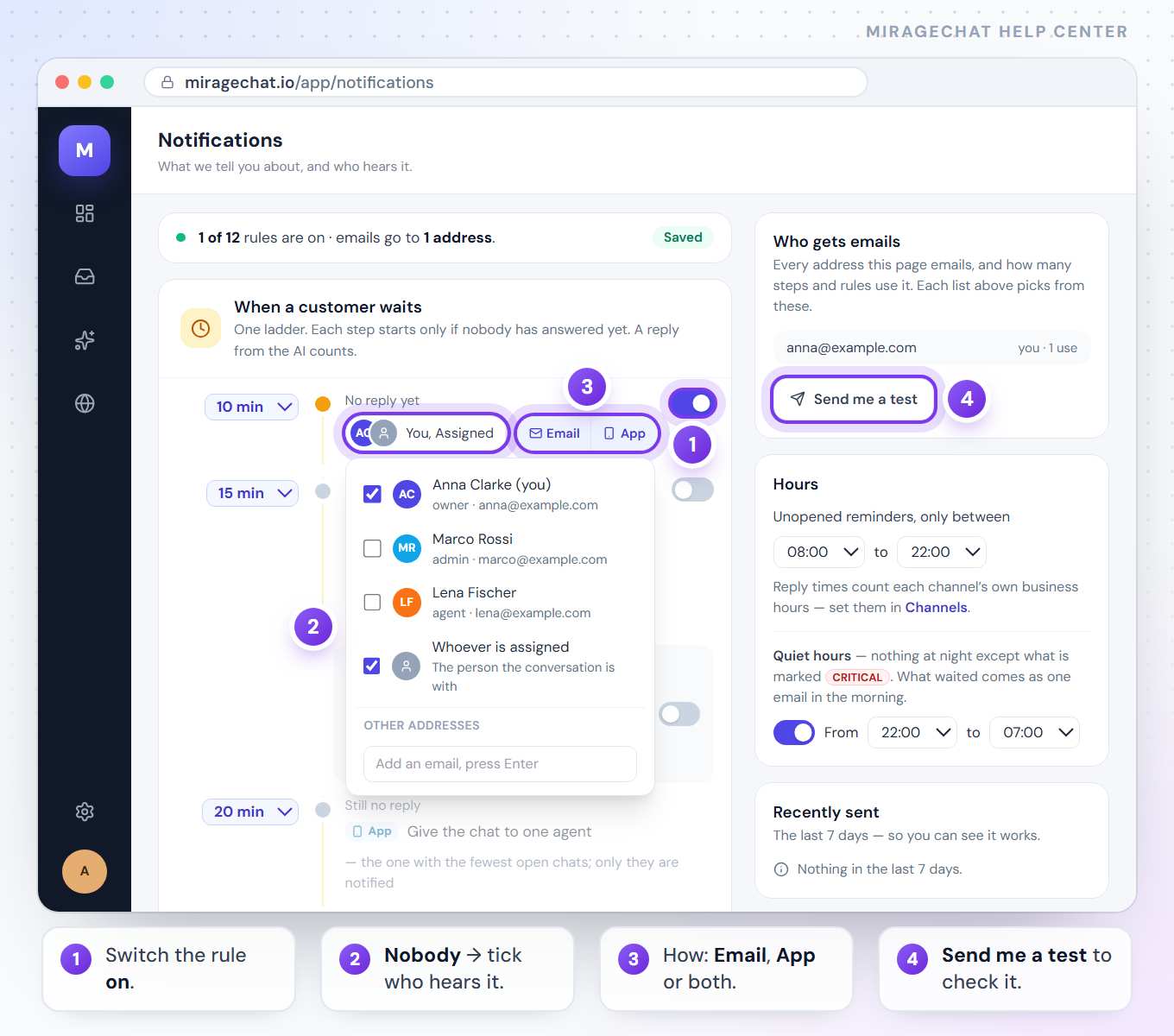
Switch it on
Use the switch at the end of the rule’s row. The line at the top counts how many rules are on and how many addresses get emails.
Choose who hears it
Press the button beside the switch — it says Nobody until you choose. Tick people of your team; on some rules Whoever is assigned; or type an address under Other addresses and press Enter.
Choose how
Press Email, App, or both. Summaries go by email only.
Check that it works
Under Who gets emails, press Send me a test. Recently sent lists what went out in the last 7 days.
When a customer waits
One ladder. Each step starts only if nobody has answered yet, and a reply from the AI counts as an answer.
| Step | After | What happens |
|---|---|---|
| Nobody opened the notification | 10 minutes to 2 hours | Remind the agent on their phone, up to 5 times, each twice as late. Email the list of unopened conversations — at most every 2 hours, only within your reminder hours. |
| No reply yet | 5 minutes to 2 hours, or Custom… | The people you choose are told, by email or app. Counted from the customer’s message. |
| Still no reply — escalation | three times you set (20, 40 and 60 minutes to start) | First the chat goes to the agent with the fewest open chats, and only they are notified. Then it passes to the next agent, and the whole team is notified. Last, the owners are told by email. |
| The conversation is still open | 4 hours to 2 days | Someone started it and nobody closed it — the people you choose are told. |
- Measure reply times — off pauses every step from No reply yet on.
- Count business hours only — uses each channel’s own hours, set in
Channels. - If the ladder says Reply times are not measured for this workspace yet., press Start measuring.
- The escalation skips agents whose phone hasn’t been seen in 7 days.
The other rules
| Group | Rules |
|---|---|
| Something needs fixing | A channel disconnects · A message could not be sent, with the reason WhatsApp, Instagram or Messenger gave · The AI stops answering · A payment fails |
| Words to watch | A customer writes one of these words — on every channel. Add the words in each language your customers use. Try it quietly for 14 days first shows matches under Recently sent and tells nobody. |
| Your team | An agent breaks a team rule. What counts as a break is set in Team › Rules. |
| Numbers to watch | Average reply time goes above a time you choose · More than a share you choose of conversations get no reply — each measured over the last hour, 24 hours, 7 days or 30 days. |
| Summaries | A weekly summary on the day and hour you pick · A daily summary at the hour you pick. Conversations, reply times, who waited and what the AI answered. |
Rules marked CRITICAL — a channel disconnects, a message could not be sent, a payment fails — always come at once.
Quiet hours and reminder hours
Find the Hours card
It is on the right of the page, or below the rules on a phone screen.
Set quiet hours
Turn on Quiet hours and pick From and to. Nothing comes at night except what is marked CRITICAL; what waited comes as one email in the morning.
Set reminder hours
Unopened reminders, only between sets when the “Nobody opened the notification” step may remind.
Quiet hours belong to the workspace and follow its time zone — they apply to everyone on the team.
Notifications in your browser
Open Workspace › Profile
Go to
Workspace › Profileand find Browser notifications.Turn them on
Press Enable browser notifications and allow them when the browser asks.
Test them
Press Test. Disable turns them off again.
They tell you about new messages and missed reply targets even when the tab is hidden — in that browser, on that computer, and only for conversations you can open.
Good to know
- App means the MirageCHAT app on iPhone and Android. Browser notifications are set per browser, separately.
- A notification for each new message isn’t a rule here: it goes to the people who can open that conversation. Who sees which channel is set in
Team › Agents. - Who gets emails lists every address this page emails, and how many rules and steps use it.
- An agent at Rules can switch rules and change their numbers, and add or remove only themselves — not other people, not email addresses, never billing alerts.
If something looks wrong
Recently sent says “Nobody to tell”
The rule is on, but nobody is chosen — or the people chosen can’t open that conversation. Choose who hears it.
Recently sent says “Held for quiet hours”
It came during quiet hours and wasn’t critical. It arrives in the morning email.
“Add at least one word — until then nothing is watched.”
Words to watch is on with an empty list. Type a word and press Enter.
“The test email could not be sent.”
Try again in a minute. The test goes to the email you sign in with.
“Your account can’t send notifications to email addresses — ask an owner or admin.”
Agents can add only themselves. An owner or admin adds other people and addresses.
“Notifications denied by browser”
The browser blocked them. Allow notifications for miragechat.io in the browser’s site settings, then press Enable browser notifications again.
A step shows a package chip instead of a switch
Your package doesn’t include reply-time tracking. Choose a package under Billing.
On your phone
In the MirageCHAT app, Menu › Notifications opens the whole page: the ladder, every rule, who is told, Email and App, Who gets emails with Send me a test, the hours and Recently sent.
Ready?
Opens MirageCHAT in this tab. Sign in first if you’re not already.
Did this guide help?
Related guides
Still stuck? Write to info@miragechat.io with your workspace name. Never send passwords or codes.