In short
Send a customer your IBAN, the amount and a unique reference as a message, straight from the chat. The money goes from the customer to your own bank account — it never passes through MirageCHAT. You mark each payment as paid when it lands, in Workspace › Guest Payments.
Before you start
- Your bank details: bank name, account holder, IBAN and, if you have one, SWIFT / BIC.
- To add bank accounts and mark payments, you are the owner, an admin or a manager. Anyone who answers in the Inbox can send a request.
- A conversation on WhatsApp, Instagram, Messenger, Telegram or your website chat.
1. Add your bank account
Open Guest Payments
Go to
Workspace › Guest Payments. The page is called Payments: Bank accounts at the top, Payment requests below.Add the account
Press Add bank account. Fill in Nickname (for example
Seaside Villa · EUR), Bank name, Currency (EUR, USD or GBP), Account holder, IBAN and SWIFT / BIC.Make it the default
Tick Default account (used when no specific bank chosen). A request sent from a chat always uses the default account — or, with none ticked, the first one you added.
Save
Press Add account. Later, the pencil on its card edits it and the bin removes it.
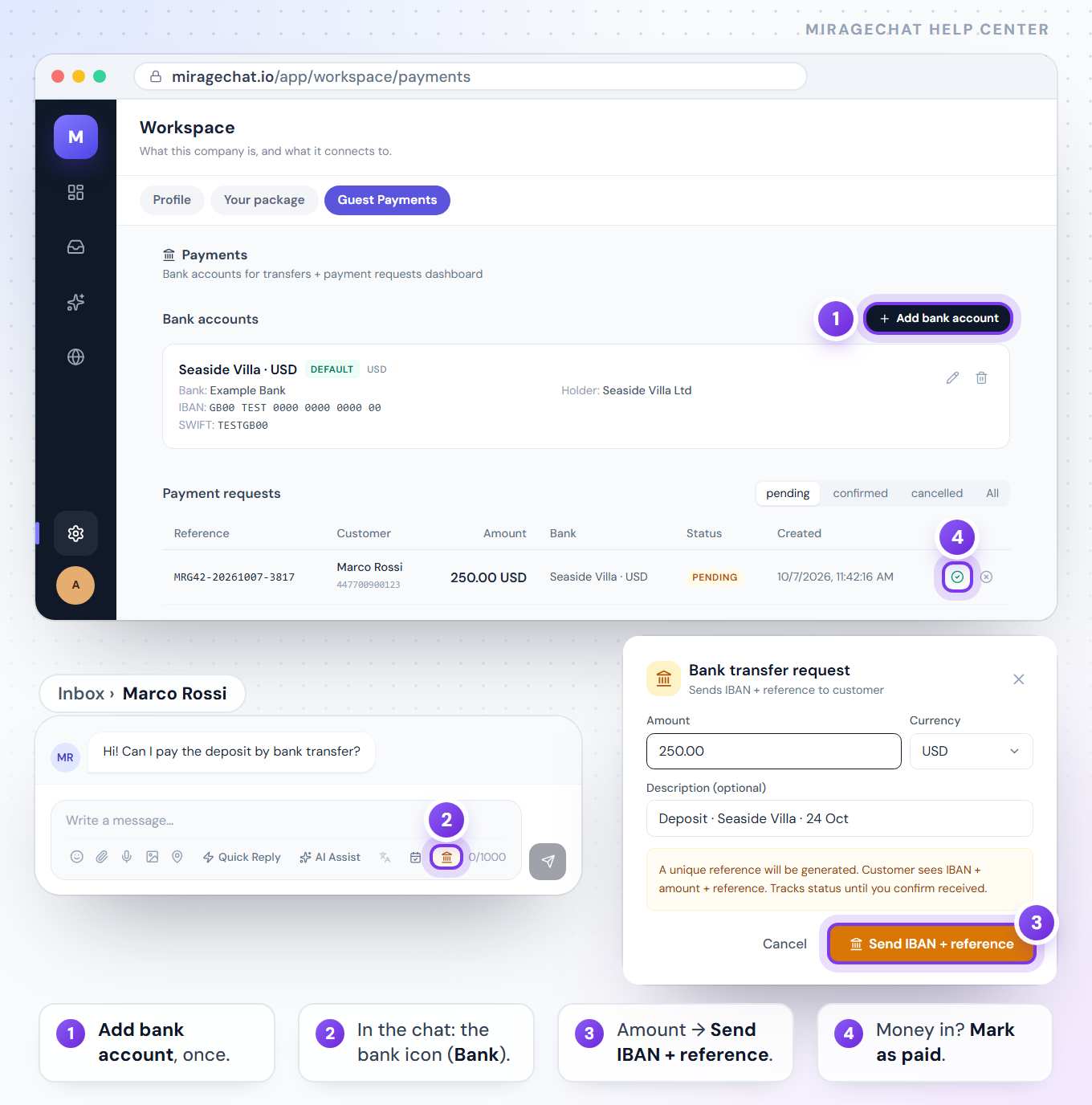
The customer sees the Account holder and Bank name exactly as you type them — with no bank name, they see the nickname instead. Use the name on the bank account.
2. Send a request in the chat
Open the conversation
In the
Inbox, open the customer’s conversation.Press the bank button
In the row of tools under the reply box, press the bank icon (Bank). Bank transfer request opens.
Fill in the amount
Type the Amount, pick the Currency — EUR, USD, ALL or GBP — and, if you like, a Description such as
Deposit · Seaside Villa · 25 May.Send it
Press Send IBAN + reference. The message goes to the customer and appears in the conversation, and the request is listed as pending.
What the customer receives
One message with the amount, your bank, the account holder, the IBAN — and SWIFT / BIC if you added it — and a reference starting with MRG, with a request to put it on the transfer. It ends by saying you will confirm once the payment arrives, usually within 1 business day.
The message is written in the customer’s language when it is English, Italian, German or Albanian, and in English otherwise.
3. Mark it paid when the money lands
Find the request
In
Workspace › Guest Payments, Payment requests opens on pending. Each row shows the reference, the customer, the amount, the bank, the status and when it was made. The other filters are confirmed, cancelled and All.Match it to your bank
Look for the same reference on the transfer in your bank account.
Mark it paid
Press the tick (Mark as paid). The row moves to confirmed, with who confirmed it.
Or cancel it
For a request that won’t be paid, press the cross (Cancel) and confirm. It moves to cancelled.
Good to know
- Nothing touches your MirageCHAT balance. The customer pays your bank directly.
- A payment moves once. A paid request can’t be cancelled, and a cancelled one can’t be marked paid.
- Marking it paid doesn’t message the customer — tell them in the chat.
- Every change is recorded with who made it — an account added, edited or removed, and each payment marked paid or cancelled — in the activity log, where an IBAN shows only its last four characters.
If something looks wrong
“No bank account configured. Add one in Settings.”
Add a bank account in Workspace › Guest Payments first, then send the request again.
“The request was not delivered: …”
The channel refused the message — on WhatsApp, usually because more than 24 hours have passed since the customer last wrote. The request is still listed as pending: cancel it, and send a new one when the customer writes again.
“A bank transfer request cannot be delivered on … yet.”
That channel can’t carry the request. Copy your bank details into a normal message instead.
“Amount must be at least 1”
A request starts at 1 in the chosen currency.
“This payment was cancelled, so it cannot be marked as paid.”
A cancelled request stays cancelled. If the customer still wants to pay, send a new request from the chat.
On your phone
In the app, Menu › Workspace › Client payments has the same two lists: add, edit or delete bank accounts, and Mark as paid or Cancel a request. A new request is sent from a chat on the web.
Ready?
Opens MirageCHAT in this tab. Sign in first if you’re not already.
Did this guide help?
Related guides
Still stuck? Write to info@miragechat.io with your workspace name. Never send passwords or codes.