In short
MirageCHAT is paid from a prepaid balance in US dollars. You add money by card or bank transfer, and your package is taken from the balance on the same date each month — or each year. Billing shows the balance, the package, every dollar that moved and every invoice.
Before you start
- You are the owner, an admin or a manager. Agents don’t see Billing.
- Your invoice details: your name or your company’s name, and the country — for a company also its registration number, address and city. A payment is refused until the fields marked * are filled in.
- A card, or access to your bank for a transfer.
How billing works
- One balance. Money you add goes to your balance. Your package is taken from it on your renewal date; AI replies past your package are taken from it as they happen.
- Your card is never charged by itself — unless you turn on automatic top-up.
- A 14-day free trial. Every workspace starts with every feature and up to 5 connected accounts, no card needed. If it ends without a package, you stay on Free.
- Monthly or yearly. A year costs ten months — two months free.
- Two bills, two companies. Ours, in dollars, from your balance. WhatsApp message charges come from Meta, to the card on your own WhatsApp account. Plan shows both, side by side.
| Package | Price | Connected accounts | AI replies a month | Team members |
|---|---|---|---|---|
| Free | $0 | 2 | None | 1 |
| Starter | $19.99 a month, or $199.90 a year | 5 | 100 | Unlimited |
| Growth | $39.99 a month, or $399.90 a year | 12 | 500 | Unlimited |
| Pro | $59.99 a month, or $599.90 a year | 25, then $1.75 a month for each one more | 1,000 | Unlimited |
| Tab | What it shows |
|---|---|
| Overview | Your balance and how long it lasts, your package, and Add money. |
| Activity | Every movement of money, month by month, and every invoice and receipt. |
| AI | Every AI reply this month, and what went beyond your package. |
| Plan | This month’s bill, the packages, and your AI replies. |
| Details | Invoice details, automatic top-up, your saved card and your data. |
1. Choose your first package
Open Plan
Go to
Billingand open the Plan tab.Pick monthly or yearly
Use the switch above the cards: Monthly or Yearly — 2 months free.
Choose, then confirm
On the package you want, press the button with its name and price, for example Choose Growth — $39.99 now. Press it again: it now says Pay $39.99 now and start.
Pay
If your balance covers it, the package opens at once. If not, Stripe’s secure page opens for the part your balance doesn’t cover, and the package opens the moment the payment lands.
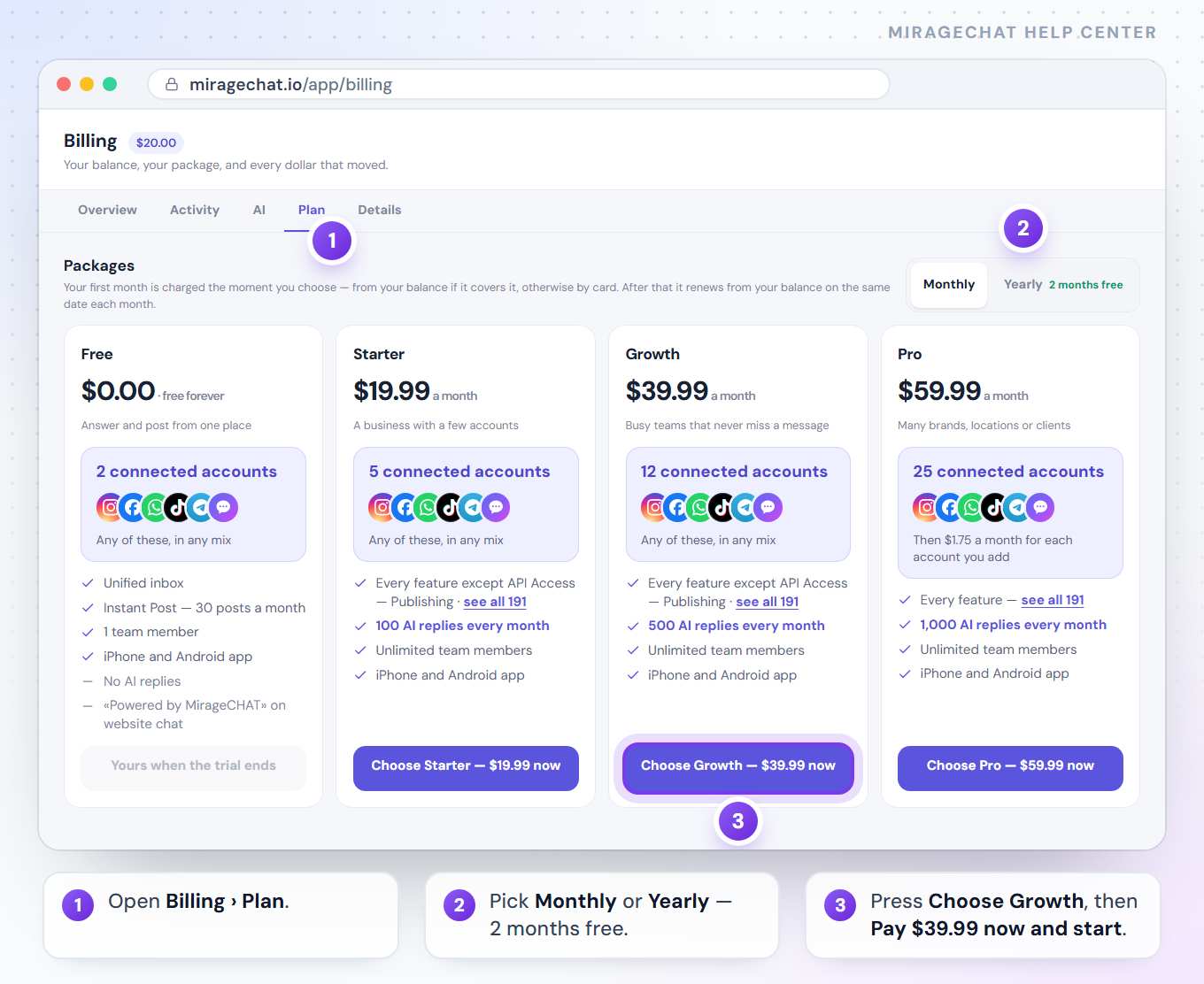
From then on it renews from your balance on the same date each month, or each year.
2. Change your package or pay yearly
Choose another card
In Plan, press Choose Pro (or another package), or Switch to yearly on your own. Nothing changes yet.
Read what it will do
The card says it before it happens. A bigger package opens now and you pay the difference for the days left — for example Pay $12.40 now. A smaller one, Free, or monthly instead of yearly starts on your renewal day, with nothing to pay now.
Confirm or step back
Press the button on the card — Pay … now, Change on … or Change to … — or Not now.
Drop a waiting change
A change waiting for your renewal day shows on your package as Changes to … on …. Press Keep and your package’s name, for example Keep Growth, to cancel it.
Monthly to yearly starts a new year today, and the unused part of this month comes off the year’s price. Yearly to monthly waits for the renewal day.
If your balance can’t pay a change now, the card says how much is missing and offers Add $… to your balance. It takes you to Add money with the amount filled in. Pay there, then choose the package again.
3. Add money
Open Overview
On Overview, the dark card shows your Available balance and how long it lasts.
Pick an amount
Under Add money, press an amount — when one comes with free money on top, the card says how much — or type your own under Or another amount — what you pay. The minimum is $10.
Pay by card
Press Pay by card — $…. Stripe’s page opens; your card details never reach MirageCHAT. Back in Billing you see “Payment confirmed — $… added to your balance.”
Or pay by bank transfer
Press Bank transfer for the transfer details and your reference. Put the reference on the transfer: it is credited once the bank confirms it, usually within two working days.
Automatic top-up: tick Keep my balance topped up before you pay by card, or set it up later in Billing › Details › Automatic top-up — when your balance falls below one amount, add another, both at least $20. It runs at most once a day and 4 times a month, and you can turn it off at any time.
4. Invoices, receipts and invoice details
Fill in your invoice details
Open Details › Invoice details. Choose In my name or In the company name, fill in the fields marked *, and press Save invoice details.
Choose who receives them
Under Send invoice and others to, add an address; + Add another address adds more. They also get every notice about renewals, holds and AI credit. Leave it empty and we write to the account owner.
Download a document
Open Activity › Documents. Each invoice or receipt has View and PDF.
Find a payment
Activity › Movements lists every dollar in and out, by month. A line that brought money in links its invoice; a line paid from your balance says — from credit.
The AI tab lists the month’s AI replies — how many your package included, how many went beyond it and what they cost. CSV and Print / Save as PDF export it.
5. When a payment doesn’t go through
On your renewal date the package is taken from your balance. If the balance doesn’t cover it:
A short grace period
The Inbox shows “Your payment didn’t go through”. Nothing has stopped: messages send and arrive as usual until the date shown. Add the missing amount and nothing else happens.
Then the workspace is on hold
The package has ended and the workspace becomes read-only. Customers’ messages still arrive and everything can be read, but replies and posts are paused. The Inbox says “Your package has ended — renew to reply and post”.
Pay to reopen
Open
Billing— it always works — and add the amount shown. Everything resumes within a minute.
Nothing is deleted. A workspace on hold stays on hold until it is paid, and every message received meanwhile is waiting.
Good to know
- A trial ends on Free, never locked. If you had more than 2 accounts or 1 team member, the extra ones are switched off — the 2 accounts with the newest conversations stay. Nothing is deleted, and a paid package switches them back on.
- From 3 days before the trial ends, the Inbox shows how many days are left.
- AI replies past your package keep coming, each taken from your balance; the AI tab shows every one. When the allowance and the balance are both spent, the AI stops writing — your Inbox is not affected — and resumes when you add money.
- Free takes nothing from your balance.
- Deleting your data is a request only the owner can send, in
Billing › Details › Your data. Asking deletes nothing; we confirm with you first.
If something looks wrong
“Minimum top-up is $10.”
Add at least $10.
“Top-up cancelled. Nothing was charged.”
You closed Stripe’s page before paying. Press Pay by card again.
“Stripe has your payment but has not settled it yet.”
The money is on its way. Your balance updates by itself as soon as Stripe settles it.
“Payment not completed — Growth is reserved, not active”
You chose a package and left Stripe’s page before paying. Nothing was charged; press Finish payment.
Billing jumped to Details and marked fields in red
Your invoice details are incomplete, so the payment was refused. Fill in the marked fields, press Save invoice details and pay again.
“Your package is used up — the rest comes from your balance”
This month’s included AI replies are used. The AI keeps answering, and each further reply is taken from your balance until the allowance starts again.
On your phone
In the app, Menu › Billing opens Plan and balance: Add balance (Stripe opens in the phone’s browser), Change plan, Auto charge, Bank transfer, Activity, Invoice details and every AI charge. If Billing isn’t in your Menu, use Billing on the web — the app’s See packages takes you there, signed in.
Ready?
Opens MirageCHAT in this tab. Sign in first if you’re not already.
Did this guide help?
Related guides
Still stuck? Write to info@miragechat.io with your workspace name. Never send passwords or codes.