In short
Workspace › Profile says what your workspace is: its name and address, its package and trial, the timezone your numbers are read in, your planner beside every chat, your team, and the ways you sign in.
Before you start
- You are the owner, an admin or a manager. Agents don’t see
Workspace. - To invite someone from this page, you are the owner. Admins add people in
Team › Agentsinstead. - For the planner: the address of a page you already run — a planner, an availability screen or a booking form — starting with
https://.
1. Check your workspace card
Open Profile
Go to
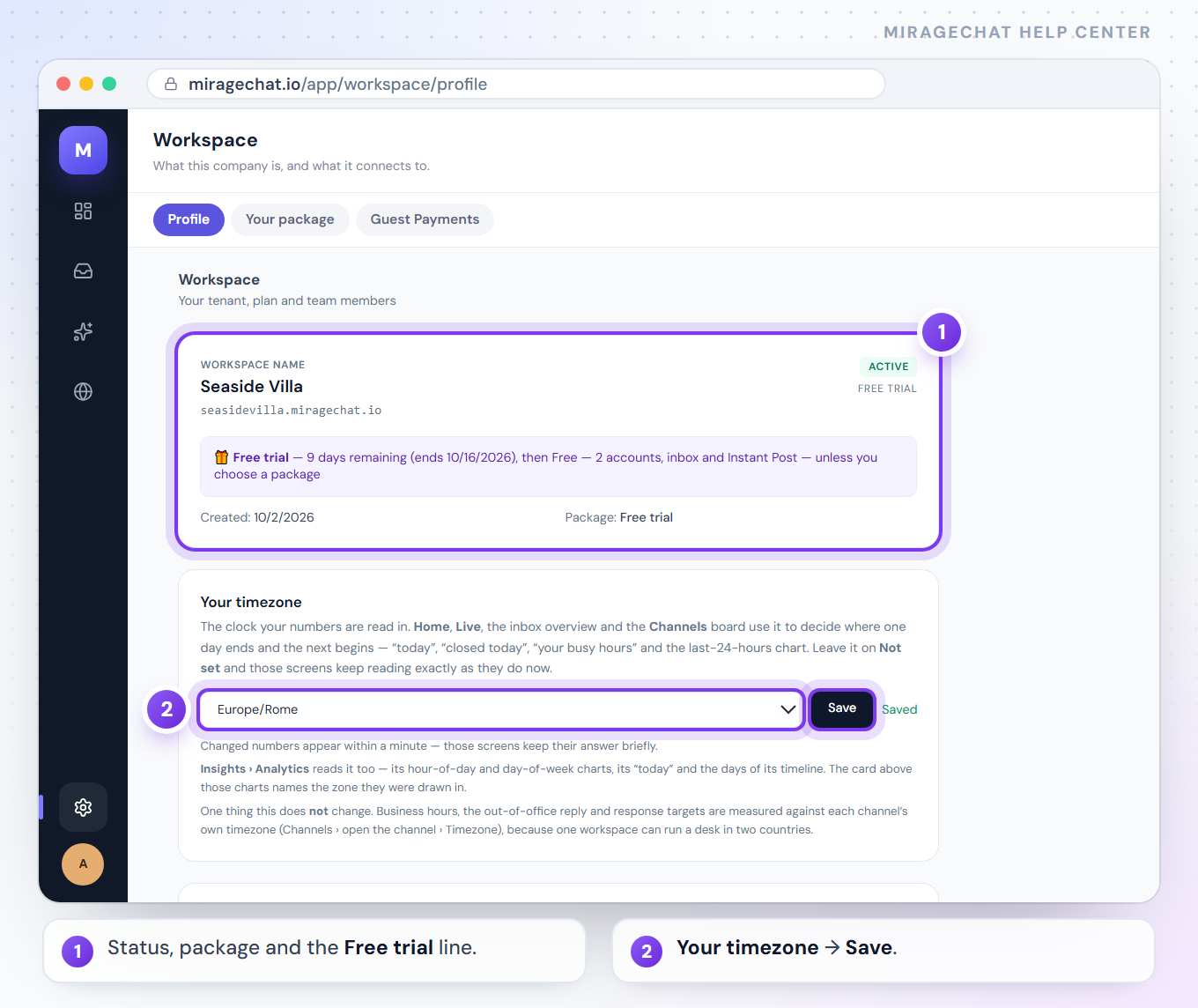
Workspace › Profile. The first card shows the Workspace name and your address, for exampleseasidevilla.miragechat.io.Read the status and the package
On the right of the card: the workspace status, for example active, and your package. At the bottom: Created and Package.
Check the trial line
While your free trial runs, a line says how many days are left, the day it ends, and that you then stay on Free — 2 accounts, inbox and Instant Post unless you choose a package. Choosing one: Billing, plans and invoices.
2. Set your timezone
The timezone decides where one day ends and the next begins on Home, Live, the inbox overview, the Channels board and Analytics — “today”, “closed today”, “your busy hours” and the last-24-hours chart.
Pick your zone
Under Your timezone, open the list and choose your zone, for example
Europe/Rome.Save
Press Save. Saved appears beside it, and the numbers on those screens change within a minute.
Business hours, the away reply and reply-time targets don’t use this clock: they follow each channel’s own timezone, set on the channel in Channels. Leave the workspace on Not set — keep the current behaviour and nothing moves.
3. Put your planner beside every chat
Paste the address of a page you already run. A Planner button then appears in every conversation, and the page opens beside the chat, already knowing which conversation it is.
Paste the address
Under Your planner inside the chat, paste your page’s address. It must start with
https://.Add the fields you want filled in
MirageCHAT fills these into the address:
{{conversation.id}},{{dates.from}},{{dates.to}},{{nights}},{{guests}}and{{today}}. For examplehttps://seasidevilla.com/planner?from={{dates.from}}&conv={{conversation.id}}.Save and check
Press Save. Open any conversation in the
Inboxand press Planner: your page opens beside the chat.
A customer’s name or phone number is never put in the address — it would end up in the other site’s logs and in browser history. Leave the field empty and the button never shows. The planner is part of the paid packages: on Free, this card names the package that includes it.
4. Invite a team member
Type their email
Under Team members — everyone already in the workspace, with their role — type your colleague’s email in Invite a team member.
Choose a role and invite
Pick Agent, Manager or Admin, then press Invite.
Finish in Team › Agents
Nothing is emailed, and they can’t sign in yet. Press Open Team › Agents. On their row — marked No password and Mobile off — set a password and switch Mobile access on, then give them the password.
For agents, Team › Agents › Add agent does it in one go, password included — Add your team.
5. Choose the ways you sign in
Find Ways you sign in
Lower on the page, Ways you sign in lists Google, Apple and Facebook — those available to you — each Connected or Not connected.
Connect one
Press Connect and sign in to that account. From then on you can sign in with it instead of typing a password. Your email address and your workspace don’t change.
Disconnect one
Press Disconnect and confirm. If it is your last way in, it is refused and the row says why.
6. Get alerts in this browser
Turn them on
Under Browser notifications, press Enable browser notifications and allow them when the browser asks. You then get alerts for new messages even when the tab is hidden.
Test them
When it says Notifications are enabled on this device, press Test. Disable turns them off for this browser only.
Good to know
- Team members are unlimited on Starter, Growth and Pro. Free has one.
- The timezone is saved by owners and admins. A manager can read it but not change it.
- Browser notifications are per browser. Turn them on in each browser you use; on the phone, the app has its own.
- Who is told about what — waiting customers, reports, alerts — is set in
Notifications, not here.
If something looks wrong
“Error: only owner can invite users”
Only the workspace owner can invite from this page. Ask the owner — or an admin can add the person in Team › Agents.
I invited someone and they can’t sign in
An invite adds the address only: no email is sent, there is no password, and sign-in is off. In Team › Agents, set their password and switch on Mobile access, then send them the password.
“Your browser doesn’t support push notifications.”
That browser can’t show alerts. Use another desktop browser, or the MirageCHAT app on your phone.
The Planner button doesn’t show in conversations
Check that the address starts with https:// and that you pressed Save. On Free the planner isn’t included, and the card shows which package has it.
I can’t disconnect Google, Apple or Facebook
When the account has no password, the page says “This account has no password — a connected account is how you get in.” Your last way in can’t be removed.
On your phone
In the MirageCHAT app, open Menu › Workspace and the Profile tab: the same workspace card, Your timezone, Your planner inside the chat, Team members with Invite a team member, and Ways you sign in. Browser notifications aren’t there — the phone has its own. More about the app.
Ready?
Opens MirageCHAT in this tab. Sign in first if you’re not already.
Did this guide help?
Related guides
Still stuck? Write to info@miragechat.io with your workspace name. Never send passwords or codes.