In short
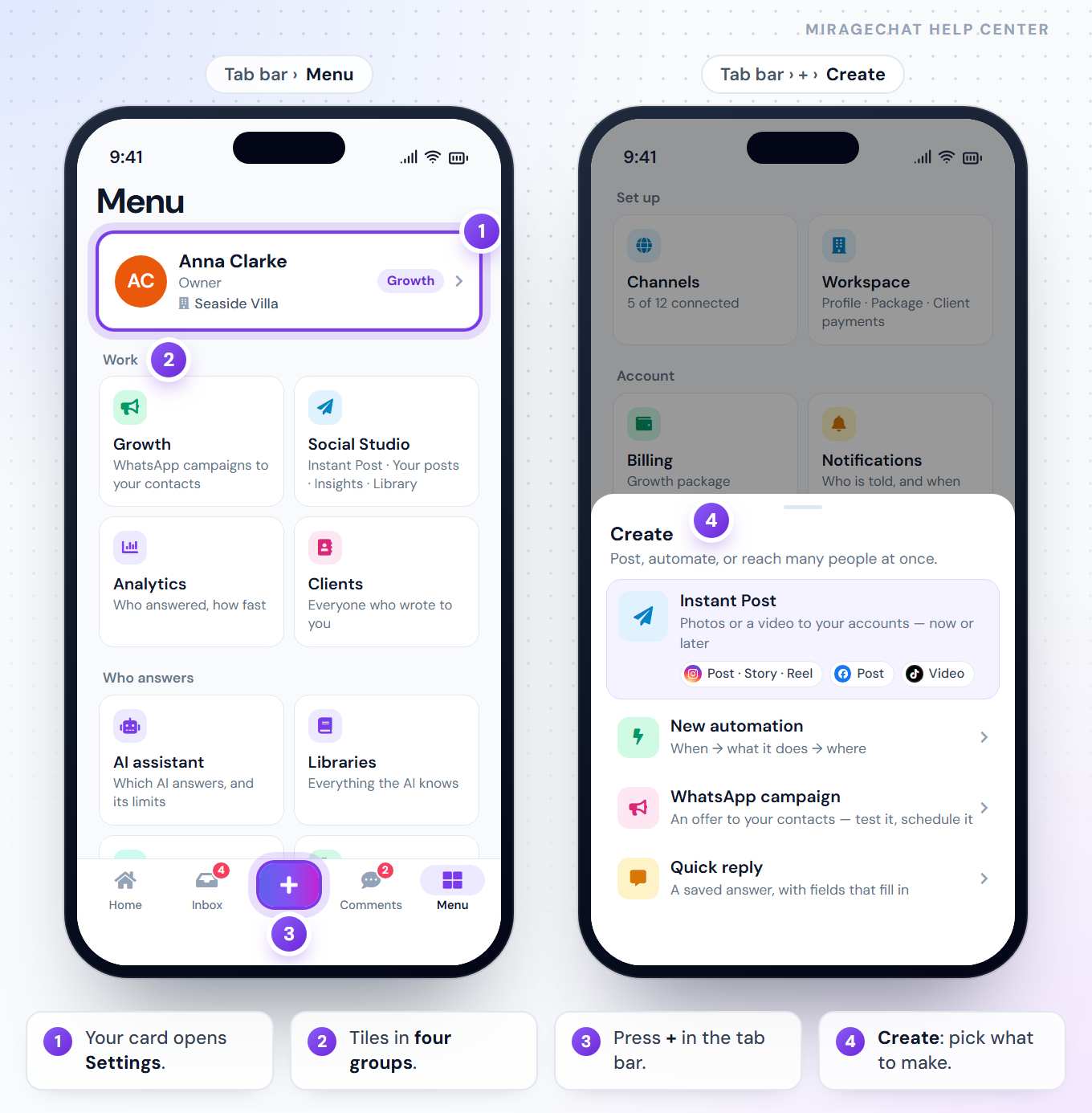
The Menu tab holds the whole workspace: your team, the AI, automations, channels, workspace, billing and notifications. Most of it works right in the app. A few things — connecting a channel through its own sign-in window, the visual automation editor, the website chat designer — open on the web, already signed in.
Before you start
- The MirageCHAT app, signed in — Get started with the app.
- Owner, admin or manager for most of the Menu. Agents see the tiles their access allows.
1. The Menu, tile by tile
| Group | Tile | What it opens |
|---|---|---|
| Work | Growth | WhatsApp campaigns to your contacts |
| Work | Social Studio | Instant Post · Your posts · Insights · Library |
| Work | Analytics | Who answered, how fast |
| Work | Clients | Everyone who wrote to you |
| Who answers | AI assistant | Which AI answers, and its limits |
| Who answers | Libraries | Everything the AI knows |
| Who answers | Team | Who is on, who answered |
| Who answers | Automations | When this happens, do that |
| Set up | Channels | Your accounts and their state — and how many are connected of what your package includes |
| Set up | Workspace | Profile · Package · Client payments |
| Account | Billing | Your package, plan and balance |
| Account | Notifications | Who is told, and when |
| Account | Security | Activity log · API and webhooks |
| Account | Settings | Security · Appearance |
Under the tiles: What’s new, Announcements and Help, which opens this Help Center. The card at the top — your name, role and workspace — opens Settings. A tile with a small package chip is only partly in your package: it still opens, and says what the next package adds.
2. Create with the + button
Press +
Press the round + in the middle of the tab bar. Create opens: “Post, automate, or reach many people at once.”
Pick what to make
Instant Post — photos or a video to your accounts, now or later. New automation — when, what it does, where. WhatsApp campaign — an offer to your contacts. Quick reply — a saved answer with fields that fill in.
You see only what your account may create. With just one thing, + opens it straight away.
3. Workspace and package
Open Workspace
Go to
Menu › Workspace. It has three tabs: Profile, Your package and Client payments.Profile
Your workspace card, timezone, planner, team members and invite, and the ways you sign in — how each works.
Your package
What you have and use, and See everything included — details.
Client payments
Your bank accounts, and payment requests to Mark as paid or Cancel — details.
Only the owner can invite from Profile. Your package and Client payments are for owners, admins and managers.
4. Billing on the phone
Open Billing
Go to
Menu › Billing. Plan and balance shows your balance, what it covers, and Your current plan.Add balance
Press Add balance, pick an amount or type one under Or another amount, and press Pay $… with card. Stripe’s page opens in the phone’s browser — no card is typed into the app.
Change plan
Press Change plan →, choose monthly or yearly, pick a package and confirm what it will cost.
The rest
Auto charge, Bank transfer, Activity and Invoice details work as they do on the web.
If Billing isn’t in your Menu, use Billing on the web: See packages in the app takes you there, signed in. How billing works.
5. Notifications
Menu › Notifications is the whole Notifications page: When a client waits, every rule with its switch, Who is told, email or app, Who gets emails with Send me a test, the hours, and Recently sent. It is open to owners and admins, and to agents whose access includes notification rules.
6. What opens on the web
These buttons open miragechat.io in the app’s own browser, already signed in as you. Close it to come back to the app.
| In the app | Opens on the web |
|---|---|
Channels › connect Instagram, WhatsApp, a Facebook Page or TikTok | The platform’s own sign-in window, from Channels |
Channels › refresh an Instagram account or a Facebook Page | That account’s refresh window in Channels |
Channels › your website chat | The website chat designer |
| An automation built on the canvas | Open the visual editor on the web |
Workspace › Profile after an invite | Open Team › Agents, to set the password |
| Refresh permissions on a comment or post | Channels, to give the account the access it needs |
| See packages, when Billing isn’t in your Menu | Billing › Plan |
Telegram connects in the app: Connect Telegram asks for your Bot token.
7. Settings: you and this phone
- Workspace — your workspace, your History access, and the way to Channels and Team.
- Appearance — Light, Dark or System.
- Security — Fingerprint / Face, PIN code, Change password and Connected accounts (the Google, Apple or Facebook that open your account).
- Lock PIN — 6 digits that open the conversations you lock, on every device.
- Sign out and About MirageCHAT at the bottom; the version number opens what’s new.
Good to know
- What you see follows your role. Workspace, Security and most of Who answers are for owners, admins and managers; agents see the tiles their access allows.
- Pull down on the Menu to refresh your package and the badges.
- A dot on What’s new means release notes you haven’t read yet.
If something looks wrong
A Menu tile is missing
Tiles follow your role and access. Ask an owner or admin to change your access in Team › Agents.
Billing isn’t in my Menu
Billing is for owners, admins and managers, and on some phones it is shown on the web instead. Open Billing on miragechat.io.
The + button is missing
There is nothing your account may create yet. An owner or admin can turn on Instant Post for you.
“Your account can’t open Clients.”
Your access doesn’t include Clients. An owner or admin can change it in Team › Agents.
Connecting a channel opened a browser
That is expected: Instagram, WhatsApp, Facebook and TikTok connect through their own windows on the web. Finish there, close the browser, and the channel appears in the app.
Ready?
Opens MirageCHAT in this tab. Sign in first if you’re not already.
Did this guide help?
Related guides
Still stuck? Write to info@miragechat.io with your workspace name. Never send passwords or codes.