In short
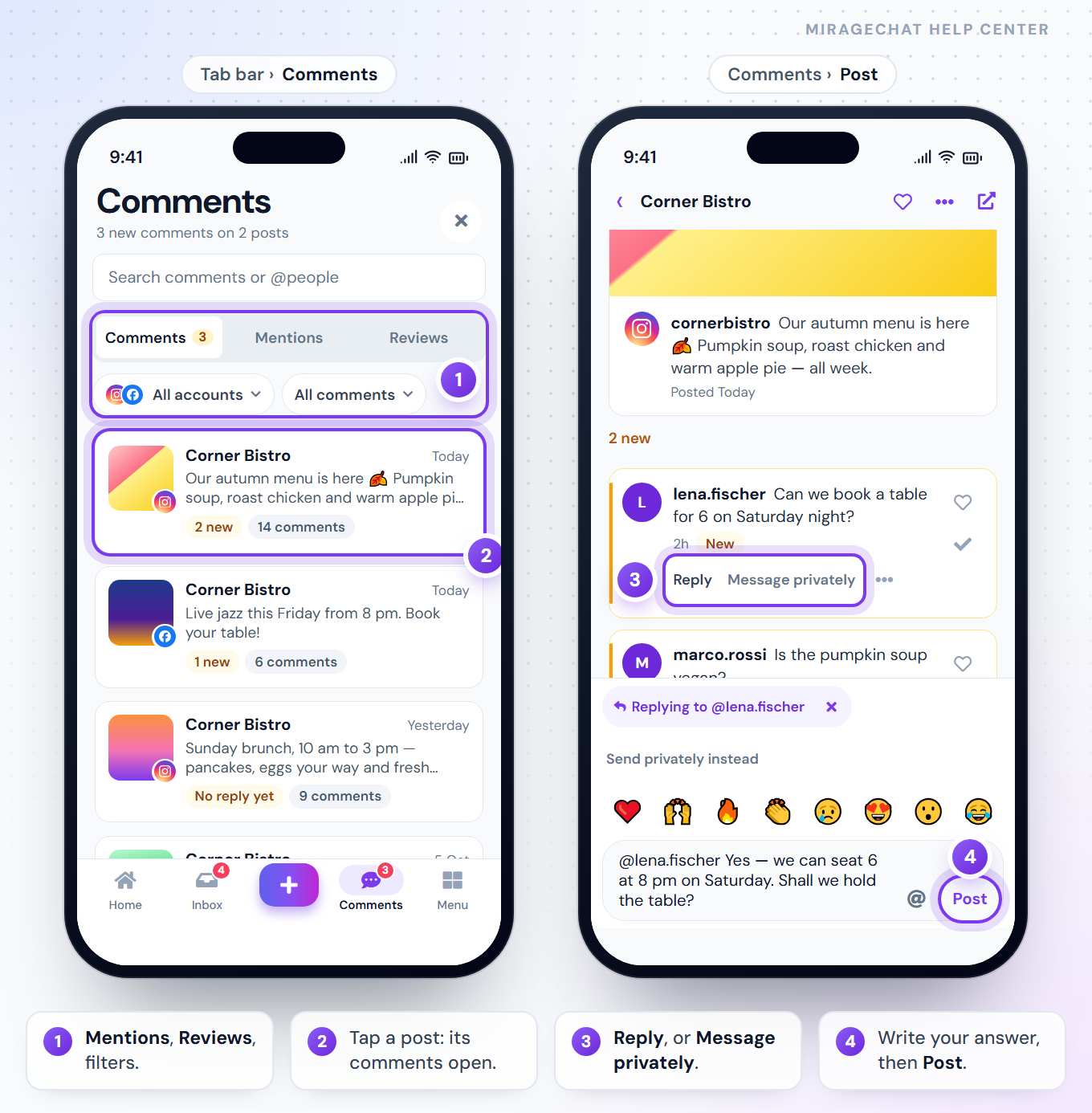
The Comments tab holds comments on your posts, Mentions and Reviews. Tap a post to open it: reply under a comment or in private, like it, hide it or delete it.
Before you start
- The MirageCHAT app, signed in, with access to reply to comments — the tab shows only then.
- An Instagram account, a Facebook Page, a TikTok account or a YouTube channel connected.
1. Find what needs an answer
Choose the part
Comments, Mentions — posts that name your account — or Reviews, when a Facebook Page is connected.
Filter
All accounts picks one account (Show comments from); All comments switches to New or No reply, each with its count.
Search
Tap the magnifier beside the title and type in Search comments or @people.
2. Answer on the post
Open the post
Tap it. Its comments open on their own screen.
Reply
Under a comment, press Reply: the box says Replying to @… — on Instagram and TikTok it already starts with their @name. Write your answer and press Post.
Or in private
Message privately answers with a direct message — Write a direct message… and Send. In the box, Send privately instead and Reply in public instead switch between the two.
3. Like, hide, delete
| Button | What it does |
|---|---|
| Like | Likes the comment (Liked after). Not on YouTube; on Instagram, when the account is connected through its Facebook Page. |
| Mark as done | Takes it off your list without answering. |
| ⋯ › Hide | “Its author still sees it — nobody else.” Unhide shows it to everyone again. On YouTube it reads Hold for review. |
| ⋯ › Delete | Removed from your post for everyone — the app asks first: “Delete this comment?” |
Marked as done by mistake? The line at the bottom has Undo for a few seconds.
4. Many comments at once
- The same question from several people is grouped: Answer all … writes one answer, posted under each of them.
- Thank everyone ❤️ posts ❤️ as a public reply under every comment that is only a reaction — the app asks first. On TikTok it is Like each and clear.
5. Facebook reviews
In Reviews, write under Write your answer… and press Reply on Facebook: the app copies your answer and opens the review on Facebook, where you paste it.
Good to know
- The badge on the tab counts new questions nobody on your team has seen yet; opening the post clears them.
- The same comments as on the web — Answer comments on the web.
- Automations can answer for you — Automations on your phone.
If something looks wrong
There is no Comments tab
It shows only to people who may reply to comments. Ask an owner or admin to change your access.
“No account with comments connected”
Connect an Instagram account, a Facebook Page, TikTok or YouTube in Channels on the web.
A post asks for permissions
The account needs more access. Refresh permissions opens Channels on the web to give it.
Ready?
Opens MirageCHAT in this tab. Sign in first if you’re not already.
Did this guide help?
Related guides
Still stuck? Write to info@miragechat.io with your workspace name. Never send passwords or codes.