In short
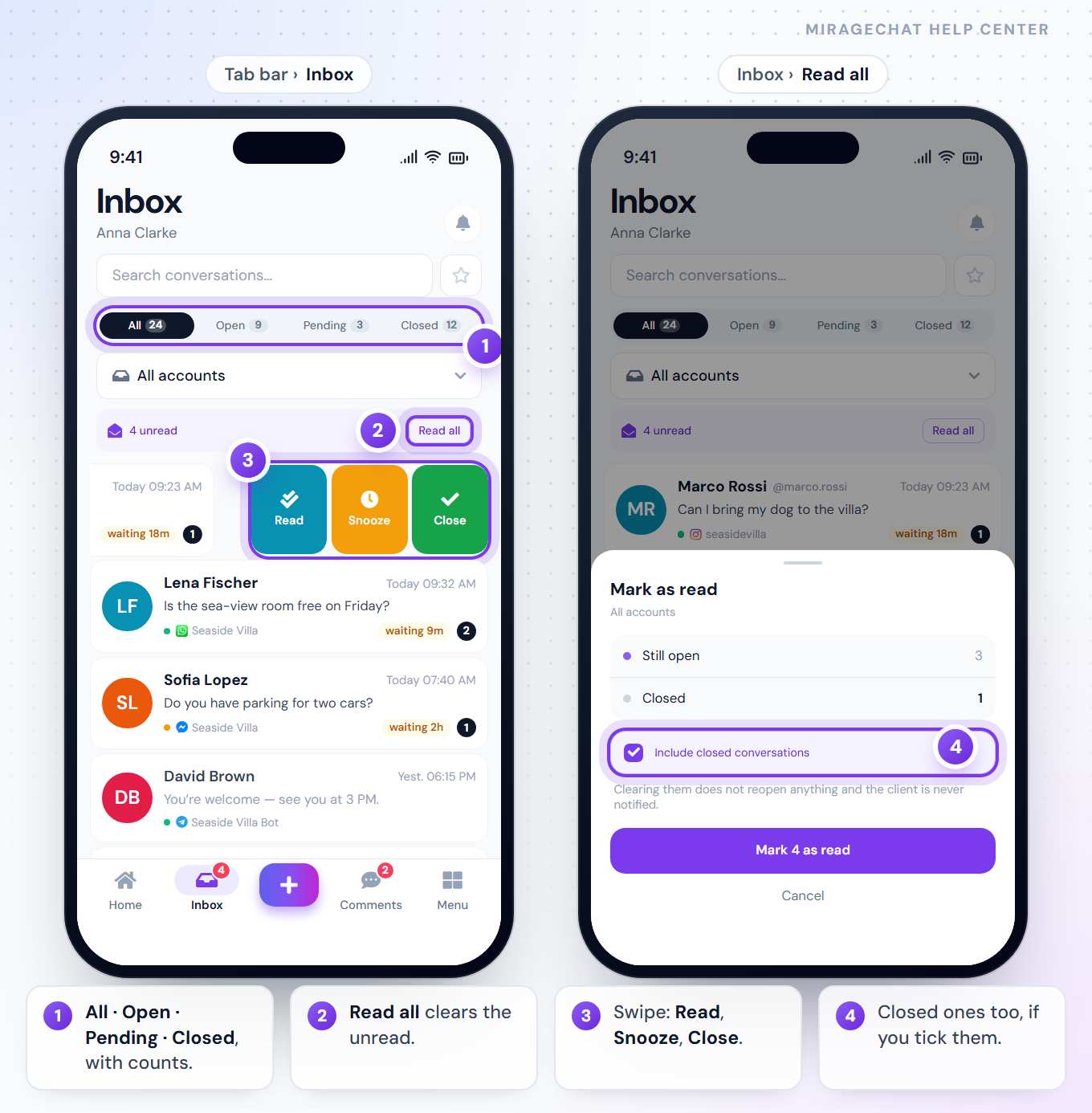
The Inbox tab lists every conversation you can open. Search it, filter it with All · Open · Pending · Closed and by account, and tidy it with a swipe.
Before you start
- The MirageCHAT app, signed in — Get started with the app.
- At least one account you may open. If you see “No accounts assigned yet. Ask your admin for access.”, an owner or admin gives you access in
Team › Agents.
1. Find a conversation
Search
Type in Search conversations…: a name, a number or a word from any message. After you open a result, Search “…” again brings the results back.
Pick a status
All, Open, Pending or Closed — each with its count. When something is locked, a Locked chip lists only those.
Starred only
The star beside the search shows only the conversations you starred; press it again for all.
One account
With more than one account, press All accounts: Filter conversations lists every channel and account, with their unread counts.
If the search finds nothing in the account you picked but finds it elsewhere, the app says so: Nothing in …, and Search all accounts.
2. Unread messages
Only unread
Press the … unread bar to see only unread conversations; press it again for all.
Clear them
Press Read all. The Mark as read sheet shows how many are Still open and how many Closed; tick Include closed conversations if you want those too, and press Mark … as read.
Marking as read reopens nothing, and the client isn’t told.
3. Tidy up with a swipe
Swipe a conversation to the left:
| Button | What it does |
|---|---|
| Read | Marks it read — shown when it has unread messages. |
| Snooze | Hides it until In 1 hour, In 3 hours, Tonight, 8 PM, Tomorrow, 9 AM or Next week. It comes back to Open when the time is up — or sooner, if the client writes. |
| Close | Closes it at once. On a closed conversation the button is Reopen. |
4. Your reminders
The bell at the top right of the Inbox opens My reminders, with how many are waiting. Tap a reminder to open its conversation, or ✓ to mark it done. With none: “Nothing scheduled — set one from any chat menu.” Reminders are set in a conversation with Follow-up.
5. Reading a row
| You see | It means |
|---|---|
| waiting 12m | The client wrote last and has waited that long — shown after 5 minutes, red after 24 hours. |
| A dark number | Unread messages in it. |
| Photo · Video · Voice message · Attachment | What the last message was. |
| 📋 Form answered | The client filled in a WhatsApp form you sent. |
| Locked conversation | Someone locked it — it opens with a Lock PIN. |
Good to know
- Pull down to refresh. The list also updates by itself while it is open.
- Press Inbox again to go back to the top; after a long scroll a round arrow does the same.
- No signal? The list you last loaded stays, and an offline line says so.
- Send availability sits at the top when your workspace has a booking planner connected — more in the conversation guide.
If something looks wrong
“All caught up”
You are looking at unread conversations only, and there are none. Press the unread bar again to see them all.
I can’t find a snoozed conversation
It is out of the list until it wakes. Search for the name — the search finds snoozed conversations too.
“Could not load the inbox”
The connection dropped. Press Try again.
Ready?
Opens MirageCHAT in this tab. Sign in first if you’re not already.
Did this guide help?
Related guides
Still stuck? Write to info@miragechat.io with your workspace name. Never send passwords or codes.