In short
Press + in the middle of the tab bar and choose Instant Post. Six short steps — Step 1 of 6 to Step 6 of 6 — then post now or pick a time.
Before you start
- The MirageCHAT app, signed in, with Instant Post on for your account.
- Instagram, a Facebook Page, TikTok or YouTube connected in
Channels.
1. The six steps
Photos or video
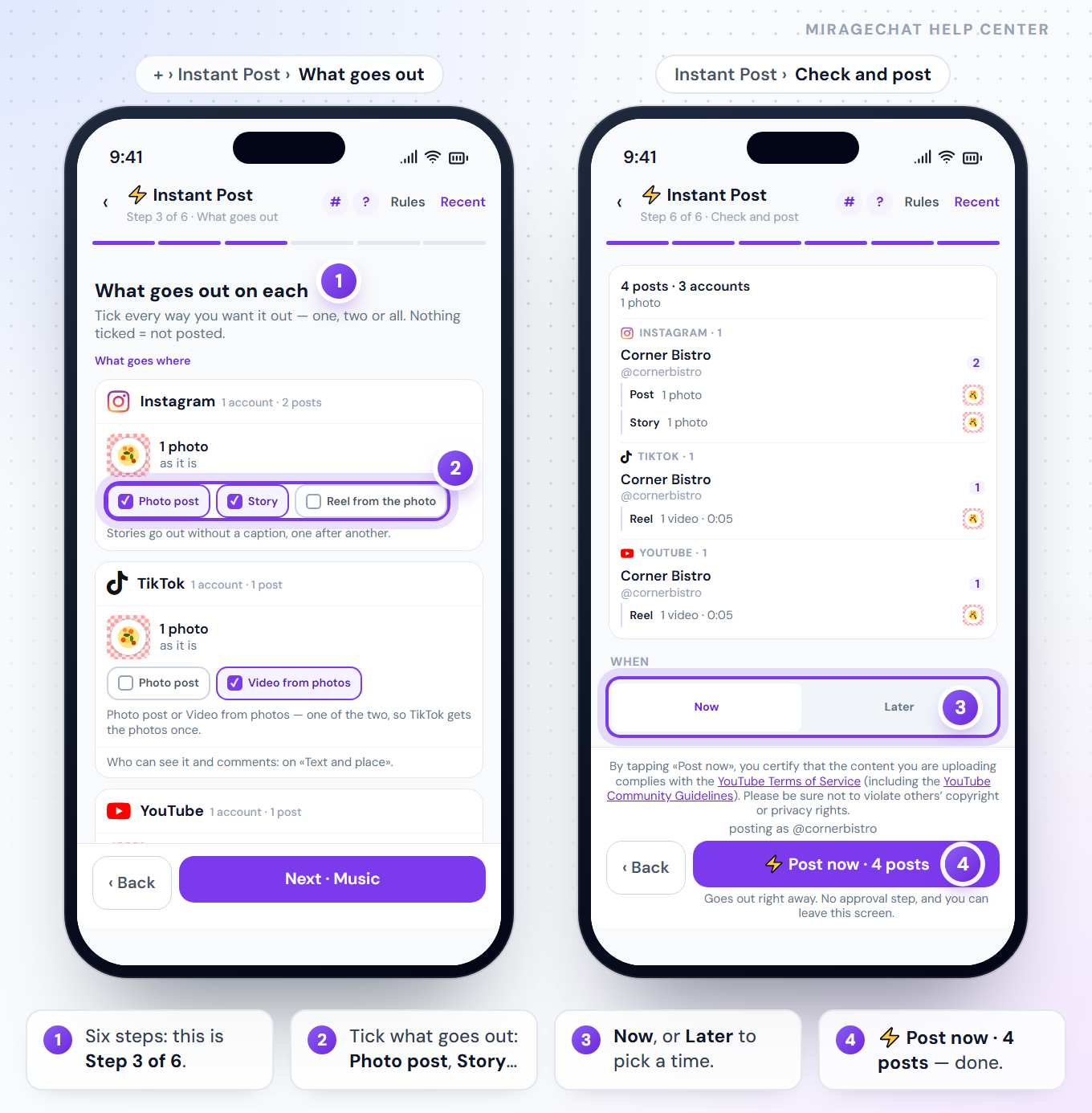
“What do you want to post?” — choose from Library or From your phone. Photos and videos together are fine. Text only · Facebook › posts text to Facebook Pages.
Accounts
“Which accounts?” — tick them one by one, or Select all on a platform.
What goes out
“Tick every way you want it out — one, two or all. Nothing ticked = not posted.” For example Photo post, Story, Reel, TikTok video or Short or video.
Music
Each app has its own music and licence, so each gets its own choice.
Text and place
One caption for every account — then what each platform asks for, and Place and people.
Check and post
“This is what goes out.” Under When, keep Now and press ⚡ Post now · … posts — or choose Later, pick a time, and press Schedule · ….
2. YouTube
- Title — the first line of the caption, up to 100 characters.
- Who can see it — Public is chosen for you; Unlisted and Private are there too.
- Made for kids? — answer Yes or No; YouTube asks it of every video.
- More YouTube options — Notify subscribers and the AI-content line.
- Vertical and up to 3 minutes goes up as a Short; longer or wide, as a video.
- With YouTube ticked, a note above the post button says that posting means you agree to the YouTube Terms of Service.
3. TikTok
- Photos go out as a Photo post or a Video from photos — one of the two.
- Let TikTok add recommended music to the photo post, and a Location from Search a place on TikTok.
- Who can see each TikTok video is chosen for that video. A post can also wait in Waiting for you on Home, where Post to TikTok sends it.
4. After posting
Open Menu › Social Studio: Your posts lists what went out, what is scheduled and what failed — with Change time, Post now, Cancel, Retry and Duplicate. The same Social Studio has Insights and Library.
Good to know
- Leaving halfway? The app asks “Leave without posting?” — Keep editing or Leave.
- On Free, the count of posts this month shows at the top.
- Many videos at once — plan a batch.
If something looks wrong
“Instant Post is off for your account”
An owner or admin turns it on for you.
A scheduled YouTube video is not on YouTube yet
Nothing goes to YouTube before the time you chose. At that time MirageCHAT uploads it, with who can see it as you chose — Public, Unlisted or Private. Until then it waits in Menu › Social Studio, under Your posts, with what is scheduled.
An account is missing
Connect it in Channels on the web, or ask an owner to give you that account for posting.
Ready?
Opens MirageCHAT in this tab. Sign in first if you’re not already.
Did this guide help?
Related guides
Still stuck? Write to info@miragechat.io with your workspace name. Never send passwords or codes.