In short
Four Menu tiles cover the people and the tools: Clients, Team, AI assistant with Libraries, and Channels.
1. Clients
Find someone
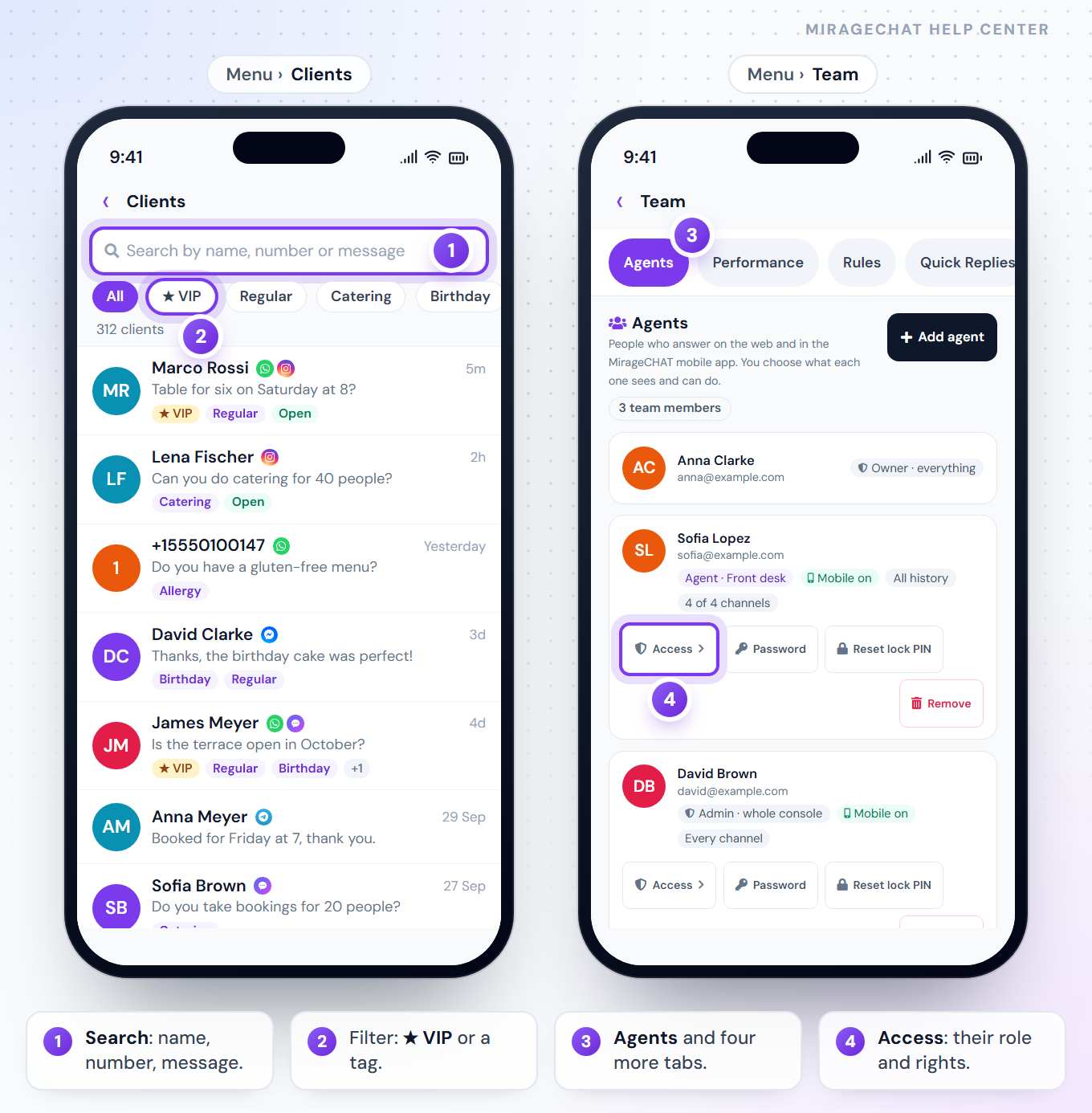
Menu › Clients: search under Search by name, number or message, or filter with ★ VIP and your most used tags.Open them
Tap a person: Message, Mark VIP, Tag, their marketing and lists, their Internal notes and every conversation you can open.
Add someone
The person icon at the top is Add a person: a name, a WhatsApp number, and whether they agreed to get offers. Clients is the one address book Growth sends to.
VIP and tags need edit access to Clients; without it: “VIP and tags are set by an owner or admin.”
2. Team
Menu › Team has up to five tabs, in a row you can swipe:
| Tab | What it holds |
|---|---|
| Agents | Everyone on the team; Access on a person opens their role and access — what each one means. Owners and admins only. |
| Performance | Who answered, how fast — details. |
| Rules | The team’s rules and their breaks — details. |
| Quick Replies | The saved answers, with New reply — details. |
| Announcements | Send a message to the team — details. |
3. The AI assistant and Libraries
Menu › AI assistant: Right now with Pause everywhere, To do, What it knows, Where it replies, Try it and Settings. Only an owner or admin changes them.Menu › Libraries: everything the AI knows — files, pages and highlights — how to teach it.
4. Channels
Menu › Channels lists your accounts and their state, with Check now or Reconnect. Each one’s ⋯ has Welcome & menu, Refresh permissions, Edit channel, Disconnect and Remove. Connecting Instagram, WhatsApp, a Facebook Page or TikTok opens their own sign-in window on the web; Telegram connects in the app with its Bot token.
Good to know
- Only owners and admins change channels; everyone else can look and use Check now.
- The tiles follow your access — a missing one isn’t part of your role.
- The rest of the Menu — Workspace, Billing, Notifications, Security — tile by tile.
If something looks wrong
“Your account can’t open Clients.”
Your access doesn’t include Clients. An owner or admin can change it in Team › Agents.
“Only an owner or admin can change these settings.”
You can read the AI assistant; an owner or admin changes it.
Ready?
Opens MirageCHAT in this tab. Sign in first if you’re not already.
Did this guide help?
Related guides
Still stuck? Write to info@miragechat.io with your workspace name. Never send passwords or codes.