In short
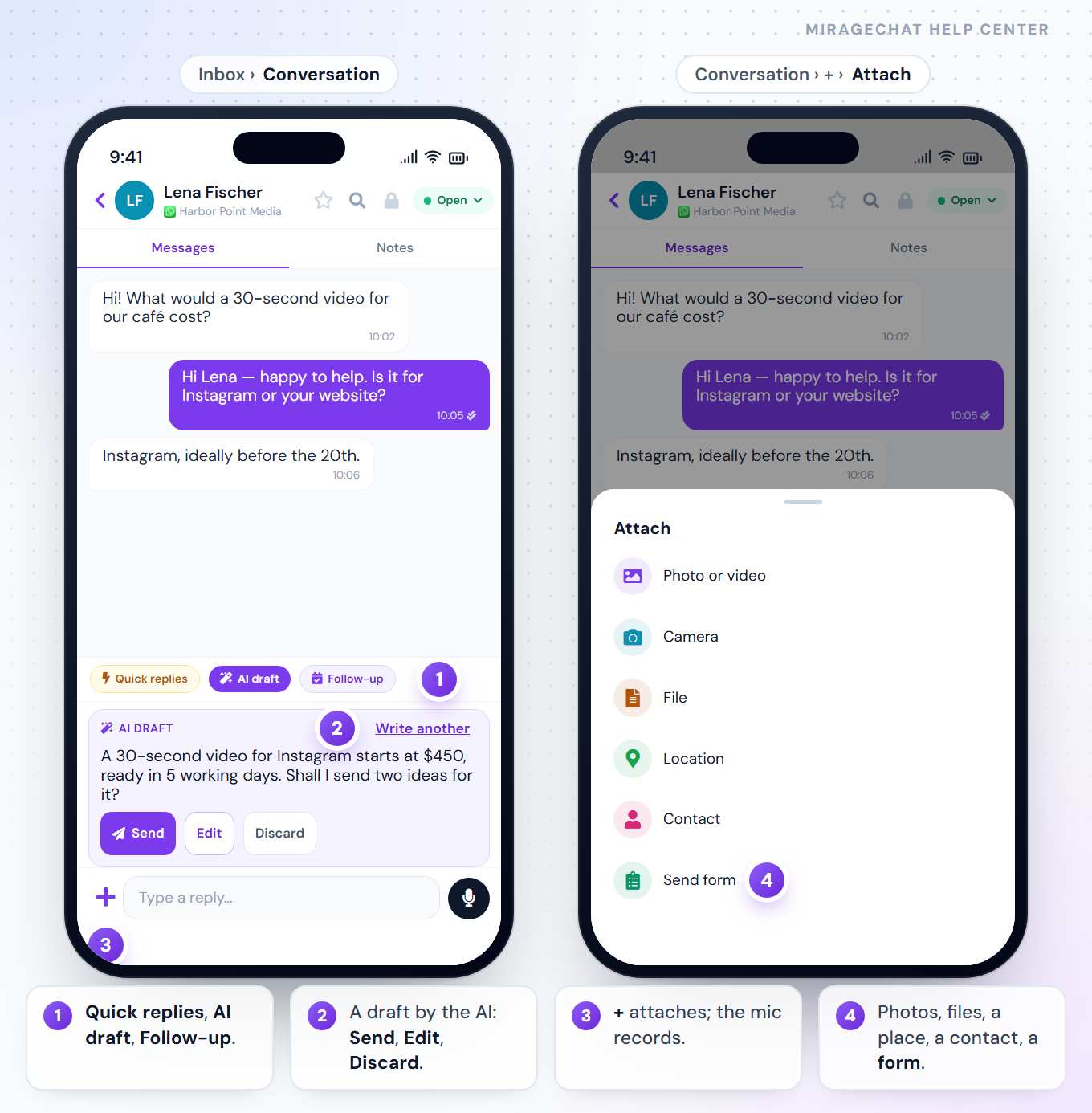
Open a conversation from the Inbox and type under Type a reply…. Above the box sit Quick replies, AI draft and Follow-up; the + attaches photos, files, a location, a contact or a WhatsApp form.
Before you start
- The MirageCHAT app, signed in — Get started with the app.
- For AI draft and Translate: the AI switched on for you. For Send form: owner, admin or manager.
1. Reply
Open the conversation
In Inbox, tap it.
Type and send
Write under Type a reply… and press send.
Or record your voice
With the box empty, the microphone takes the place of send: press it, speak — Recording… — then send it, or Cancel.
2. Attach something
Press + beside the box. Attach offers:
| Choice | What it sends |
|---|---|
| Photo or video | From your phone’s gallery. |
| Camera | A photo you take now. |
| File | A document from your phone. |
| Location | Where you are now — the app asks “Share your current location in this chat?” first. |
| Contact | A contact from your phone. |
| Send form | A WhatsApp form to fill in — WhatsApp only, within 24 hours of the client’s last message. |
The first time, your phone asks for access to the photos, camera, location, contacts or microphone. If you said no: “Permission needed” — allow it in your phone’s settings.
3. Quick replies, AI draft and Translate
- Quick replies — your team’s saved answers. One with blanks opens Fill in before adding: fill each one, then Add to reply or Send. A photo reply sends at once.
- AI draft — the AI writes an answer from what it knows and puts it in the box: read it, change it, send it.
- A draft the AI already wrote for this conversation shows above the box as a card: Send, Edit, Discard or Write another.
- Translate — appears once you have typed: shows your reply in another language, with Use this or Send both.
- Translate under a client’s message shows it in your language; Show original goes back.
4. Work with one message
- Swipe a message to the right to quote it in your reply.
- Press and hold a message for Forward to another chat or Copy text.
- Search in this conversation… — the magnifier at the top; type at least two letters.
5. Status, notes, wins and locks
| At the top | What it does |
|---|---|
| The status button (Open ▾) | Open, Pending, Closed, Snooze…, Follow-up… and Won… — what the conversation brought, with an Amount and Save the win. |
| Notes | Beside Messages: notes for your team only — never the client. Tap one to edit it; hold it to delete it. |
| The star | Stars the conversation, for the Inbox’s starred filter. |
| The lock | Lock this conversation with your 6-digit Lock PIN: Every time, When I leave or After a time, and Hide message text in the list, notifications and search. |
| The name | Opens the client’s card: channel, number (tap to copy), Call and WhatsApp. |
Snooze… opens Remind me later: the conversation comes back at the time you pick. To be reminded, or to send a message later, use Follow-up.
6. After 24 hours
WhatsApp, Instagram and Messenger take a free reply only within 24 hours of the client’s last message. After that, the conversation tells you what still works:
- WhatsApp — Send template opens Send an approved template: choose one, fill its fields, check the Preview and press Send template. Templates are charged by Meta.
- Instagram and Messenger — a signed-in team member can still answer for up to 7 days; the reply carries Meta’s Human Agent tag. After 7 days, only a new message from the client opens it again.
7. No signal
Write anyway. The app shows “Offline — replies will send when the connection returns”, keeps your replies, and sends them by itself as soon as you are back online. A reply that couldn’t go out reads Not sent.
Good to know
- Send availability — when your workspace has a booking planner, the Inbox has Send availability and the conversation has Planner.
- The same conversation on the web — everything you do here shows there at once.
If something looks wrong
There is no AI draft
The AI isn’t switched on for your account, or your package doesn’t include it. Ask an owner or admin.
Send form is grey
WhatsApp sends a form only within 24 hours of the customer’s last message. With no published form: “This number has no forms yet — make one under Automation › WhatsApp forms.”
“This number has no approved template.”
Create one on the web in Channels › Message Templates — how.
The conversation asks for a PIN
It is locked. Enter your Lock PIN. Forgot it? An admin can reset it.
Ready?
Opens MirageCHAT in this tab. Sign in first if you’re not already.
Did this guide help?
Related guides
Still stuck? Write to info@miragechat.io with your workspace name. Never send passwords or codes.