In short
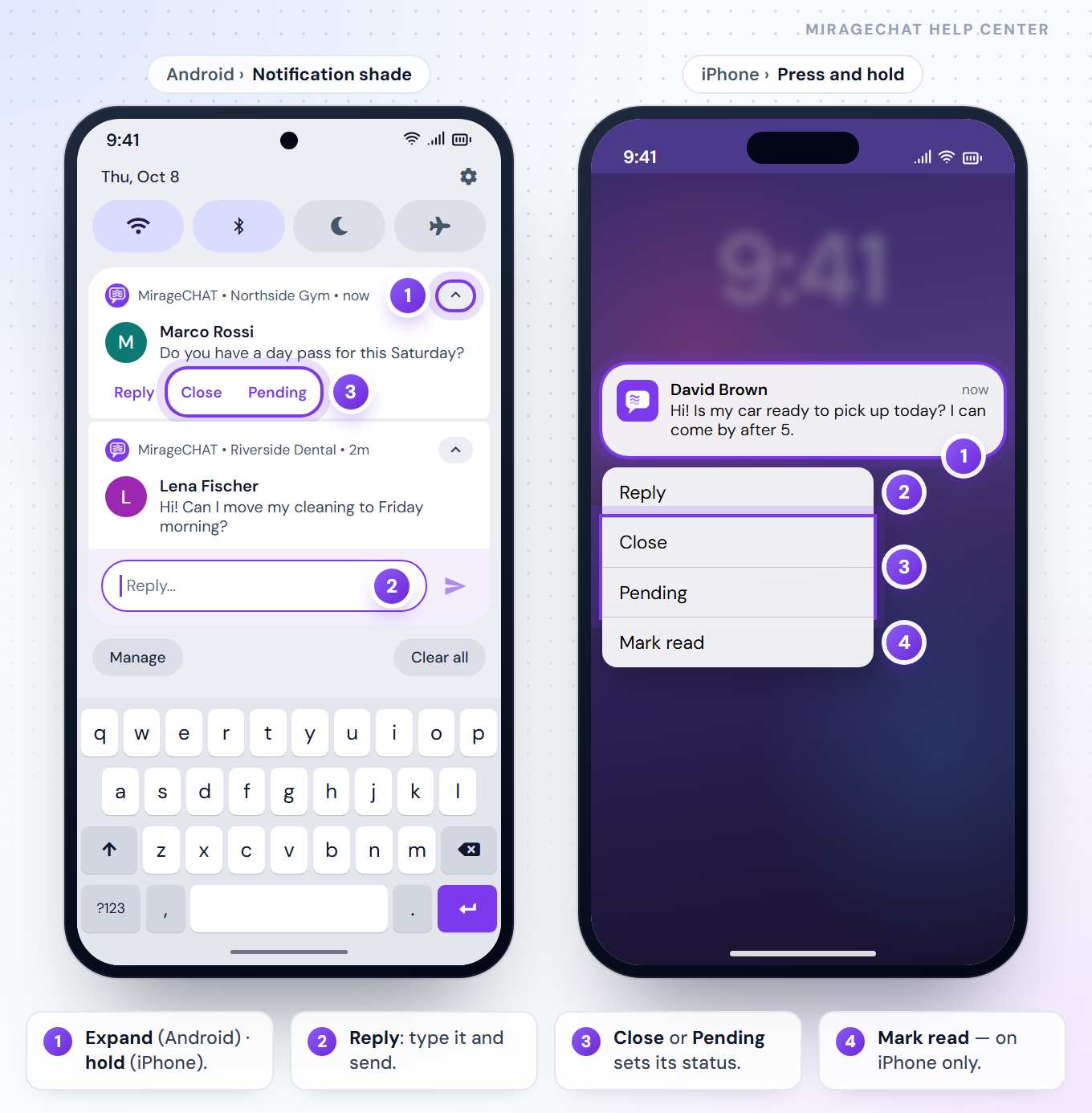
A new message arrives as a notification. Expand it to Reply, Close or set it to Pending without opening the app; tap it to open that conversation.
Before you start
- The MirageCHAT app, signed in — Get started with the app.
- Notifications allowed for MirageCHAT. The app asks right after you sign in; if you said no, allow it in your phone’s settings.
1. Answer from the notification
Show the buttons
On Android, expand the notification. On iPhone, press and hold it.
Reply
Press Reply, type your answer and send it — Android’s field says Reply… with a send arrow, iPhone’s Type a reply… and Send. It goes out as your reply, as if you had answered in the app.
Or set the status
Close closes the conversation; Pending sets it to Pending. iPhone also has Mark read.
On Android the notification stays after you reply, with your answer added as a message from You, so you know it went out — even when the phone is asleep or in battery saver.
2. Open the conversation
Tap the notification itself: the app opens that conversation, over your Inbox. Reading a conversation clears its notifications from the phone.
3. What you are notified about
- New messages in the accounts you can open — no others.
- Your reminders, at the time you set them with Follow-up.
- A scheduled message that failed — whoever wrote it is told.
- What your team set up in
Menu › Notifications: a client waiting too long, and the other rules — how they work.
Good to know
- On Android, one conversation keeps one notification, and Close or Pending removes it. On iPhone they are stacked by conversation.
- A locked conversation shows no Reply, Close or Pending, and its text stays hidden on the lock screen.
- The app icon’s badge is your unread count, the same number as on the Inbox tab.
- On Android the channel in your phone’s settings is called Messages — that is where sound and vibration are set.
- Force-stopped app: a phone delivers nothing to an app you have force-stopped in its settings. Open MirageCHAT once and notifications come back.
If something looks wrong
No notifications at all
Check that notifications are allowed for MirageCHAT in your phone’s settings, and that you can see that account in your Inbox — you are told only about accounts you can open.
I don’t see Reply on my iPhone
Press and hold the notification — iPhone shows the buttons only then.
My reply from the notification didn’t arrive
Open the conversation: if the client’s 24-hour window had closed, the platform refuses a plain message. The app then offers what still works — on WhatsApp, an approved template.
Ready?
Opens MirageCHAT in this tab. Sign in first if you’re not already.
Did this guide help?
Related guides
Still stuck? Write to info@miragechat.io with your workspace name. Never send passwords or codes.