In short
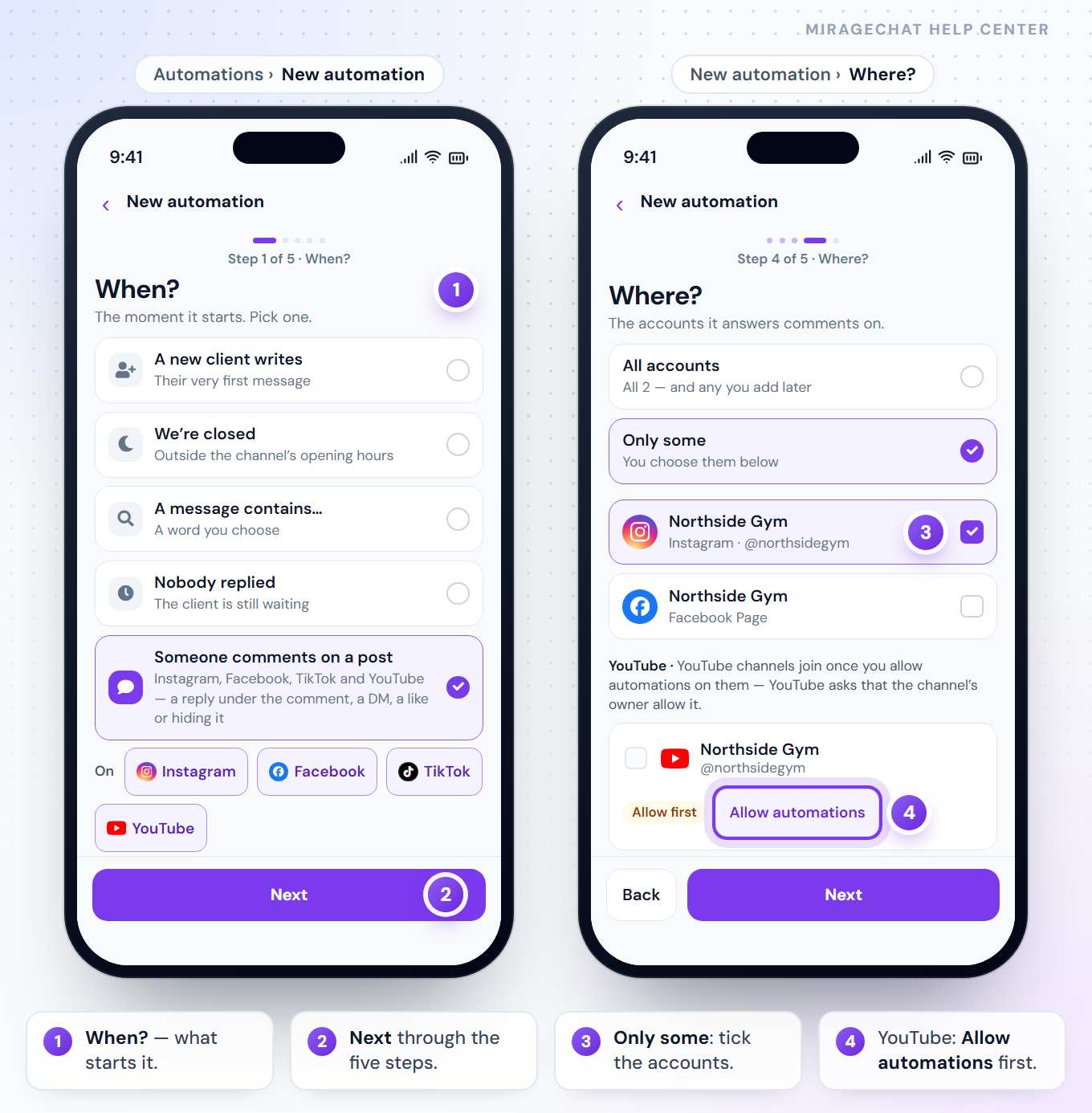
Menu › Automations lists your automations. New automation walks you through five steps: When?, Details, What does it do?, Where? and Review.
Before you start
- The MirageCHAT app, signed in, with access to edit automations. With view access you see them read-only.
1. A new automation
When?
Choose what starts it: A new client writes, We’re closed, A message contains…, Nobody replied or Someone comments on a post.
Details
Fill in what that start needs: Which words?, Opening hours, How long? or Which comments? Words are added one at a time — type one and tap Add, or separate several with commas; any one of them starts it, at the start of a word.
What does it do?
Add the steps: Send a reply, AI answers, Add a tag, Set status, Email me, Mark as VIP, Wait, Only if…, Hand to the team — and for comments Reply under the comment, Send a DM, Like the comment and Hide the comment.
Where?
Pick the accounts it runs on, or all of them.
Review
Check it and press Turn on — or Save changes when you edit one.
2. Comments on YouTube
Allow it first
Each YouTube channel is allowed once: Allow automations, then I allow it on this channel. It then reads Automations allowed, with Withdraw.
Who can allow
Owners, admins and managers. Others see “An owner or admin can allow automations here.”
On YouTube an automation replies under the comment and can hide it for review; YouTube has no private messages and doesn’t let apps like comments, so those steps are skipped there.
3. Change, pause, read the runs
Tap an automation: Edit, its Last runs, and Delete automation. An automation drawn on the canvas opens in the visual editor on the web — Open the visual editor on the web.
4. WhatsApp forms
With a WhatsApp number, owners and admins also see the WhatsApp forms tab beside Automations. New form opens the library and its editor (Build your own opens the web). Tap a form for its log — Sent, Answered, Waiting and No answer, Sent by, the period and the search — and each answer, with Open conversation, Copy answers and Send again. Preview, Use in an automation and Turn off are there too — «Use in an automation» opens the web’s canvas; a draft says Publish it on the web. See WhatsApp forms.
Good to know
- A Wait step turns an automation into several steps — the way to follow up one conversation over days.
- The same automations as on the web — Build an automation · Comment to DM.
If something looks wrong
“View only. An owner or admin turns automations on or off and changes them.”
Your access lets you read automations, not change them.
A YouTube channel says “Allow first”
Press Allow automations on it first (step 2). In an automation that already names it, it reads “Skipped until allowed” until then.
Ready?
Opens MirageCHAT in this tab. Sign in first if you’re not already.
Did this guide help?
Related guides
Still stuck? Write to info@miragechat.io with your workspace name. Never send passwords or codes.