In short
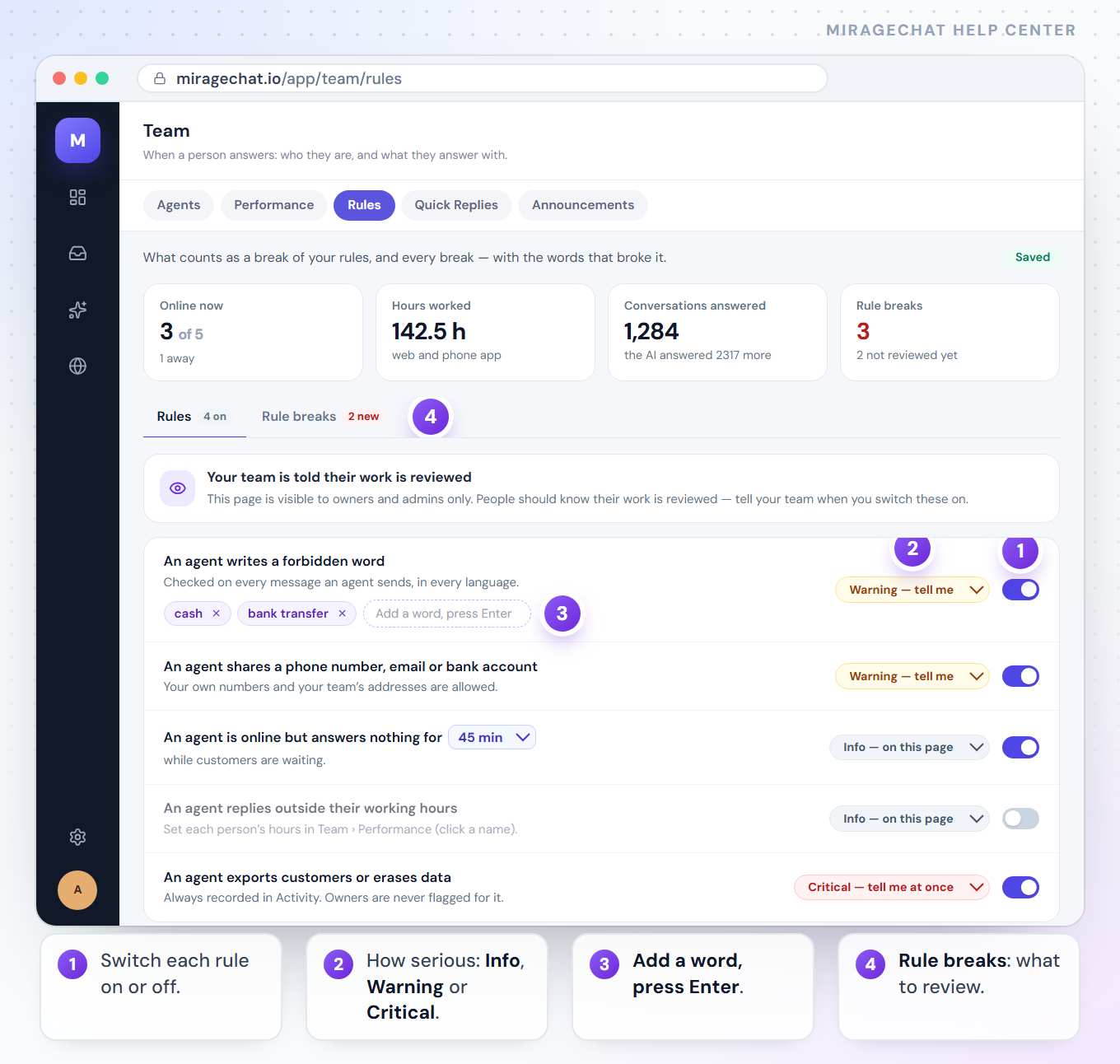
Team › Rules checks your team’s work against rules you choose and lists every break, with the words that broke it. Nothing is blocked: you read it and decide.
Before you start
- You are the owner or an admin.
- A paid package — checking team rules is part of your team’s record.
- Tell your team first. The page says it plainly: people should know their work is reviewed.
The five rules
| Rule | What counts as a break | Starts as |
|---|---|---|
| An agent writes a forbidden word | A word from your list in any message an agent sends, in every language. | On · Warning |
| An agent shares a phone number, email or bank account | Contact details in an agent’s message. Your own numbers and your team’s addresses are allowed. | On · Warning |
| An agent is online but answers nothing for … | Online for the minutes you choose, answering nothing, while customers are waiting. | On · Info · 45 min |
| An agent replies outside their working hours | A reply outside the hours set for that person. | Off · Info |
| An agent exports customers or erases data | An export or an erasure by anyone who isn’t an owner. Always recorded in Activity. | On · Critical |
Set them up
Open Team › Rules
Go to
Team › Rules. The Rules tab says how many are on.Switch each rule on or off
Use the switch at the end of the row. Every change saves at once and says Saved.
Choose how serious it is
Pick Info — on this page, Warning — tell me or Critical — tell me at once.
Add your forbidden words
Type a word into Add a word, press Enter. While the list is empty, suggestions such as cash, my number, private and bank transfer appear — tap one to add it. The × on a word removes it.
Set the minutes and the hours
For the idle rule, pick the minutes in the rule’s own line: 15 minutes to 2 hours. For replies outside working hours, set each person’s hours first:
Team › Performance, click the name, + Set working hours.
Review the breaks
Open Rule breaks
The Rule breaks tab shows how many are new. It opens on Not reviewed; All shows every break.
Read what happened
Each break shows how serious it is, the person, the rule, their message with the matching words marked, the channel, the account and the time.
Open the conversation
Open takes you to it.
Mark it reviewed
Mark reviewed takes it off the Not reviewed list. Press Reviewed ✓ to put it back.
Who is told
| How serious | What happens |
|---|---|
| Info | Stays on this page. |
| Warning | An alert as it happens, to the people chosen in Account › Notifications under Your team › “An agent breaks a team rule”. During quiet hours it waits for the morning email. |
| Critical | The same alert, at once — even during quiet hours. |
The email names the agent, the rule and what they wrote, with buttons to open Team › Rules and the conversation.
Good to know
- Checks run every five minutes, on what already happened. A reply is never slowed down or stopped.
- Old messages are never flagged. A rule counts from the moment checking starts.
- Owners are never flagged for exporting or erasing data.
- Every rule is a plain check — words, contact details, minutes and hours. No AI judges your team’s tone.
- Agents whose Team level is + Audit log see Rule breaks, but can’t change the rules or mark breaks reviewed.
If something looks wrong
The forbidden-word rule is on but never fires
The list is empty. Add at least one word.
Replies outside working hours are never flagged
That rule starts off, and it needs hours for each person. Switch it on, then set hours in Team › Performance.
I don’t get an email about a break
Info stays on the page. For Warning and Critical, open Account › Notifications: “An agent breaks a team rule” must be on, and you must be among the people told.
“Nothing waits for review.”
Every break is reviewed. Press All to see past ones.
The page shows a lock card
Your package doesn’t include it. The card names a package that does, and See packages opens Billing.
On your phone
Menu › Team has a Rules tab. Owners and admins switch rules and mark breaks reviewed there; agents at + Audit log read the breaks.
Ready?
Opens MirageCHAT in this tab. Sign in first if you’re not already.
Did this guide help?
Related guides
Still stuck? Write to info@miragechat.io with your workspace name. Never send passwords or codes.