In short
Every colleague has a role. An Agent also has a level for each module, from Off to full. Start from one of four templates, then change any module. The Inbox is always on; what an agent sees in it follows the channels you share.
Before you start
- You are the owner or an admin of the workspace. Only the owner changes roles.
- The colleague is already added — Add your team shows how.
- A paid package, to have more than one person. Free includes 1 team member.
Owner, Admin or Agent
| Role | What they get |
|---|---|
| Owner | Everything. There is one per workspace; their row says Owner · everything and can’t be changed here. |
| Admin | The whole console, including Billing and Channels. Admins change other people’s access, but not roles. |
| Agent | Only what you allow, module by module. The Inbox is always on. |
Only the owner sees the Role switch inside a person’s access. Press Admin and confirm with Make admin, or press Agent and confirm with Move to agent. A person moved back to Agent starts from Inbox + Overview.
Open a person’s access
Open Team › Agents
Go to
Team › Agents. Each row shows what the person has, for example Agent · Front desk, and how many channels they see.Press Access
Press Access on their row. The panel opens under it. A level saves the moment you click it: the panel says Saving…, then Saved.
Start from a template
Under Start from a template, pick Inbox + Overview, Front desk, Social media or Supervisor. Every module moves to that template’s level.
Change any module
Under Access by module, pick a level on any row. The line under the module’s name says what that level allows. When the result matches no template, the chip says Custom · from Front desk — press Reset to go back to that template.
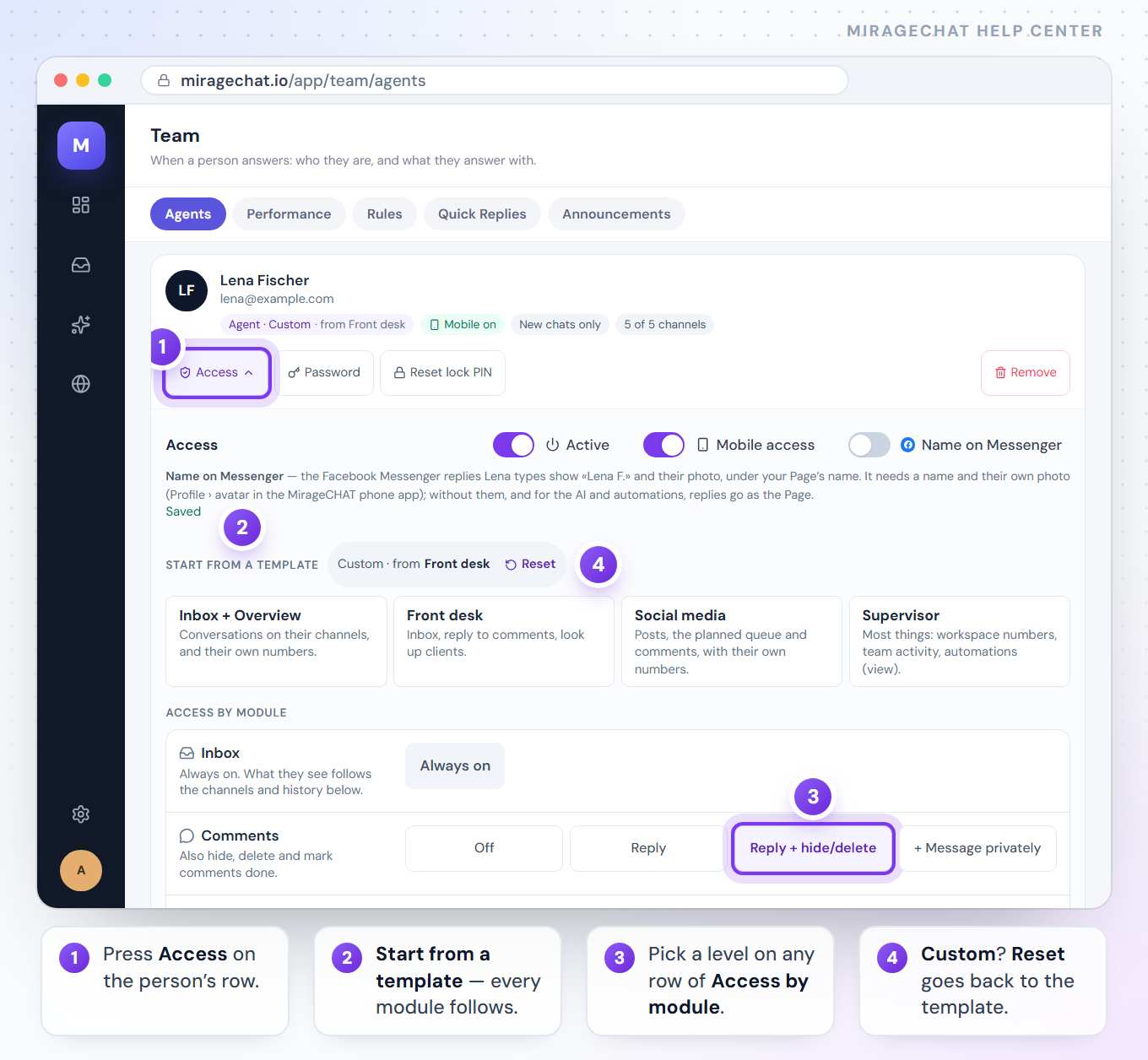
The four templates
| Template | What it opens |
|---|---|
| Inbox + Overview | The default for a new person. Conversations on their channels, their own numbers in Overview and Analytics, and saved replies to use. Everything else is off. |
| Front desk | Inbox + Overview, plus replying to comments and looking up clients. |
| Social media | Inbox + Overview, plus all of Social Studio and comments — including messaging a person privately from a comment. |
| Supervisor | Most things: the whole workspace’s numbers, team activity, automations (view only), campaigns, AI drafts, client tags and VIP, saved replies to create and edit, Social Studio with approving waiting posts, and the workspace’s notification rules. |
What each level allows
| Module | Levels, from least to most |
|---|---|
| Comments | Off · Reply — reply to comments on their channels, and like them · Reply + hide/delete — also hide, delete and mark comments done · + Message privately — also message the person privately from a comment (Instagram, Facebook) |
| Social Studio | Off · Post — create, schedule and publish posts · + Approve waiting posts — also approve or decline posts that wait for an OK · + Full access — everything in Social Studio |
| Automations | Off · View — see automations and whether they are on, no changes · Edit — turn them on or off, create and edit |
| Clients | Off · View — the client list and profiles · Edit tags & VIP — also add tags, mark VIP and write notes |
| Campaigns | Off · Send — send one message to a group of clients, from Growth |
| Analytics | Off · My numbers — Overview and Analytics for their own channels · Whole workspace — every channel and every agent |
| AI assistant | Off · Use drafts — AI drafts in the Inbox. Managing the AI and Libraries stays with admins. |
| Quick replies | Use — use saved replies in the Inbox · Create — also create and edit them |
| Team | Off · Activity — who is online, team activity and performance · + Audit log — also what each person did and the rule breaks |
| Notifications | This phone only — the default; the workspace’s rules stay closed to them · Rules — also edit the workspace’s notification rules |
Never an agent’s, at any level: Billing, connecting channels, managing the AI and Libraries, and roles. The panel lists them under Owner & admins only.
Channels, history and posting accounts
- Channels this person sees — tick the accounts whose conversations they get, on the web and in the app, then press Save access. The answer appears beside the button, for example Saved · Anna sees 4 of 6. A channel nobody has been given says not shared yet.
- Conversation history — All history, or New chats only for conversations that start from now on.
- Posting accounts — appears when Social Studio is on for them: the Instagram, Facebook Page and TikTok accounts they may post to. Press Save posting accounts. A disconnected account can’t be chosen.
The switches and buttons on a person
- Active — off stops their sign-in at once. Their row then shows Disabled.
- Mobile access — whether they can use the MirageCHAT app on iPhone and Android.
- Name on Messenger — off by default. On, the Facebook Messenger replies they type show their name and photo under your Page’s name. It needs their name and their own photo, set in the phone app under Profile; without them, and for the AI and automations, replies go as the Page.
- Password sets a new password for them. Reset lock PIN clears the PIN that opens locked conversations; they create a new one the next time they lock or open one. Remove deletes the person and can’t be undone.
Good to know
- A channel you connect later isn’t shared by itself. A yellow note above the list says, for example, 1 agent cannot see every channel. Press the person’s name in it to open their channels.
- Owners and admins always see every channel; the channel list is for Agents.
- Every change is recorded. Recent changes, at the bottom of the panel, lists this person’s last ones; the full record is in
Security › Activity log. - Moving to Free keeps 1 team member. The others are switched off, and switched back on when the workspace chooses a paid package again.
If something looks wrong
A colleague says a conversation never reached their phone
Look at their row. Sees no conversations at all or a chip such as 2 hidden means some channels aren’t shared with them. Press the chip, tick the channels and press Save access. Check that Mobile access is on too.
I can’t find the Role switch
Only the owner sees it. An admin changes access, not roles.
The levels are greyed out
That person is an Admin: Admins see the whole console, every module at its top level. To limit them, the owner moves them to Agent first.
“Agent created, but their access could not be saved”
The person exists, but the template didn’t save. Press Access on their row and choose the template again.
“An agent with this email already exists”
That email already signs in to this workspace. Find the person in the list and change their access instead.
A colleague sees “Your account can’t open this page — ask an owner or admin.”
Their level for that module is Off. Open their Access and raise it.
On your phone
Owners and admins can do all of this in the MirageCHAT app: Menu › Team, the Agents tab, then tap a person. The same access screen opens — role, templates, every module, channels, history and posting accounts.
Ready?
Opens MirageCHAT in this tab. Sign in first if you’re not already.
Did this guide help?
Related guides
Still stuck? Write to info@miragechat.io with your workspace name. Never send passwords or codes.