In short
Team › Performance answers one question: how much, how fast and how well your team answers. Five tabs — Team, Activity, Replies, Response times and Notifications — and the AI is counted beside the people.
Before you start
- You are the owner or an admin — or an agent whose Team level is Activity or higher (Agent permissions).
- A paid package for the Team, Activity, Replies and Response times tabs. The Notifications tab is in every package, Free included.
- For Response times: reply times measured. The switch is at the bottom of “When a customer waits” in
Account › Notifications(how).
Choose the period, the person and the channel
Pick a period
On the Team and Activity tabs, open the period list: Today, Yesterday, Last 7 days, Last 30 days, This month, Last month, or Custom… for any two dates.
Narrow it down
Pick one person instead of Everyone, or tap a channel’s logo instead of All channels. Every number on the tab follows.
Start again
Clear filters goes back to the last 7 days, everyone and every channel.
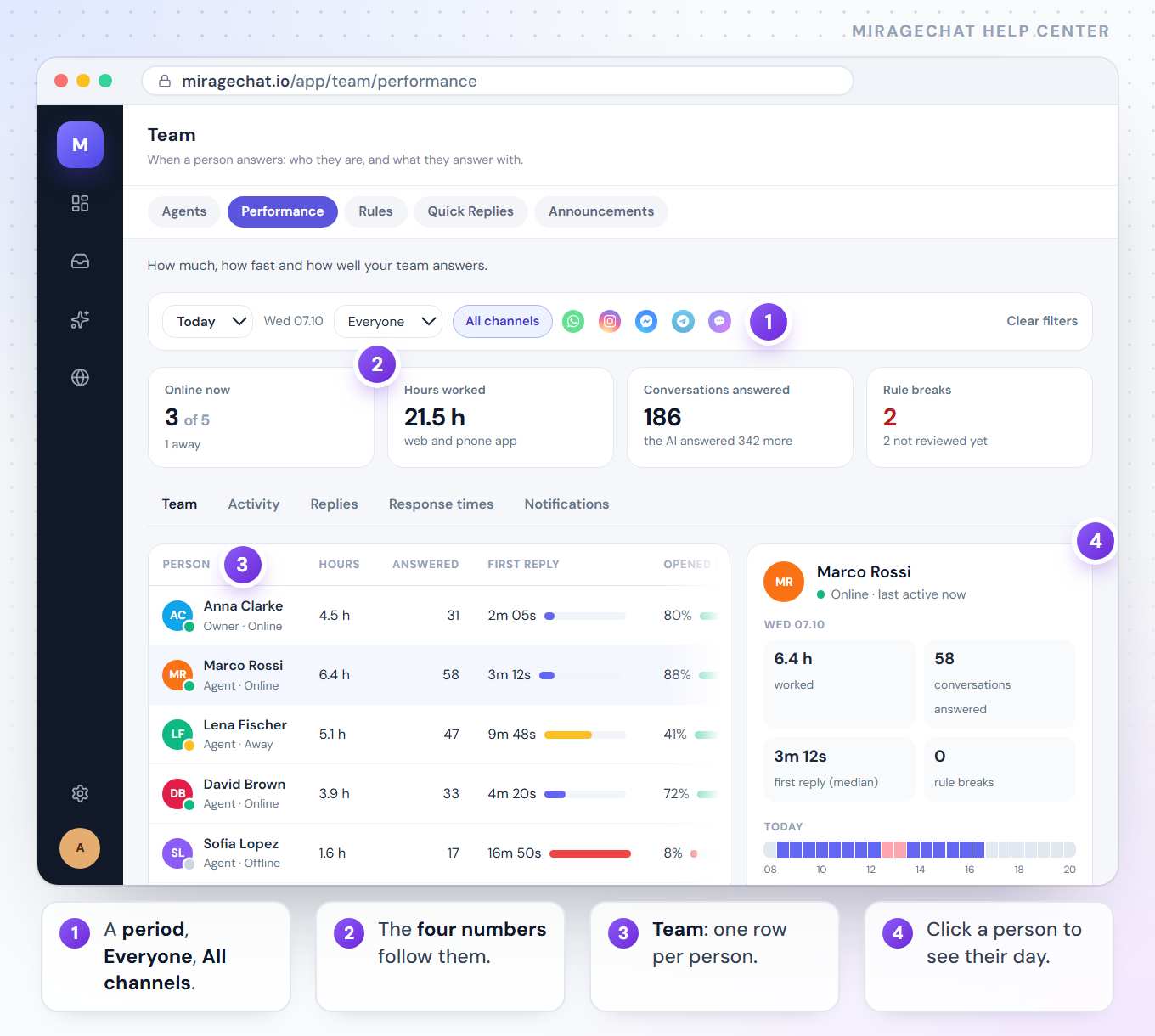
The four numbers at the top
| Number | What it counts |
|---|---|
| Online now | People with MirageCHAT open right now, on the web or in the phone app — and how many are away (open, but untouched for 15 minutes). |
| Hours worked | Time with MirageCHAT open, counted in five-minute slots. When working hours are set, it says of how many scheduled. |
| Conversations answered | Answered by people. The line under it says how many more the AI answered. |
| Rule breaks | Breaks of your team rules, and how many aren’t reviewed yet. |
The Team tab: one row per person
| Column | What it means |
|---|---|
| Hours | Hours worked. With working hours set, a bar against them turns amber below 80%. |
| Answered | Conversations they answered. |
| First reply | How long customers waited for their first reply. The bar turns amber past 9 minutes and red past 15. |
| Opened in 5 min | The share of their phone notifications opened within five minutes. When at least 20 were sent and more than half were never opened, it says so in red. |
| Rule breaks | Their breaks in the period. |
| Last active | When they last used MirageCHAT. |
The last row is the AI assistant: the conversations it answered on its own, in seconds.
Click a person
- Their numbers for the period: hours, conversations answered, first reply (median) and rule breaks.
- Day by day — click a day to see it hour by hour: Working, Online, idle or Not online.
- Working hours — + Set working hours starts at Monday to Friday, 09:00–17:00. Tap the days and change the times; Remove clears them. Only owners and admins set them. The rule “replies outside working hours” uses them.
- Rule breaks and Last actions — what they did most recently, with the channel.
The other four tabs
| Tab | What it shows |
|---|---|
| Activity | What each person did: signed in, came online, conversations, customers & data, settings. Filter by kind. Nobody can edit or delete this — not even you. |
| Replies | Who did what, and how quickly: every reply, assignment and status change, with the person and the device — Browser, iPhone or Android. Per channel, how many were answered by people and how many by the AI. Search text or a customer, or press Export CSV. |
| Response times | Customers waiting past the target right now, the first reply over the last 7 days (median and slowest 10%), answered and still waiting, AI answers liked over 30 days, the latest Missed reply targets, and AI answers customers did not like. |
| Notifications | Every notification sent to a phone on the day you pick: to whom, the device, the answer from Apple or Google, and when it was opened. Pick one agent to see their devices too. |
Good to know
- The target behind Response times is the minutes of “No reply yet” in
Account › Notifications. Change it there. - “200 accepted” means Apple or Google took the notification — not that it appeared on a screen. The Opened column is the proof someone saw it. Rows are kept for 90 days.
- A device marked unused hasn’t opened the app for 48 hours. Its bin button removes it: notifications to it stop, and the person gets them back by opening the app.
- Unattributed replies are ones made before the record started — they were never recorded and can’t be recovered.
- Agents at Team › Activity see Team, Replies, Response times and Notifications. At + Audit log they also see Activity and rule breaks. Working hours stay with owners and admins.
If something looks wrong
A tab shows a lock card
Your package doesn’t include it. The card names the package that does, and See packages opens Billing. The Notifications tab is in every package.
Someone shows Offline but says they were working
A person counts as working while MirageCHAT is open, on the web or in the phone app. With it closed, the time isn’t counted.
Response times shows no numbers
Reply times aren’t measured yet. In Account › Notifications, at the bottom of “When a customer waits”, press Start measuring.
“No notifications for this selection”
Nothing was sent to that person’s phone on that day. Check the date, that they have the app signed in, and that their Mobile access is on.
“Could not load the team.”
Reload the page. If it stays, ask an owner whether your Team level or the package changed.
On your phone
Menu › Team has a Performance tab with the same numbers, filters and a screen for each person. The phone app counts as being online too, so time spent answering on the phone is included.
Ready?
Opens MirageCHAT in this tab. Sign in first if you’re not already.
Did this guide help?
Related guides
Still stuck? Write to info@miragechat.io with your workspace name. Never send passwords or codes.