In short
A quick reply is a saved answer your team sends from the Inbox in one tap — opening hours, prices, directions. It can carry a photo and links, and fills in the customer’s first name by itself. Quick replies never send by themselves: a person always picks them.
Before you start
- To create or change replies: owner or admin, or an agent with Quick replies: Create in
Team › Agents. Everyone else uses the replies in the Inbox. - The answers your team types most often — a short list is enough to start.
1. Create a quick reply
Open Quick Replies
Go to
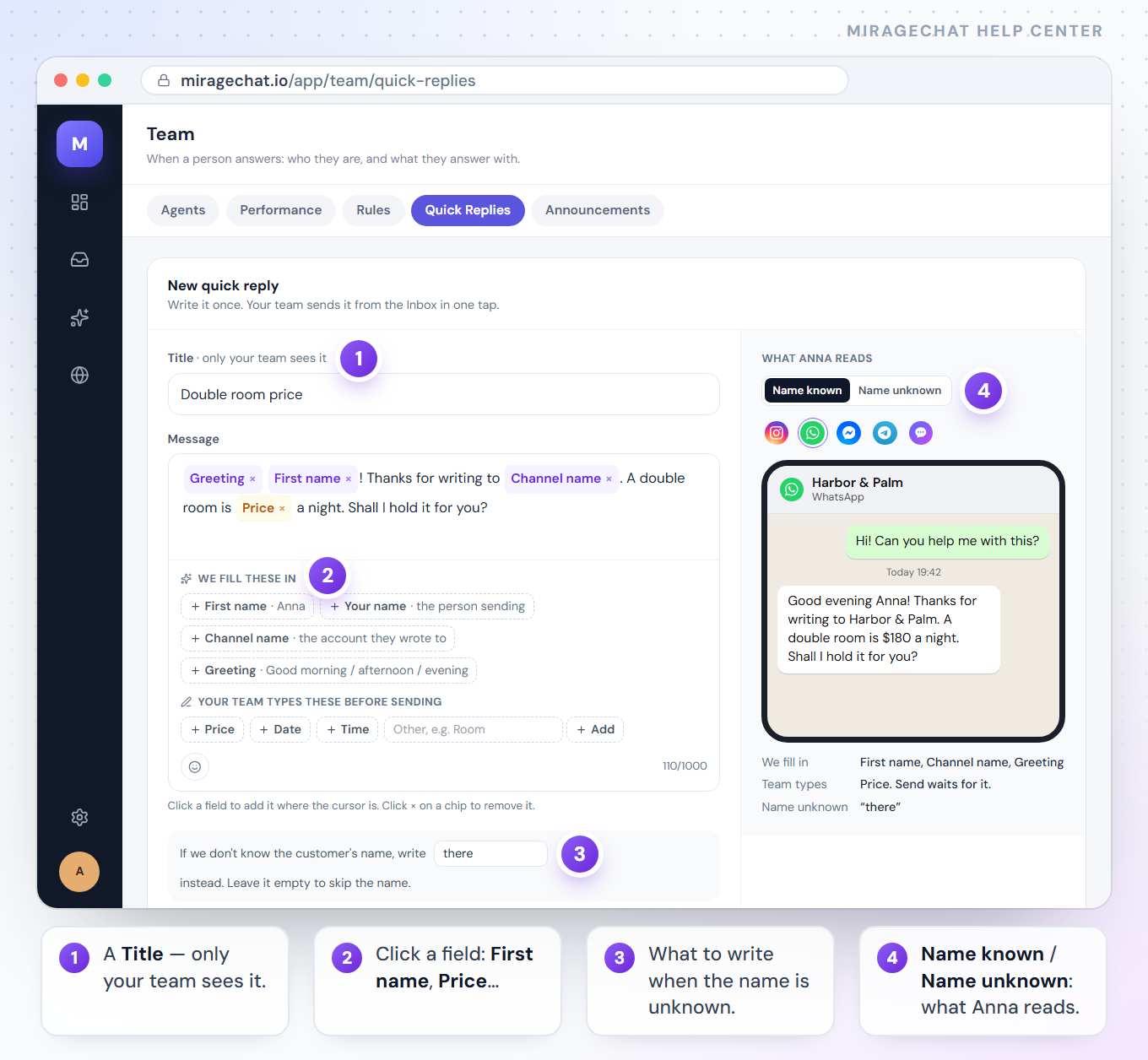
Team › Quick Repliesand press New reply.Give it a title
The Title is what your team finds in the list — for example Welcome or Opening hours. Customers never see it.
Write the message
Type the text under Message, up to 1,000 characters. The smiley adds an emoji where your cursor is.
Add fields
Click a field to put it where your cursor is. We fill these in: First name, Your name, Channel name and Greeting (Good morning, afternoon or evening). Your team types these before sending: Price, Date, Time — or your own, typed in Other, e.g. Room and added with Add. × on a field removes it.
Say what to write when the name is unknown
With First name in the message, a line asks what to write if the customer’s name isn’t known — it starts as there. Leave it empty to skip the name.
Add a photo or links (optional)
Add photo attaches a picture: the reply then goes out in one tap, with the text as its caption. Add link adds up to 5 links — paste the address; the name is optional.
Choose the channel and the category
Channel: All channels, or one channel so that, say, an Instagram link never shows up in WhatsApp chats. Category — Greetings, Hours & location, Prices, Bookings & orders, Policies, Thanks & closing — groups the list.
Check it, then save
On the right, What Anna reads shows the message on a customer’s phone, in each channel’s look; Name known and Name unknown show both cases. Press Add reply.
2. How your team uses it
Open the list in a conversation
In the Inbox, press Quick Reply under the box, or type / in an empty box.
Pick a reply
Without fields to type, it drops into the box where the cursor is, ready to check and send. With a photo, it sends at once.
Fill in what it asks for
If it needs a price or a date, a small form asks first. Add to reply (or Send for a reply with a photo) opens once every field is filled.
Each reply in the list says what happens when it is picked: Opens in reply box, Sends at once or Asks for price (and so on). The full Inbox guide: Answer in the Inbox.
3. Find, preview, edit and delete
- Search and filter — Search replies and the channel buttons (All, Instagram, WhatsApp, Messenger, Telegram, Website) narrow the list; each button shows how many replies it has.
- Preview — click a reply to see it on the right. Customer shows what they receive, Agent what your teammate sees when picking it; the channel icons switch the look.
- Edit — the pencil opens the reply. Change it and press Save changes.
- Delete — the bin, then confirm. Your team no longer sees it.
Quick reply or automation?
| Tool | What it does |
|---|---|
| Quick reply | A person picks it, in one conversation. |
| Automation | Sends by itself when a message matches — Build an automation. |
When a person answers, automations in that conversation wait 30 minutes. The customer never gets two answers.
Good to know
- Replies are shared by the whole team — on the web and in the app.
- A blank left unfilled, like [price], is caught before it reaches the customer: the Inbox asks before sending.
- On Instagram and Messenger, a reply with a photo arrives as two messages: the photo first, then the text.
- Type links the way you always do — yoursite.com/page works; https:// is added for you.
If something looks wrong
I can’t open Team › Quick Replies.
Changing replies needs owner, admin or an agent with Quick replies: Create. You can still use every reply from the Inbox.
A reply doesn’t show in a conversation.
It is set to another channel. Open it and set Channel to All channels or to that channel.
The first name came out wrong.
It is the first word of the name the customer has on the channel. When that is a phone number or an email address, the reply uses your text for an unknown name instead.
It says «Saved, but the photo failed».
The reply is saved without its photo. Open it, press Add photo again and save.
On your phone
In the MirageCHAT app, Menu › Team › Quick Replies lists the replies, with New reply; tap one to edit it. In a conversation, Quick replies above the box opens the list.
Ready?
Opens MirageCHAT in this tab. Sign in first if you’re not already.
Did this guide help?
Related guides
Still stuck? Write to info@miragechat.io with your workspace name. Never send passwords or codes.