In short
Instant Post takes your photos or video once and gives every account the right post — a carousel on Instagram, an album on your Facebook Page, a video on TikTok. Six short steps; send it now or pick a time up to a year ahead.
Before you start
- At least one account connected in
Channels: an Instagram professional account, a Facebook Page or TikTok — Instagram · Facebook Page · TikTok. - Photos (JPEG or PNG) or videos (MP4 or MOV), up to 500 MB each — on your computer or in your Library.
- An agent needs Post access, or more, to Social Studio in
Team › Agents.
Open Instant Post
Go to Social Studio and press New Instant Post at the top, or Create a post. In Growth, the Post button opens the same window. The six steps sit on the left, the step you are on in the middle and the Preview on the right; on a smaller screen the Preview opens from its own button. Back and Next sit at the bottom.
Step 1 · Photos or video
Pick from the Library
Press Library. On the left: Your library — what you uploaded, by album — and Already posted, every photo and video once, with the logos of where it went. Tick what you want; the tray at the bottom shows the order.
Or from your computer
Press From your computer, or drop the files on it. In the picker, Upload · choose an album lets you choose the album first.
Mix freely
Photos and videos together are fine — up to 80 in one Instant Post. Each platform takes what it can on the next steps.
Only words?
Press Text only · Facebook ›. A text post goes to Facebook Pages only; Instagram and TikTok need a photo or a video.
Step 2 · Accounts
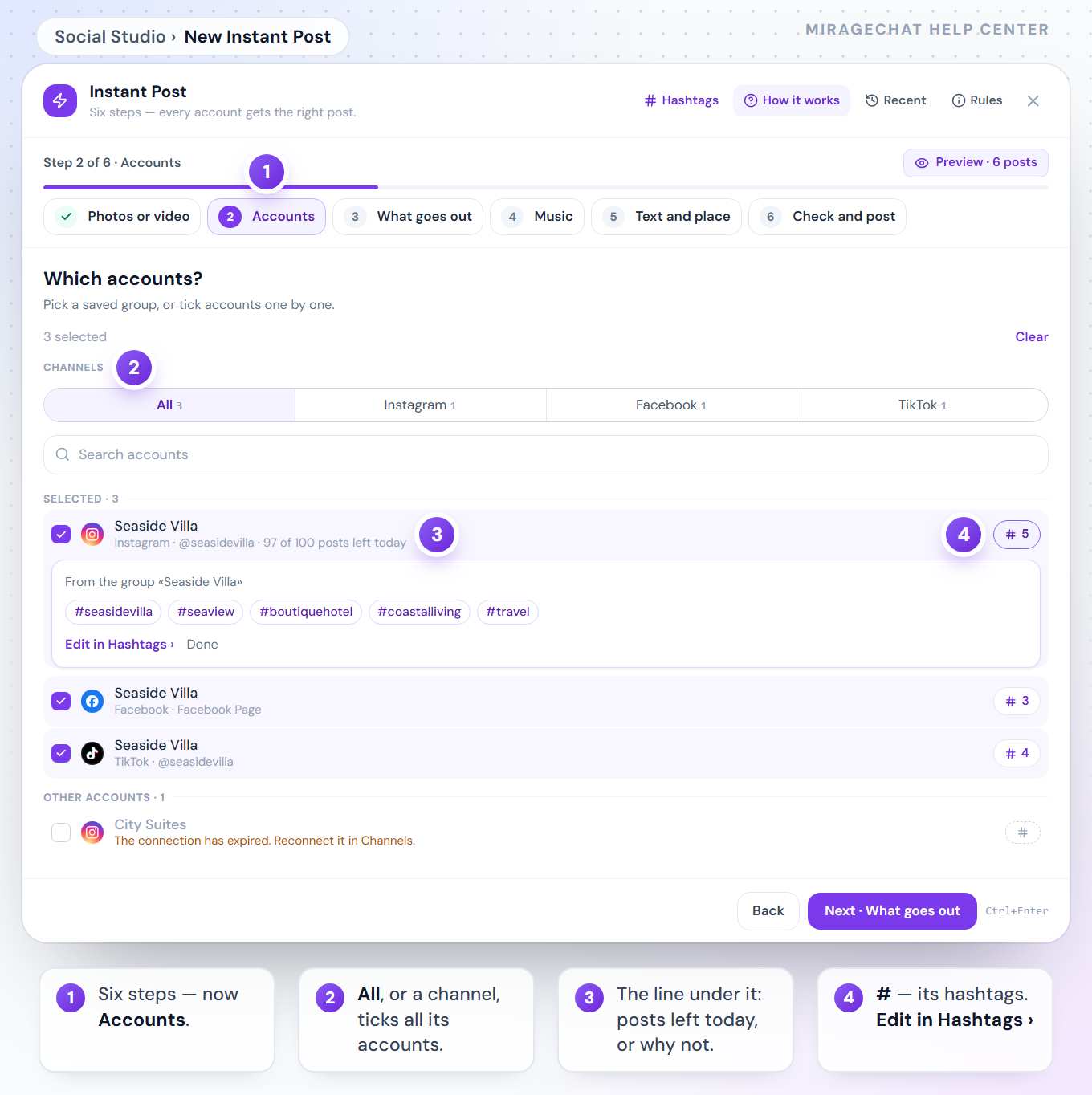
Tick the accounts
Tick each account, or press All or a channel under Channels to pick all of its accounts at once. Search accounts helps when you have many.
Read the line under each name
An Instagram account says how many posts Instagram still allows it today. An account that cannot post is greyed out and says why — for example “The connection has expired. Reconnect it in Channels.”
Check its hashtags
The # beside an account shows the hashtags that go out with it and where they come from. Edit in Hashtags › changes them.
Step 3 · What goes out
Each platform gets a card. Tick every way you want it out — one, two or all. Nothing ticked means it is not posted there.
| Platform | The photos, together | Each video |
|---|---|---|
| Carousel post · Story · Reel from photos | Reel · Story | |
| Facebook Page | Album post · Story · Reel from photos | Reel or Video post · Story |
| TikTok | Photo post, or Video from photos | TikTok video |
- Instagram takes the first 10 photos of a carousel and crops every photo to the shape of the first. A Facebook album takes up to 80, a TikTok photo post up to 35.
- A Reel made from photos uses the first 10.
- On Facebook, a video is a Reel or a Video post — one of the two, so the Page does not get it twice.
Step 4 · Music
- Instagram: Add music picks a song from Instagram’s music for business accounts. It plays on Instagram Reels only; for a photo post or a story, add the song in the Instagram app.
- Your own audio is mixed into the reel itself, so it plays on every channel. It can go into one reel only.
- TikTok: for a photo post, Let TikTok add recommended music or Choose a TikTok sound from TikTok’s Commercial Music Library. A TikTok video can have a sound of its own.
- Facebook takes no music from apps: its Reels carry the video’s own sound, or your own audio.
Step 5 · Text and place
Write the caption once
It goes on every post and reel; stories carry no caption. Emoji, Mention and a counter sit under it — the counter turns red past a platform’s limit.
Give an account its own caption
Turn on Different caption per account and write in the row of each account that needs its own. An empty row uses the main caption.
Hashtags
Each account’s saved hashtags are added at the end. Under Hashtags, pick a Topic and choose Use saved hashtags, Add to saved hashtags or Replace for this post. Custom adds hashtags to this post only.
Instagram: place and people
On a photo or a carousel, Post options adds a location, tags people, invites up to 3 collaborators and gives each photo an alt text.
TikTok: who can see it
Choose Who can see this on TikTok — Everyone, Friends, Followers or Only me. A new post starts at Everyone with comments on; More TikTok options holds comments, Duet, Stitch and Disclose commercial content.
Step 6 · Check and post
Look it over
The summary lists each platform and account with what it gets. In the Preview, press an account to see its final caption.
Now or Later
Leave Now, or press Later and pick a quick time — In 1 hour, Tomorrow morning — or a day in the calendar and an hour. Other time takes any time in 5-minute steps, up to a year ahead.
Post
Press Post now · 4 — the number is how many publications go out — or Schedule · Tue 6 Oct, 19:00. There is no approval step.
Watch it go out
Each account gets its own line and percentage, then Public or Failed. You can close the window; open it again from Recent.
What next
Retry failed publication sends again only to the accounts that failed. Duplicate post starts a new post with the same content; New Instant Post starts an empty one.
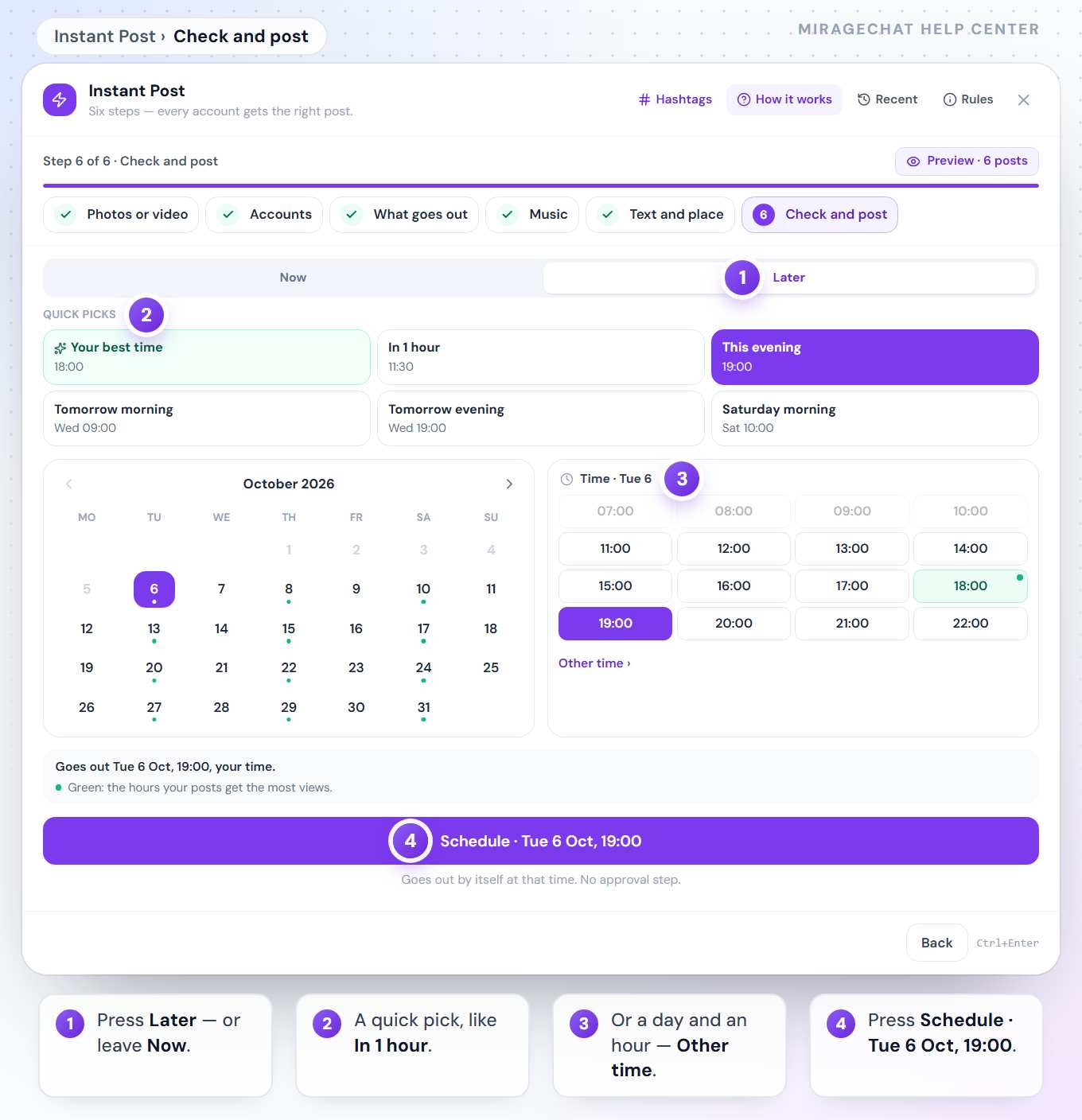
With Insights in your plan, the hours your posts do best are green in the «Later» calendar, and Your best time appears as a quick pick.
Good to know
- Already posted? If a photo or video already went to one of the chosen accounts, a yellow box lists it with its date and a link. Choose Post it again or Remove them — the post button waits until you do.
- Scheduled posts wait in
Social Studio › Your posts › Scheduled, where you can change, send or cancel them — Use Social Studio. - Several videos? They go out together as several posts — or choose Spread over days: Plan a batch of videos.
- On Free you have 30 Instant Posts a month; each counts once, however many accounts it goes to.
- How it works and Rules, at the top of the window, explain the formats and the platforms’ limits.
- YouTube takes a title, who can see it — Public, Unlisted or Private — and «made for kids»; vertical and up to 3 minutes goes up as a Short.
- Google is coming soon: an update, an event or an offer on your Google Business Profile — Post to Google from Instant Post.
If something looks wrong
The Next button is grey
The line beside it says what the step needs — for example “Pick at least one account.” or “Nothing is ticked. Tick at least one way something goes out.”
“Text only goes to Facebook Pages. Pick a Facebook Page, or add a photo.”
A post with no photo or video can go only to a Facebook Page. Pick a Page, or add a photo.
“Your own audio goes into one reel.”
With your own audio only one reel can go out. Choose Instagram’s music instead, or post one reel.
“TikTok says this account cannot post more right now. Try again later.”
TikTok limits how often one account posts. Try again later; your other accounts still go out.
A TikTok video says “In review on TikTok”
TikTok checks a video before it shows on the profile — usually within minutes, sometimes a few hours. You can close the window; MirageCHAT keeps checking.
“Free includes 30 posts a month — Starter has no limit.”
You have used this month’s Free posts. Change your package under Billing to post more.
One account failed
Its line gives the platform’s reason. Fix it if it asks you to, then press Retry — the others are never posted twice.
On your phone
In the MirageCHAT app, press + in the middle of the tab bar and choose Instant Post, or open Menu › Social Studio. The same six steps show one at a time — “Step 2 of 6 · Accounts” — and photos come from Library or From your phone.
Ready?
Opens MirageCHAT in this tab. Sign in first if you’re not already.
Did this guide help?
Related guides
Still stuck? Write to info@miragechat.io with your workspace name. Never send passwords or codes.