In short
Instagram connects in Instagram’s own window: you log in there and allow MirageCHAT. The account must be a professional account — Business or Creator.
Before you start
- An Instagram professional account. A personal account can be switched in the Instagram app, in its account settings, in a minute.
- The Instagram login for that account.
Steps
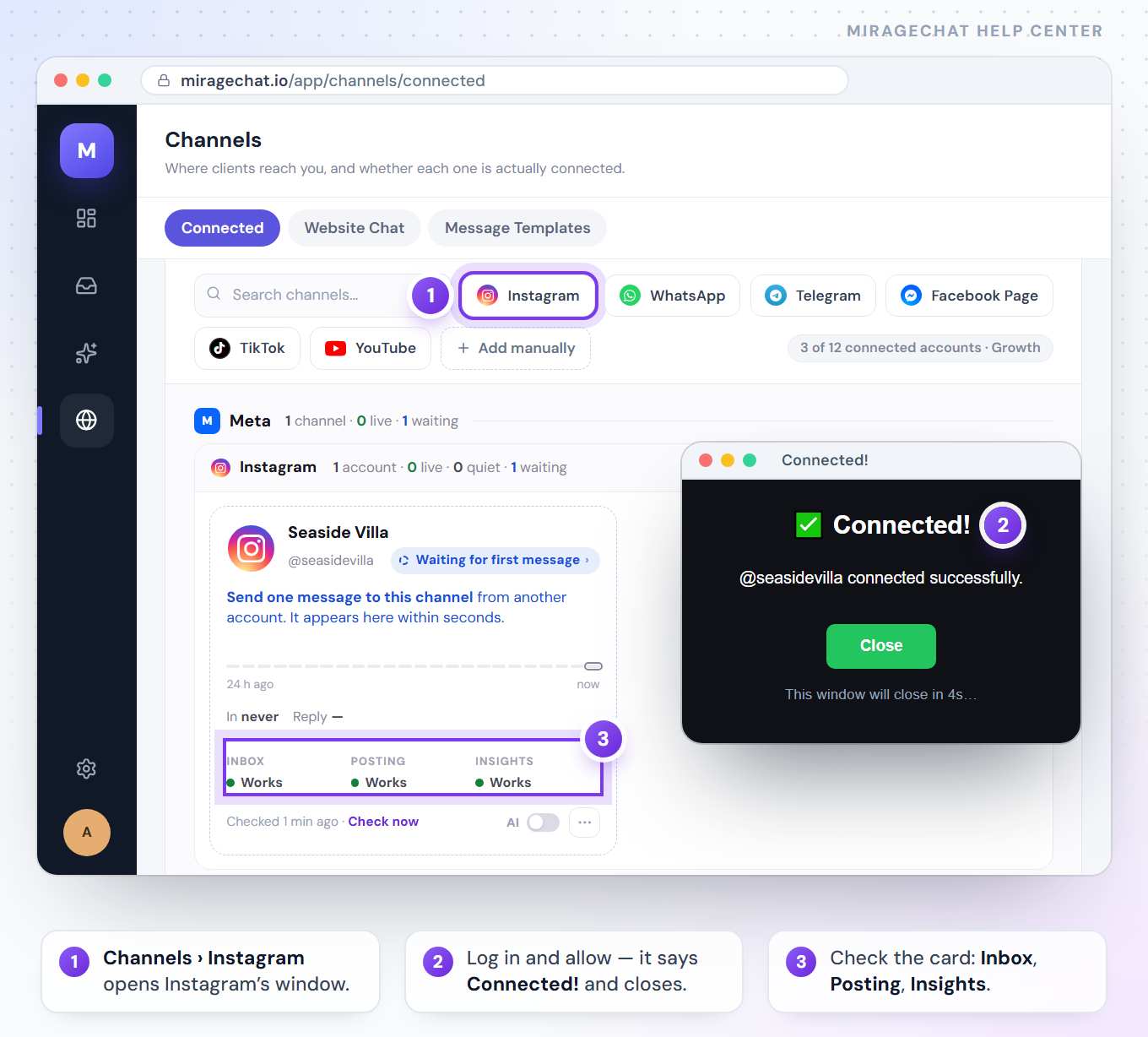
Open Channels and press Instagram
In MirageCHAT, go to
Channelsand press Instagram. Instagram’s window opens.Log in to Instagram
Log in with the account you want to connect. Several accounts? Connect one, then press Instagram again for the next.
Allow MirageCHAT
Instagram lists what MirageCHAT will be able to do. Allow it.
Check the card
Back in MirageCHAT: “Instagram account connected!” The account appears as a card under Channels, and new direct messages land in your Inbox.
Good to know
- The card under Channels shows Inbox, Posting and Insights separately — what this account can do today.
- If a card later asks you to sign in again, press it and log in once more; nothing is lost.
- Closing Instagram’s window before the end connects nothing — just press Instagram again.
Ready?
Opens MirageCHAT in this tab. Sign in first if you’re not already.
Did this guide help?
Related guides
Add the chat to your websiteDesign your website chat in MirageCHAT, publish it, and paste one line of code into your site once — every later change reaches the site by itself.5 minSet up MirageCHAT in 15 minutesYour first hour in MirageCHAT: create the workspace, connect one channel, teach the AI your basics, turn on notifications and invite a colleague.15 min
Still stuck? Write to info@miragechat.io with your workspace name. Never send passwords or codes.