In short
Overview answers three questions on one screen: who is waiting for an answer, how the week is going, and what to do next. Every figure is counted from your real conversations, and it updates by itself as messages arrive.
The first time: three setup steps
In a new workspace, Overview first asks three questions, one at a time: Where do your customers write to you?, What should the AI know? and How should we tell you someone wrote? Each has one button — Connect a channel, Write it, or paste a link and Turn notifications on. Press Continue to move on, or the small link at the bottom right if you have already done it. When all three are done it says Done. You are listening.
Closed the setup with the × before the end? Overview shows Setup stopped at step 2 of 3 (or wherever you were) at the top. Press Continue to pick up where you left off. The full first hour is in Set up MirageCHAT in 15 minutes.
1. Today: who is waiting
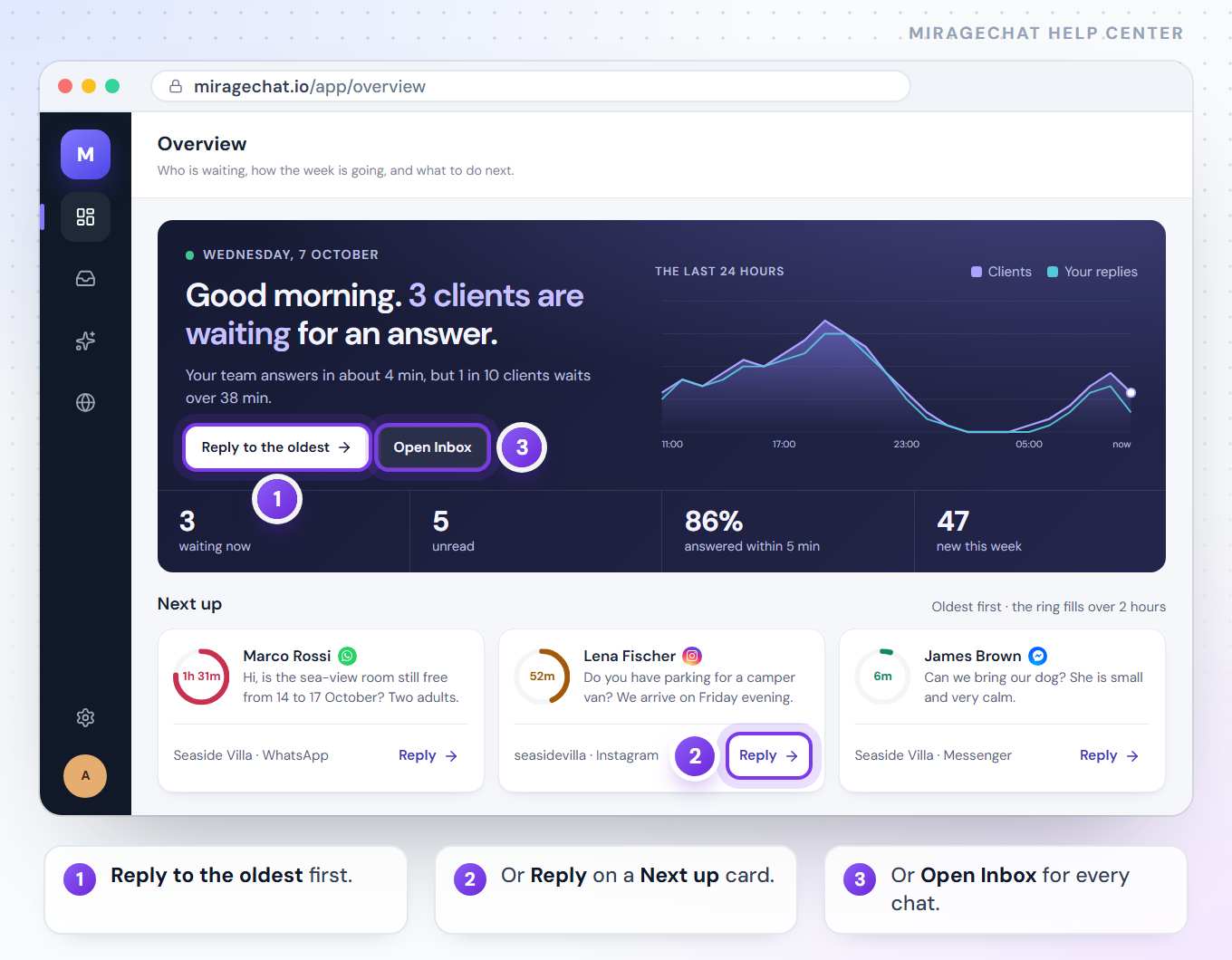
The top of the page says the day and one sentence — for example Good morning. 3 clients are waiting for an answer. or All quiet. Nobody is waiting. — with how fast your team usually answers. Beside it, a chart of the last 24 hours shows messages from customers against your replies, hour by hour. Under it: waiting now, unread, answered within 5 min and new this week.
Answer the one who waited longest
Press Reply to the oldest. That conversation opens in the Inbox.
Or work through Next up
Under Next up, up to five cards show the customers who are waiting, oldest first. The ring on each card fills as the wait grows — green, then amber, then red. Press Reply on a card to open that conversation.
Or open the whole Inbox
Press Open Inbox to see every conversation.
A customer counts as waiting when their message is the last one and the conversation is not closed. The ring fills over 2 hours — or over six times your response target, if you set one in Notifications.
2. The week, your channels and what to do next
- Answered within 5 minutes — the share of first replies sent within 5 minutes this week. The tick on the ring is the 90% goal.
- New conversations — how many started this week, against last week (for example 12% more).
- Answered by the AI — how many first replies the AI sent this week, and what share of all first replies that is.
- Channels — conversations this week on each channel. Its dot lights up the moment a message arrives. Owners and admins also see how many channels are working, for example 5 of 6 working.
- AI speed (owners and admins) — how long a customer typically waits for the AI’s answer over 7 days, per channel.
Do this next lists at most three things that are true right now, each with its own button:
| What it says | The button takes you to |
|---|---|
| Let the AI suggest replies on (your busiest channel) | Turn on — the AI page, where the AI writes replies your team sends |
| Give the open conversations nobody owns to someone | Assign — the Inbox |
| Fix refused WhatsApp templates (owners and admins) | Fix — Message Templates |
| See why posts failed in the last 7 days (owners and admins) | See why — Social Studio |
| Answer the questions the AI couldn’t | Answer — the AI page; answer once and the AI knows it next time |
3. Your busy hours
Read the one line
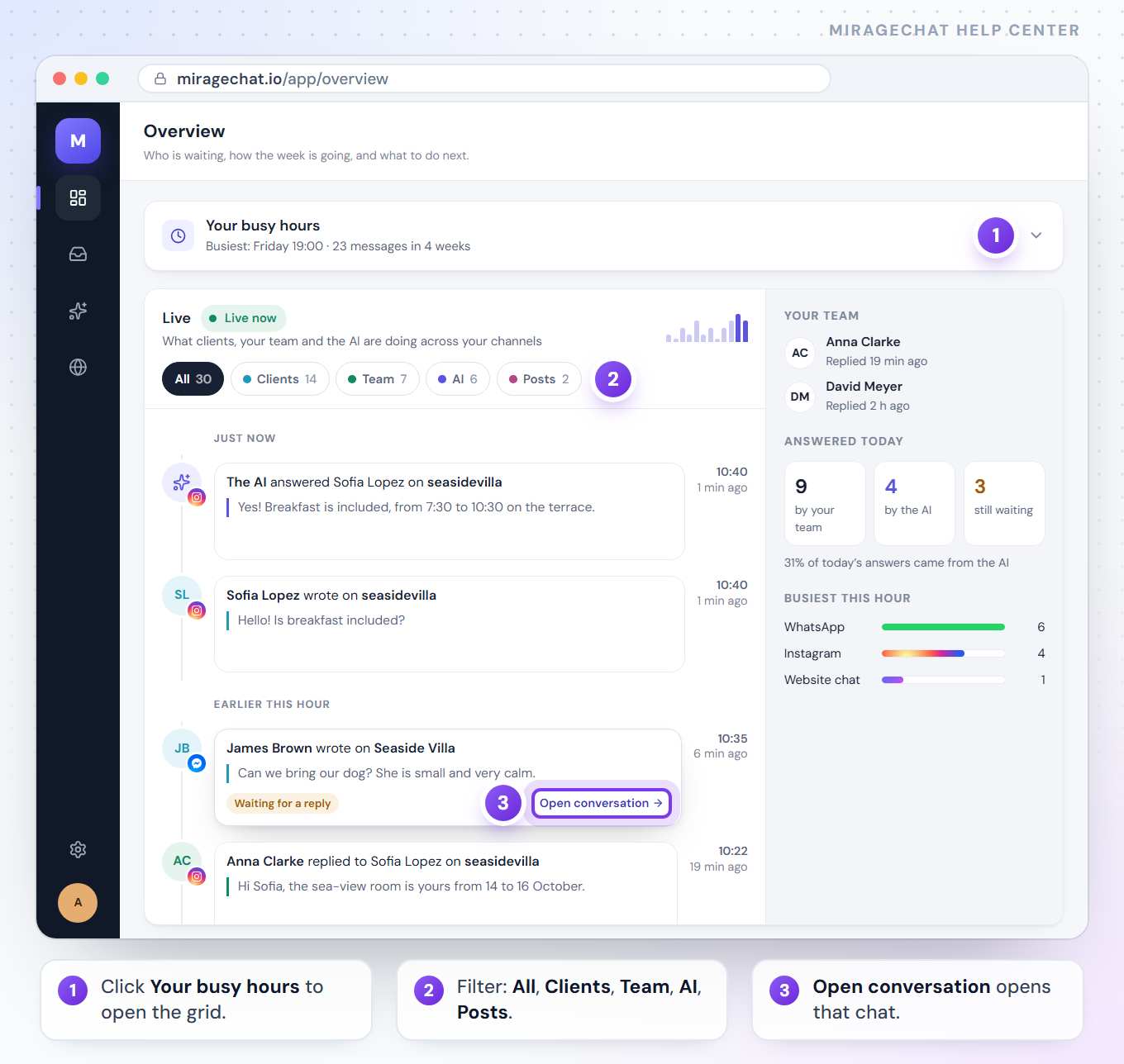
Your busy hours shows the busiest hour of the last 4 weeks, for example Busiest: Friday 19:00 · 23 messages in 4 weeks.
Open the full grid
Click the line to open a grid of every day and hour — the darker the square, the more customer messages. This browser remembers whether you left it open or closed.
4. Live: what is happening now
The Live card is a timeline of what customers, your team and the AI are doing across your channels — each line with the person’s name and their words. Its title says Live now when something happened in the last 5 minutes, otherwise Quiet for ….
Filter it
Press All, Clients, Team, AI or Posts; each shows its count.
Open what a line is about
Open conversation opens the chat, Open post the post, and Fix the place that fixes a problem (a refused template, a channel that stopped working).
Catch up
If new lines arrive while you are scrolled down, a N new button appears — press it to jump back to the newest.
Beside the timeline: Your team (when each person last replied), Answered today (by your team, by the AI, still waiting) and Busiest this hour (messages per channel in the last hour).
Good to know
- It updates by itself as messages arrive — you don’t need to reload.
- An agent sees their own channels. The page then says who is waiting for you, and leaves out the owner’s items (templates, posts, channel health, AI speed). How much an agent sees depends on their Analytics access in
Team › Agents. - Nothing is guessed. A card whose numbers could not be counted is left out rather than showing 0.
- Busy hours and days are counted in your workspace’s time zone.
If something looks wrong
A card I saw yesterday is missing.
Its numbers could not be counted this time, or there is nothing to show yet — for example Answered within 5 minutes needs at least one first reply this week. Reload the page.
The page says «The overview could not be loaded, so no figures are shown».
Press Try again. If it keeps happening, check your connection.
My colleague sees different numbers.
An agent sees only the channels they were given in Team › Agents, so their counts are their own.
Do this next is empty.
Good news: nothing on its list is true right now. It only shows items it can count.
On your phone
In the MirageCHAT app, Overview is the Home tab — the screen the app opens on. Under Today it shows Needs you (for example Chats waiting, Comments to answer, Questions for you), then Last 24 hours, Shortcuts and Live. Tap a tile to open its exact place. What each person sees depends on their access, as on the web.
Ready?
Opens MirageCHAT in this tab. Sign in first if you’re not already.
Did this guide help?
Related guides
Still stuck? Write to info@miragechat.io with your workspace name. Never send passwords or codes.